How to Use Message Popup Rule: Difference between revisions
No edit summary |
mNo edit summary |
||
| Line 39: | Line 39: | ||
</table> | </table> | ||
<br> | <br> | ||
The '''Message Popup Rule''' is added to a Session and configured using the [[image:WikiLink.PNG|link=]] '''[[How to Use Session Editor|Session Editor]]''' in Surveyor. The rule will open a browser window on the screen in Driver Mode that will remain on the screen until it is closed by the user or by another rule.<br> | <table width=1000> | ||
<tr valign="top"> | |||
<td>The '''Message Popup Rule''' is added to a Session and configured using the [[image:WikiLink.PNG|link=]] '''[[How to Use Session Editor|Session Editor]]''' in Surveyor. The rule will open a browser window on the screen in Driver Mode that will remain on the screen until it is closed by the user or by another rule.</td> | |||
</tr> | |||
</table> | |||
<br> | |||
<table bgcolor=#000000 cellpadding=2> | <table bgcolor=#000000 cellpadding=2> | ||
<tr valign="top"> | <tr valign="top"> | ||
| Line 80: | Line 84: | ||
The settings shown in this example will direct '''Trainz''' to load the message from text entered in the Custom Message box. | The settings shown in this example will direct '''Trainz''' to load the message from text entered in the Custom Message box. | ||
<table> | <table width=1000> | ||
<tr valign="top"> | <tr valign="top"> | ||
<td>[[image:MessagePopup3.JPG|link=]]</td> | <td>[[image:MessagePopup3.JPG|link=]]</td> | ||
<td> | <td> | ||
<table bgcolor=#000000 cellpadding=2> | <table bgcolor=#000000 cellpadding=2> | ||
<tr valign="top"> | <tr valign="top"> | ||
| Line 153: | Line 134: | ||
</table> | </table> | ||
</td> | </td> | ||
</tr> | |||
</table> | |||
<br> | |||
<table width=1000 cellpadding=4 bgcolor=#eeeeee> | |||
<tr> | |||
<td colspan="2"> | |||
----</td> | |||
</tr> | |||
<tr valign="top"> | |||
<td>[[image:Gears.PNG|link=]]</td> | |||
<td><span style="font-size: 17px;">'''Settings:'''</span> Shown in the example above:-<br> | |||
[[image:PortalOptionButtonFilled.PNG|link=]] '''Custom text''' | |||
<table> | |||
<tr valign="top"> | |||
<td>[[image:CheckBoxOff.PNG|link=]] '''Pause game while message is displayed''' - game play will not be paused</td> | |||
</tr> | |||
<tr valign="top"> | |||
<td>[[image:CheckBox.PNG|link=]] '''Close previous message popup windows''' - this is usually a good idea unless you want multiple message windows open</td> | |||
</tr> | |||
<tr valign="top"> | |||
<td>'''Message location:''' '''<span style="text-decoration: underline;">Top left</span>''' of the screen has been chosen as the location for the message window. Other positions are '''Top right''', '''Bottom left''' and '''Bottom right'''</td> | |||
</tr> | |||
<tr valign="top"> | |||
<td>'''Custom Message''' - the message entered into the text box will be displayed</td> | |||
</tr> | |||
<tr valign="top"> | |||
<td>'''Icon''' - the selected ''optional'' icon will be displayed</td> | |||
</tr> | |||
<tr valign="top"> | |||
<td>No optional sound has been added</td> | |||
</tr> | |||
</table> | |||
</td> | |||
</tr> | |||
<tr> | |||
<td colspan="2"> | |||
----</td> | |||
</tr> | </tr> | ||
</table> | </table> | ||
Revision as of 22:04, 19 September 2023
The information in this Wiki Page applies to TANE, TRS19, Trainz Plus and TRS22. This page describes how to configure the Message Popup Rule.
 |
For examples of how to use this rule in Sessions see the Trainz Wiki Page at:- |
Workflow Diagram 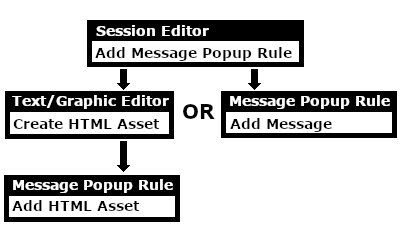 |
 |
 |
 |
Add a Message Popup Rule
 |
The Message Popup Rule is a Trainz Session Rule that creates onscreen messages for users in Driver Mode. |
The Message Popup Rule is added to a Session and configured using the  Session Editor in Surveyor. The rule will open a browser window on the screen in Driver Mode that will remain on the screen until it is closed by the user or by another rule. |
|
||||||||


|
 |
|
|
Using a Custom Message
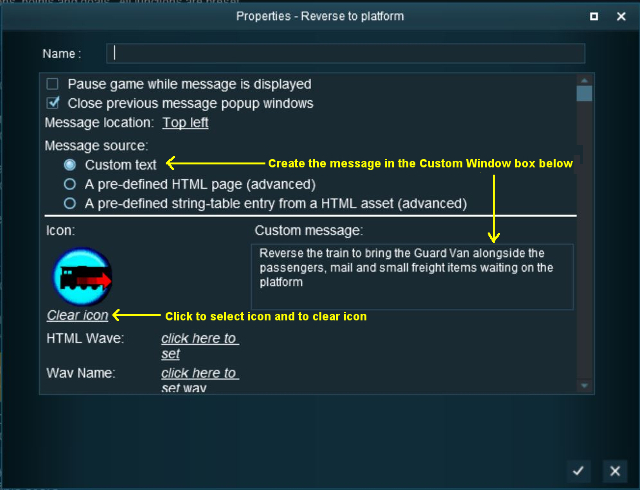
The settings shown in this example will direct Trainz to load the message from text entered in the Custom Message box.
 |
|
|||||||||||||||

|
|
|||||||
 |
Settings: Shown in the example above:-
|
||||||
|
|
|||||||


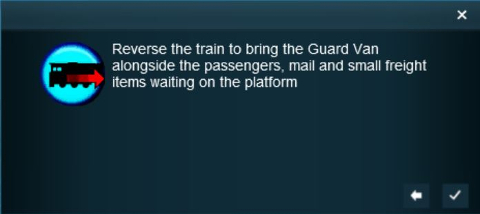 |
The custom message popup created by the example shown above |
|
||||||||||

|
For information on how to create your own Message Popup Icons, see the Trainz Wiki Page at:- |
|
|
|
|
Using a HTML Page
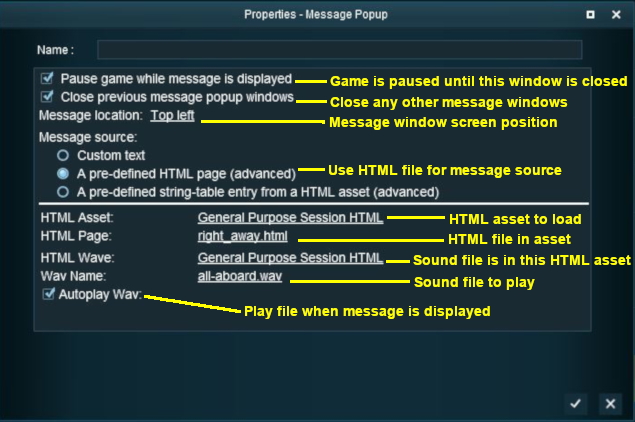
The settings shown in this example will direct Trainz to load the message from a HTML file in a HTML asset.
|
|
|||||||||||
|
|
|
|
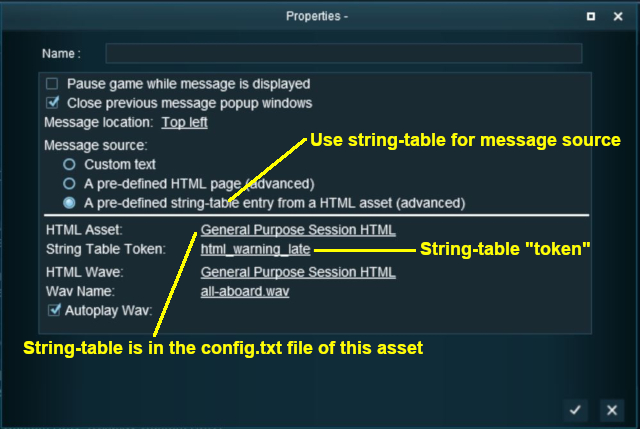
Using a String-Table Message
The settings shown in this example will direct Trainz to load the message from text stored in the config.txt string table of a specified HTML asset.
 |
|
|||||||||
For example, the config.txt file of the asset General Purpose Session HTML contains the following:-
string-table
    {
        html_warning_late       "You are running late!"
    }
...which will produce the message "You are running late!" from the Message Popup Rule settings shown above.
|
For more information, see the Trainz Wiki Page at:- |
|
Alternatives to the Message Popup Rule
 |
There are other HTML message window rules that are alternatives to the Message Popup rule. A few possibilities are:- |
Related Links
|
|
|
Trainz Wiki
 |
More Tutorials and Guides to Using Trainz |
This page was created by Trainz user pware in April 2018 and was last updated as shown below.

