How to Use Navigation Point Rules (Applications): Difference between revisions
No edit summary |
|||
| Line 441: | Line 441: | ||
===Creating the Navigation Point Sets=== | ===Creating the Navigation Point Sets=== | ||
<table> | <table width=1000> | ||
<tr> | <tr valign="top"> | ||
<td>[[file:NavDisplaySets.JPG|link=]]</td> | <td>[[file:NavDisplaySets.JPG|link=]]</td> | ||
<td> | |||
<table bgcolor=#000000 cellpadding=2> | |||
<tr valign="top"> | |||
<td> | |||
<table bgcolor=#ffffb0 cellpadding=2> | |||
<tr valign="top"> | |||
<td width=25>[[image:NotePad.PNG|link=]]</td> | |||
<td><span style="font-size: 17px;">'''Notes:'''</span><br> | |||
---- | |||
</td> | |||
</tr> | |||
<tr valign="top"> | |||
<td>[[image:DotPoint.JPG|10px|link=]]</td> | |||
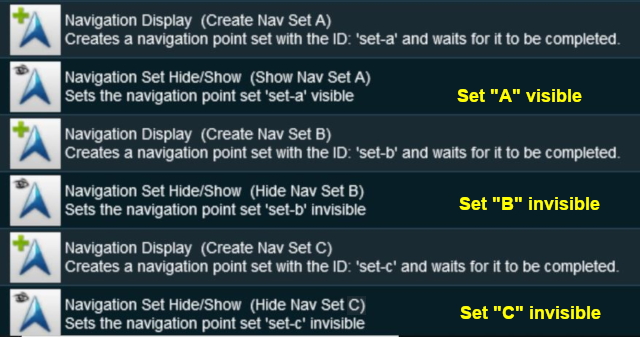
<td>Each set is created separately using separate copies of the '''Navigation Display Rule'''</td> | |||
</tr> | |||
<tr valign="top"> | |||
<td>[[image:DotPoint.JPG|10px|link=]]</td> | |||
<td>Sets '''B''' and '''C''' are hidden from view using the '''Navigation Set Show/Hide Rule'''</td> | |||
</tr> | |||
<tr valign="top"> | |||
<td>[[image:DotPoint.JPG|10px|link=]]</td> | |||
<td>Each navigation point is attached to a track trigger - '''Point 1''' in '''Set A''' is attached to a trigger placed in front of '''Switch 1''' in the map diagram</td> | |||
</tr> | </tr> | ||
</table> | </table> | ||
</td> | |||
</tr> | |||
</table> | |||
</td> | |||
</tr> | |||
</table> | |||
<br> | |||
<table> | <table> | ||
<tr> | <tr> | ||
<td> | <td>Navigation Point Set '''A''' is shown below. Sets '''B''' and '''C''' are similar.</td> | ||
</tr> | </tr> | ||
<tr> | <tr> | ||
<td> | <td>[[file:NavPointSet.JPG|link=]]</td> | ||
</tr> | </tr> | ||
</table> | </table> | ||
Revision as of 22:12, 21 September 2023
The information in this Wiki Page applies to TANE, TRS19, Trainz Plus and TRS22. It gives examples of how to use the various Navigation Point Rules in Sessions.
|

 |
 |
 |
Application 1: Clearing Unused Navigation Sets
 |
The Scenario: |
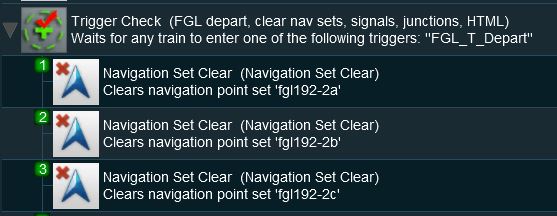
A user decides to ignore navigation points at a location and drives straight through. When the consist passes over a trigger the unused navigation point sets are removed.
 |
Preconditions: |
| Error creating thumbnail: /bin/bash: line 1: /usr/bin/convert: No such file or directory Error code: 127 | Navigation Display Rule creates the navigation point sets |
 |
Rules Used: |
 |
Session Editor Screenshot: |
 |
 |
Description: |
| Error creating thumbnail: /bin/bash: line 1: /usr/bin/convert: No such file or directory Error code: 127 | Line 1: Trigger Check the event is triggered by the consist leaving the location with the navigation points
|
|
 |
|
|
Application 2: Checking for Incomplete Navigation Sets
|
The Scenario: |
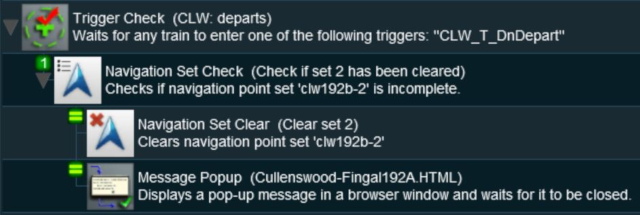
A check is made to see if all the navigation points in a navigation set have been completed. If not then the set will be manually completed and a message displayed.
|
Preconditions: |
| Error creating thumbnail: /bin/bash: line 1: /usr/bin/convert: No such file or directory Error code: 127 | Navigation Display Rule creates the navigation point sets |
|
Rules Used: |
| Error creating thumbnail: /bin/bash: line 1: /usr/bin/convert: No such file or directory Error code: 127 | Trigger Check Rule to trigger the event |
| Error creating thumbnail: /bin/bash: line 1: /usr/bin/convert: No such file or directory Error code: 127 | Navigation Set Check Rule to check if a navigation set has been completed |
| Error creating thumbnail: /bin/bash: line 1: /usr/bin/convert: No such file or directory Error code: 127 | Navigation Set Clear Rule to manually complete navigation sets |
| Error creating thumbnail: /bin/bash: line 1: /usr/bin/convert: No such file or directory Error code: 127 | Message Popup Rule to open a message window on the screen |
|
Session Editor Screenshot: |
 |
|
Description: |
| Error creating thumbnail: /bin/bash: line 1: /usr/bin/convert: No such file or directory Error code: 127 | Line 1: Trigger Check the event is triggered by the consist leaving the location with the navigation points
|
|
|
|
|
Application 3: Wait for Loading to be Completed
|
The Scenario: |
A user controlled train arrives at a Navigation Point positioned at a coal loader. Coal loading proceeds. The Navigation Point remains in place until the last wagon is loaded.
|
Preconditions: |
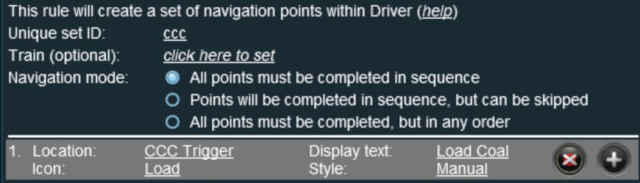
| Error creating thumbnail: /bin/bash: line 1: /usr/bin/convert: No such file or directory Error code: 127 | Navigation Display Rule creates the navigation point set. The Navigation Point is created with its Style set to manual which means it will be completed by another rule and not the arrival of the consist |
 |
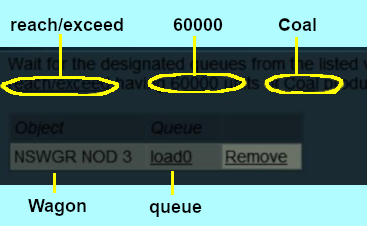
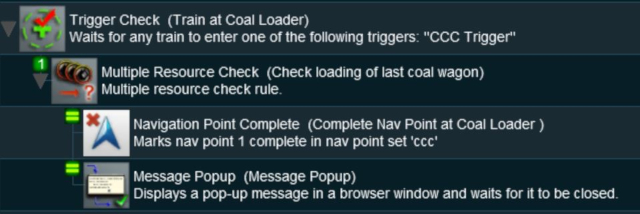
The Multiple Resouce Check Rule is configured to watch the load of coal in the last wagon of the consist exceeding a set value that is close to the maximum for that wagon (apologies for the colour scheme).
 |
|
Rules Used: |
| Error creating thumbnail: /bin/bash: line 1: /usr/bin/convert: No such file or directory Error code: 127 | Trigger Check Rule to trigger the message event |
| Error creating thumbnail: /bin/bash: line 1: /usr/bin/convert: No such file or directory Error code: 127 | Multiple Resource Check Rule to monitor the load level in the last wagon |
| Error creating thumbnail: /bin/bash: line 1: /usr/bin/convert: No such file or directory Error code: 127 | Navigation Point Complete Rule to manually complete a navigation point |
| Error creating thumbnail: /bin/bash: line 1: /usr/bin/convert: No such file or directory Error code: 127 | Message Popup Rule to open a message window on the screen |
The more obvious Wait on Navigation Point Rule is not used because the Navigation Point will be completed manually some time after the consist has arrived at the location. By using the Trigger Check Rule instead (the Navigation Point is attached to a trigger), the navigation icon remains on the screen until the loading has been completed and then it will be manually cleared.
|
Session Editor Screenshot: |
 |
|
Description: |
| Error creating thumbnail: /bin/bash: line 1: /usr/bin/convert: No such file or directory Error code: 127 | Line 1: Trigger Check the event is triggered by the arrival of the consist at the coal loader (the Navigation Point)
|
|
|
|
|
Application 4: User Path Selection
|
The Scenario: |
A user controlled train stops at a navigation point in front of a junction and the driver is offered a choice of paths to allow a passing movement by an AI controlled train. Each path is indicated by different sets of navigation points. The path selected will determine other operations such as junction settings and AI train commands.
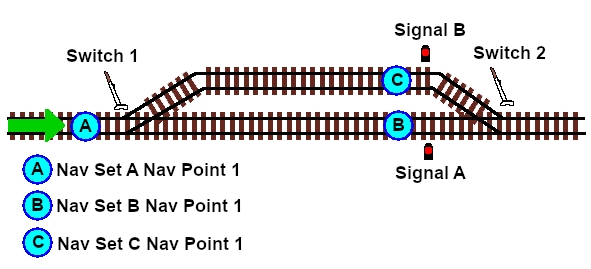 |
Three sets of navigation points are created, one for each location on the map diagram above.
 |
Set A: at the junction, Point A in the map diagram. The two signals are set to STOP, Switch 2 is locked in position and the user is presented with a choice of using the Main Line or the Loop Line |
|
Set B: at the end signal on the Main Line. Switch 2 is set to the Loop Line and the AI train is given its instructions to pass on the Loop |
|
Set C: at the end signal on the Loop Line. Switch 2 is set to the Main Line and the AI train is given its instructions to pass on the Main |
|
Rules Used: |
|
Session Editor Screenshot: |
Creating the Navigation Point Sets
 |
|

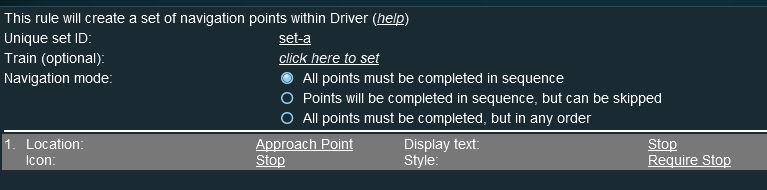
| Navigation Point Set A is shown below. Sets B and C are similar. |
 |
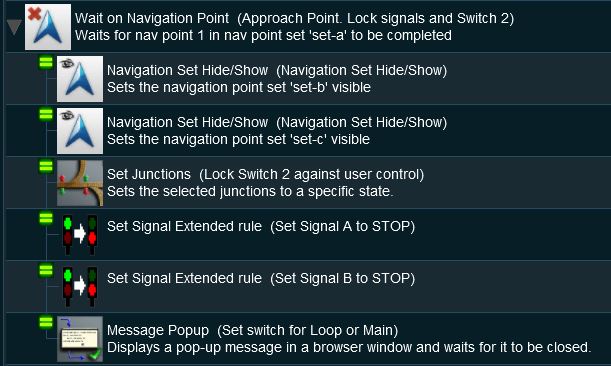
At Navigation Set A Point 1 The Junction
 |
|
Description: |
- Line 1: Wait on Navigation Point The event is triggered when the consist reaches (and stops at) Navigation Point 1 in Set A.
- Line 2: Navigation Set Hide/Show The Navigation Set B is made visible.
- Line 3: Navigation Set Hide/Show The Navigation Set C is made visible.
- Line 4: Set Junctions The junction Switch 2 is locked against user and AI control.
- Line 5: Set Signals Extended Signal A is set to STOP
- Line 6: Set Signals Extended Signal B is set to STOP
- Line 7: Message Popup A message browser window is shown giving instruction to the user to set Switch 1 to the Loop Line or the Main Line and then move the consist forward to the next signal.
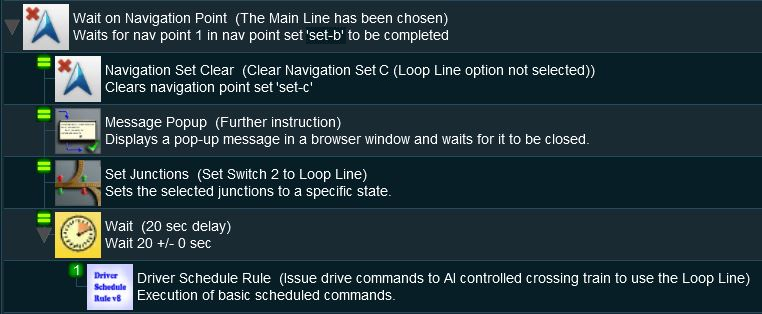
At Navigation Set B Point 1 The Stop signal on the Main Line
 |
|
Description: |
- Line 1: Wait on Navigation Point The event is triggered when the consist reaches (and stops at) Navigation Point 1 in Set B.
- Line 2: Navigation Set Clear The Navigation Set C is deleted and its visible Navigation Point disappears from the screen as the Loop Line path was not selected.
- Line 3: Message Popup A message browser window is shown giving instruction to the user to wait until the passing train has cleared Switch 1
- Line 4: Set Junctions The junction Switch 2 is set to the Loop Line but is still locked against user and AI control.
- Line 5: Wait A wait of 20 seconds then ...
- Line 6: Driver Schedule The AI train is given commands to move to the next destination via the Loop Line.
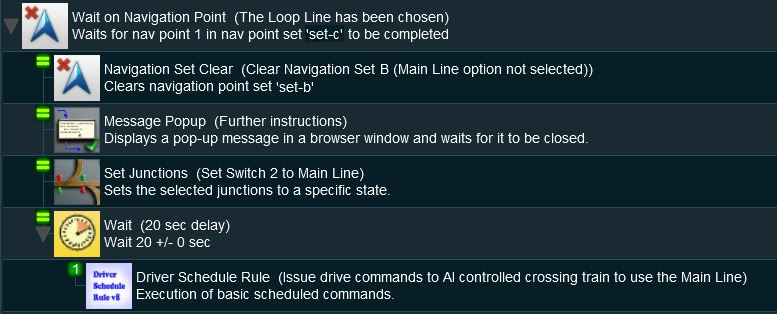
At Navigation Set C Point 1 The Stop Signal on the Loop Line
 |
|
Description: |
- Line 1: Wait on Navigation Point The event is triggered when the consist reaches (and stops at) Navigation Point 1 in Set C.
- Line 2: Navigation Set Clear The Navigation Set C is deleted and its visible Navigation Point disappears from the screen as the Main Line path was not selected.
- Line 3: Message Popup A message browser window is shown giving instruction to the user to wait until the passing train has cleared Switch 1
- Line 4: Set Junctions The junction Switch 2 is set to the Main Line but is still locked against user and AI control.
- Line 5: Wait A wait of 20 seconds then ...
- Line 6: Driver Schedule The AI train is given commands to move to the next destination via the Main Line.
|
|
Trainz Wiki
 |
More Tutorials and Guides to Using Trainz |
This page was created by Trainz user pware in May 2018 and was last updated as shown below.

