|
|
| Line 167: |
Line 167: |
| <table width=996 bgcolor=#ffffff cellpadding=2> | | <table width=996 bgcolor=#ffffff cellpadding=2> |
| <tr valign="top"> | | <tr valign="top"> |
| | <td width=35>[[image:Information.png|35px|link=]]</td> |
| <td><span style="font-size: 15px;">'''Surveyor 2.0''' is currently only available for '''Trainz Plus''' and '''TRS22 Platinum Edition'''</span></td> | | <td><span style="font-size: 15px;">'''Surveyor 2.0''' is currently only available for '''Trainz Plus''' and '''TRS22 Platinum Edition'''</span></td> |
| </tr> | | </tr> |
Revision as of 23:00, 15 April 2025
The information in this Wiki Page applies to TANE, TRS19, Trainz Plus and TRS22.
|
|
 |
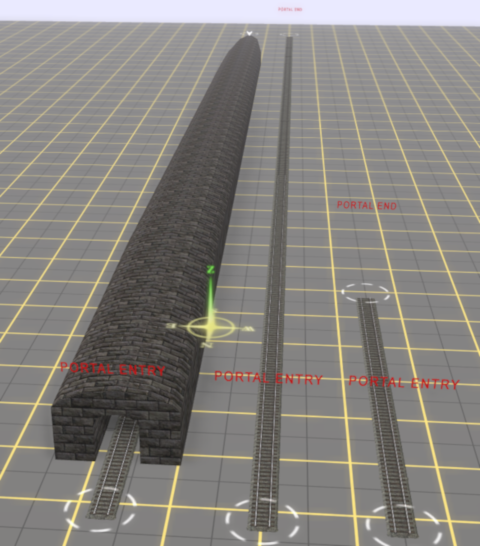
Portals are track objects that can add and remove trains during the running of a Session |
|
Portals can be used to move trains from one part of a Route to another |
|
What is a Portal?
Adding a Portal
In Surveyor Classic (S10)
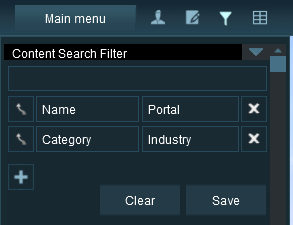 |
The quickest way to find all the train producing and consuming portals in the Surveyor Object Tool window is to set up a search filter. This will sort the portals you want from all the objects named "portal" such as tunnel portals.
Steps: To find a Portal in Content Manager:-
Set an advanced search filter by:- |
 |
Pressing Ctrl + Shift + F |
 |
Left Click + and add the filter Name and enter Portal (upper/lower case is not important) in its text entry box |
 |
Left Click + and add the filter Category and its sub-category Industry
- The Objects selection window will now show only those objects that match your search criteria.
|
 |
Open the Object Tools "fly-out" (or press the F3 key) |
| The objects list will show all scenery assets that meet your entered search |
|
|
 |
The portals will NOT work correctly if the Trainz Settings - Dev Tab - Compatibility mode: from the Trainz Launcher is set to Maximize performance. This setting should be left at Maximize compatibility
|
|
In Surveyor 2.0 (S20)
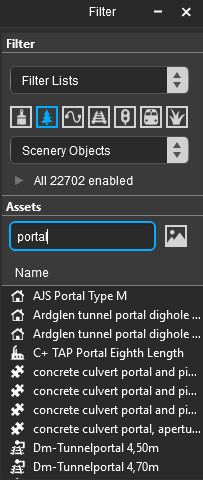
| Steps: To find a Portal in the Assets Palette:- |
|
In the Filter Palette Left Click on the Scenery Objects icon or select Scenery Objects from the Content Drop Down box |
|
|
|
In the Assets Palette enter the text "portal" (UPPER/lower case does not matter) into the Search text box |
|
Left Click on an entry to select it. If you are not sure about an asset then Double Left Click on the name to bring up its image and description |
|
Left Click in your Trainz World to add the portal to the scene |
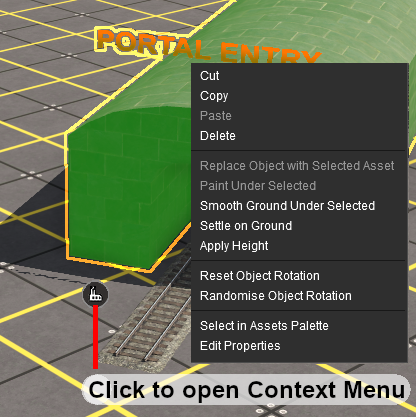 |
| Steps: To open the Properties window of an asset, including a Portal, in Surveyor 2.0 |
|
Left Click on its Context Icon as shown in the image left |
|
Left Click on Edit Properties to configure the portal |
|
|
Configuring a Basic Portal
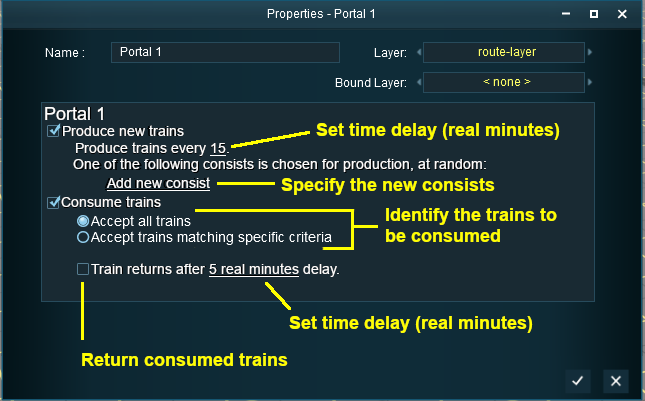
Open the properties window of a portal in the route.
 |
 |
Notes:
In TRS19, Trainz Plus and TRS22 the time entered is in real minutes as determined by an external clock and not according to the Trainz Clock Time which may be set to run at a higher speed (e.g. 10X normal).
|
|
|
Produce Trains
 |
| Steps: To add consists to be produced by the portal:- |
|
 Produce new trains |
|
set the desired time interval (in minutes) between the trains |
|
Left Click the link Add new consist |
|
|
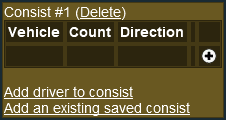
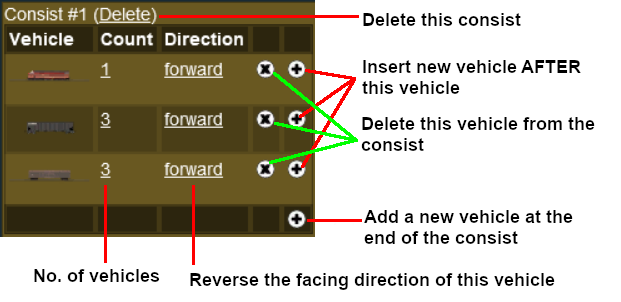
Construct a Consist
 |
|
Notes:
|
|
|
|
|
Add a Saved Consist
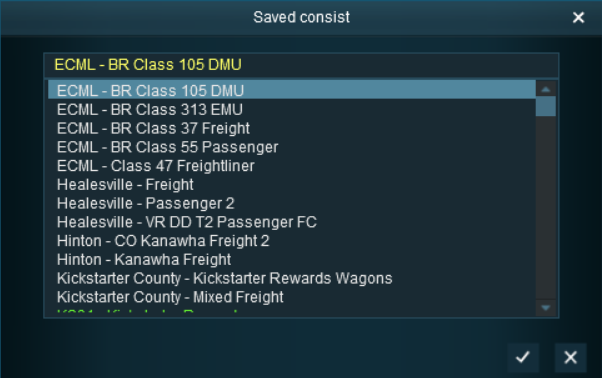
If you have already saved your consists in Trainz using the Trainz Tool then those consists can be quickly and easily added to the portal consist list.
 |
| Steps: To add a saved consist to a portal:- |
|
Scroll through the list to find the saved consist |
|
Select the consist, then either:-
 |
Left Click the  icon to accept the selection and load it into the portal consist list, OR |
 |
Left Click the  icon to reject the selection and return to the previous screen |
|
|
|
Add a Driver
 |
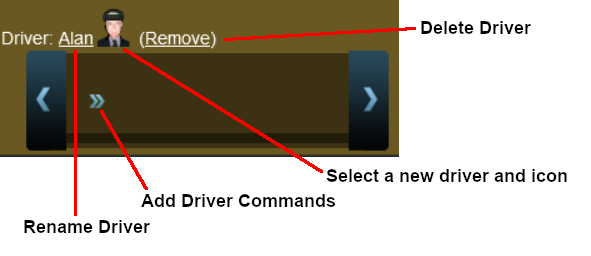
For information on adding driver commands see the Trainz Wiki Page at:-
|
Consume Trains
To remove trains from the Session
 |
For "dead end" portals (those that have no exit) the Accept all trains option is the option that should be used
|
|
Consume Only Specific Trains
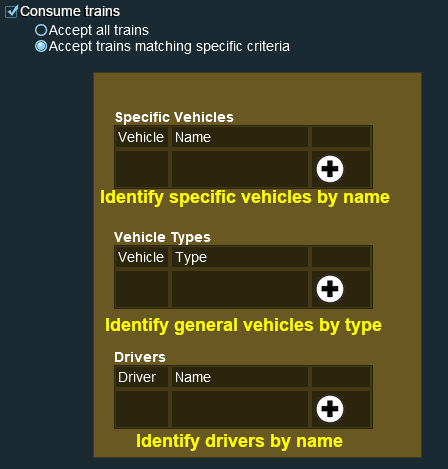
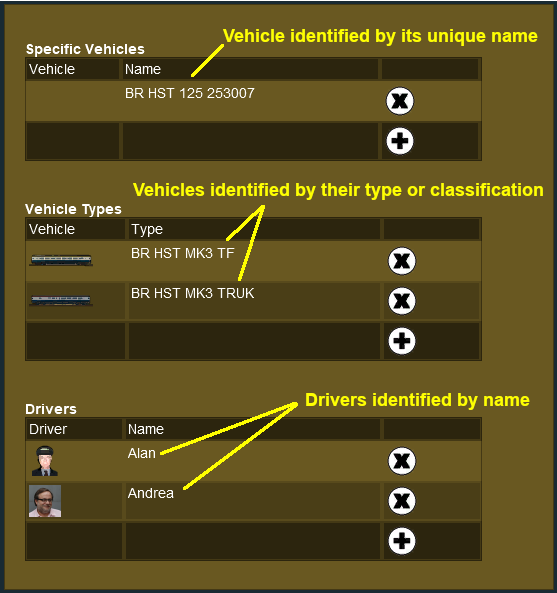
After selecting the option Accept trains matching specific criteria a new set of controls will appear
An example:-
 |
|
Notes:
In this example, the portal will remove any train that:-
|
|
|
Return Consumed Trains
|
A train that has been returned after entering a portal will return to the Session with any remaining driver commands still in its Driver Schedule. It will then immediately start obeying those commands |
To return consumed trains back into the Session
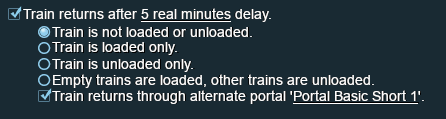
|
|
 |
Settings:
 |
Set Train returns after ... and |
|
Double Left Click on 5 real minutes to set the time delay (in real minutes, not Trainz Clock minutes) between the train being consumed and produced, then select one option from:- |
|
 |
Choices:
 Train is not loaded or unloaded - no changes will be made to the loads carried in each vehicle - Train is loaded only - each vehicle will be loaded when it exits the portal
- Train is unloaded only - each vehicle will be unloaded when it exits the portal
- Empty trains are loaded, other trains are unloaded - vehicles that are empty when entering the portal will be loaded when they exit the portal, all other vehicles will be unloaded
|
|
|
|
If the driver command that sent a train to the consuming portal was the final command in its schedule, then it will emerge from the portal with an empty Driver Schedule. It will come to a halt immediately after leaving the portal.
|
|
Configuring an Enhanced Portal
| There are a number of portals available on the DLS that have additional features or capabilities that are not found in the basic portals built into Trainz. There are also Session Rules available on the DLS that will give additional features or capabilities to the basic portals. |
Quick Portal Manager Standard Edition Rule (SP2 and later)
This is a Session Rule, by pguy, that manages the portals and adds flexible timetables to their operations. It is available on the DLS.
- <kuid2:61392:5011:45> - correct at the time this document was written
|
Portals and the UDS (Unified Driver Surveyor) Interface
The UDS is an option for rapid switching, in both directions, between Driver and Surveyor. It is available in TRS19 Platinum Edition and later versions of Trainz. The UDS does not affect the operation of portals but it has revealed one previously unnoticed property of portals.
A train that is driven into a portal and later returned to the layout will be returned in the same layer as the portal and not in the trains originally assigned layer. Trains that are produced by a portal will be assigned to the same layer as the portal. This has possibly always been the case with portals but was probably unnoticed until the arrival of the UDS. It seems to have no other noticeable effect on trains.
This could become an issue if you make the switch from Driver to Surveyor after a train has been returned to the layout from a portal. For example, if a train is originally in a Session Layer then it is part of a Session. If it is returned from a portal then it will now be in a Route Layer and will be part of the Route. If you then switch from Driver to Surveyor and save the Route then the train will be saved in the Route not in the Session. If this is an issue then the remedy is to open the property dialogue window of any wagon in the train after it has left the portal and change its assigned layer to the correct one. This will set all vehicles in that train to the same correct layer. |
| |
 |
 |
|
|
Trainz Wiki
 |
More Tutorials and Guides to Using Trainz
|
This page was created by Trainz user pware in July 2018 and was last updated as shown below.