How to Restore Deleted Assets: Difference between revisions
From TrainzOnline
Jump to navigationJump to search
No edit summary |
No edit summary |
||
| Line 55: | Line 55: | ||
<table width=1000> <!-- BEGIN Nav Buttons Table NO SKIPS --> | <table width=1000> <!-- BEGIN Nav Buttons Table NO SKIPS --> | ||
<tr valign="top"> | <tr valign="top"> | ||
<td width=629 | <td width=629> | ||
='''Restore Deleted DLS Assets'''= | ='''Restore Deleted DLS Assets'''= | ||
</td> | </td> | ||
| Line 93: | Line 93: | ||
<!-- row in rowspan --> | <!-- row in rowspan --> | ||
</tr> | </tr> | ||
</table> | |||
<br> | |||
<table width=1000 bgcolor=#000000 cellpadding=2> | |||
<tr valign="top"> | |||
<td> | |||
<table width=996 bgcolor=#ffffe0 cellpadding=2> | |||
<tr valign="top"> | <tr valign="top"> | ||
<td | <td width=25>[[image:PencilTips.PNG|link=]]</td> | ||
However, if for some reason you are unable to access the '''DLS''' and the deletion occurred during the '''last 7 days''', then the assets can still be recovered from the automatic backups that '''Content Manager''' creates when assets are deleted. These backups are only held for 7 days. See [[image:PageLink.PNG|link=]] '''[[#stepRestoreBackup| | <td>However, if for some reason you are unable to access the '''DLS''' and the deletion occurred during the '''last 7 days''', then the assets can still be recovered from the automatic backups that '''Content Manager''' creates when assets are deleted. These backups are only held for 7 days. See [[image:PageLink.PNG|link=]] '''[[#stepRestoreBackup|Restore Deleted Assets from the Backup]]''' for the details.</td> | ||
</tr> | |||
</table> | |||
</td> | |||
</tr> | </tr> | ||
</table> | </table> | ||
| Line 102: | Line 111: | ||
<table width=1000> <!-- BEGIN Nav Buttons Table NO SKIPS --> | <table width=1000> <!-- BEGIN Nav Buttons Table NO SKIPS --> | ||
<tr valign="top"> | <tr valign="top"> | ||
<td width=629 | <td width=629> | ||
='''Restore Deleted .cdp File Assets'''= | ='''Restore Deleted .cdp File Assets'''= | ||
</td> | </td> | ||
| Line 121: | Line 130: | ||
</table> | </table> | ||
<br> | <br> | ||
<table width=1000> | |||
<tr valign="top"> | |||
<td width=210>[[image:CMContentInstall.png|link=]]</td> | |||
<td>Deleted assets that were installed from '''.cdp''' files can be reinstalled from the same files.<br> | |||
<table bgcolor=#000000 cellpadding=2> | |||
<tr valign="top"> | |||
<td> | |||
<table bgcolor=#ffffff cellpadding=2> | |||
<tr valign="top"> | |||
<td colspan=2><span style="font-weight: 700; font-size: 15px;">Steps:</span> To install an asset or assets from a '''.cdp''' file:-</td> | |||
</tr> | |||
<tr valign="top"> | |||
<td width=25>[[image:DotPoint1.JPG|link=]]</td> | |||
<td>From the '''Content Manager'''<span style="font-weight: 700; font-size: 15px;"> File </span>menu select the <span style="font-weight: 700; font-size: 15px; color: white; background-color: black;"> Import Content Files... </span> option</td> | |||
</tr> | |||
<tr valign="top"> | |||
<td>[[image:DotPoint2.JPG|link=]]</td> | |||
<td>Navigate to the location of the '''.cdp''' file or files</td> | |||
</tr> | |||
<tr valign="top"> | |||
<td>[[image:DotPoint3.JPG|link=]]</td> | |||
<td>Select (<span style="font-weight: 700; font-size: 15px; background-color: lightcyan;"> Left Click </span> or <span style="font-weight: 700; font-size: 15px;"><span style="color: white; background-color: black;"> Ctrl </span> + <span style="background-color: lightcyan;"> Left Click </span></span>) each file to be restored</td> | |||
</tr> | |||
<tr valign="top"> | |||
<td>[[image:DotPoint4.JPG|link=]]</td> | |||
<td>Click (<span style="font-weight: 700; font-size: 15px; background-color: lightcyan;"> Left Click </span>) the '''Open''' button</td> | |||
</tr> | |||
</table> | |||
</td> | |||
</tr> | |||
</table> | |||
<br> | |||
<table bgcolor=#000000 cellpadding=2> | |||
<tr valign="top"> | |||
<td> | |||
<table bgcolor=#ffffe0 cellpadding=2> | |||
<tr valign="top"> | |||
<td width=25>[[image:PencilTips.PNG|link=]]</td> | |||
<td>However, if for some reason you are unable to locate the '''.cdp''' files and the deletion occurred during the '''last 7 days''', then the assets can still be recovered from the automatic backups that '''Content Manager''' creates when assets are deleted. These backups are only held for 7 days. See [[image:PageLink.PNG|link=]] '''[[#stepRestoreBackup|Restore Deleted Assets from the Backup]]''' for the details.</td> | |||
</tr> | |||
</table> | |||
</td> | |||
</tr> | |||
</table> | |||
</td> | |||
</tr> | |||
</table> | |||
<br> | |||
<span id="stepRestoreDLC"></span> | <span id="stepRestoreDLC"></span> | ||
<table width=1000> <!-- BEGIN Nav Buttons Table NO SKIPS --> | <table width=1000> <!-- BEGIN Nav Buttons Table NO SKIPS --> | ||
<tr valign="top"> | <tr valign="top"> | ||
<td width=629 | <td width=629> | ||
='''Restore Deleted Payware and Packaged Assets'''= | ='''Restore Deleted Payware and Packaged Assets'''= | ||
</td> | </td> | ||
| Line 134: | Line 188: | ||
<td width=46>[[image:BackToTop.png|link=#top|alt=Top|Top]]</td> <!-- Top --> | <td width=46>[[image:BackToTop.png|link=#top|alt=Top|Top]]</td> <!-- Top --> | ||
<td width=75>[[image:NextUp.png|link=#stepRestoreCDP|alt=Next Up|Next Up]]</td> <!-- Next Up --> | <td width=75>[[image:NextUp.png|link=#stepRestoreCDP|alt=Next Up|Next Up]]</td> <!-- Next Up --> | ||
<td width=75>[[image:NextDown.png|link=#|alt=Next Down|Next Down]]</td> <!-- Next Down --> | <td width=75>[[image:NextDown.png|link=#stepRestoreBackup|alt=Next Down|Next Down]]</td> <!-- Next Down --> | ||
<td width=75>[[image:BackToBottom.png|link=#bottom|alt=Bottom|Bottom]]</td> <!-- Bottom --> | <td width=75>[[image:BackToBottom.png|link=#bottom|alt=Bottom|Bottom]]</td> <!-- Bottom --> | ||
</tr> | </tr> | ||
| Line 150: | Line 204: | ||
</table> | </table> | ||
<br> | <br> | ||
<span id="stepRestoreBackup"></span> | |||
<table width=1000> <!-- BEGIN Nav Buttons Table NO SKIPS --> | |||
<tr valign="top"> | |||
<td width=629> | |||
='''Restore Deleted Assets from the Backup'''= | |||
</td> | |||
<td width=50> </td> <!-- Skip Down --> | |||
<td width=50> </td> <!-- Skip Up --> | |||
<td width=46>[[image:BackToTop.png|link=#top|alt=Top|Top]]</td> <!-- Top --> | |||
<td width=75>[[image:NextUp.png|link=#stepRestoreDLC|alt=Next Up|Next Up]]</td> <!-- Next Up --> | |||
<td width=75> </td> <!-- Next Down --> | |||
<td width=75>[[image:BackToBottom.png|link=#bottom|alt=Bottom|Bottom]]</td> <!-- Bottom --> | |||
</tr> | |||
</table> <!-- END Nav Buttons Table --> | |||
<table width=1000 bgcolor="lightcyan" cellpadding=2> | |||
<tr valign="top"> | |||
<td width=10>[[image:BlueDot10x10.png|link=]]</td> | |||
<td>Assets deleted within the last '''7 Days''' are stored in the '''Backup Folder''' for the date they were deleted</td> | |||
</tr> | |||
<tr valign="top"> | |||
<td>[[image:BlueDot10x10.png|link=]]</td> | |||
<td>Deleted assets can be restored using their backup</td> | |||
</tr> | |||
</table> | |||
<br> | |||
<br> | <br> | ||
<table> <!-- BEGIN Nav Buttons Table --> | <table> <!-- BEGIN Nav Buttons Table --> | ||
| Line 155: | Line 240: | ||
<td width=729><span id="bottom"></span> </td> | <td width=729><span id="bottom"></span> </td> | ||
<td width=46>[[image:BackToTop.png|link=#top|alt=Top|Top]]</td> | <td width=46>[[image:BackToTop.png|link=#top|alt=Top|Top]]</td> | ||
<td width=75>[[file:NextUp.png|link=#|alt=Next Up|Next Up]]</td> | <td width=75>[[file:NextUp.png|link=#stepRestoreBackup|alt=Next Up|Next Up]]</td> | ||
<td width=75> </td> | <td width=75> </td> | ||
<td width=75> </td> | <td width=75> </td> | ||
Revision as of 10:12, 25 April 2025
| The information in this Wiki Page applies to TRS19, Trainz Plus and TRS22 and describes the methods that can be used to restore assets deleted by Content Manager. |
 |
 |
|

Restore Deleted DLS Assets |
 |
|
|
 |
Deleted assets that were originally Installed from DLS can be easily restored by installing them again from the DLS |
| Deleted assets that were installed from the DLS are the easiest of all to restore. Simply use Content Manager to locate the assets and download them again. | ||
| Error creating thumbnail: /bin/bash: line 1: /usr/bin/convert: No such file or directory Error code: 127 | Select the Download Station filter from the Filter drop down menu | 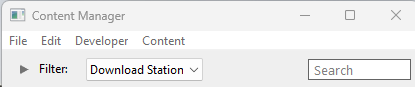 |
| Error creating thumbnail: /bin/bash: line 1: /usr/bin/convert: No such file or directory Error code: 127 | Optional: Type part of the asset name in the Search box to narrow the search | |
| Error creating thumbnail: /bin/bash: line 1: /usr/bin/convert: No such file or directory Error code: 127 | Right Click on the asset name in the displayed list and select the Download option | |
|


Restore Deleted .cdp File Assets |
|
 |
|
|
|
Deleted assets that were installed from .cdp files can be easily restored by reinstalling them from the same .cdp files |
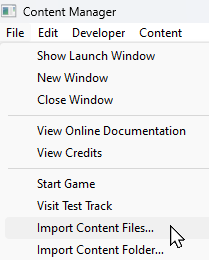 |
Deleted assets that were installed from .cdp files can be reinstalled from the same files.
|
||||||||||||||


Restore Deleted Payware and Packaged Assets |
|
|
|
|
|
Payware and Packaged assets that were installed from a DLC package can be restored by reinstalling the same DLC Package |
|
If a Packaged asset is also on the DLS then it can be restored from there |
Restore Deleted Assets from the Backup |
|
|
|
|
Assets deleted within the last 7 Days are stored in the Backup Folder for the date they were deleted |
|
Deleted assets can be restored using their backup |
|
|
Trainz Wiki
|
|


This page was created by Trainz user pware in April 2025 and was last updated as shown below.

