How to Configure Trainz Settings: Difference between revisions
From TrainzOnline
Jump to navigationJump to search
Created page with "<table width=1000 bgcolor=#000000 cellpadding=2> <tr valign="top"> <td> <table width=996 bgcolor=#ffffff cellpadding=2> <tr valign="middle"> <td width=35>[[image:Information.p..." |
No edit summary |
||
| Line 388: | Line 388: | ||
=='''Enter Login Details'''== | =='''Enter Login Details'''== | ||
</td> | </td> | ||
<td width=50>[[image:SkipDown.png|link=# | <td width=50>[[image:SkipDown.png|link=#skipMyTrainzFCT|Skip Down]]</td> <!-- skip Down --> | ||
<td width=50>[[image:SkipUp.png|link=#stepTabMyTrainz|Skip Up]]</td> <!-- skip Up --> | <td width=50>[[image:SkipUp.png|link=#stepTabMyTrainz|Skip Up]]</td> <!-- skip Up --> | ||
<td width=46> </td> | <td width=46> </td> | ||
| Line 441: | Line 441: | ||
<tr valign="top"> | <tr valign="top"> | ||
<td>[[image:DotPoint3.JPG|link=]]</td> | <td>[[image:DotPoint3.JPG|link=]]</td> | ||
<td><span style="font-weight: 700; font-size: 15px; background-color: lightcyan;"> Left Click </span> on the | <td><span style="font-weight: 700; font-size: 15px; background-color: lightcyan;"> Left Click </span> on the [[image:MyTrainz-NewLoginAddLogin.png|link=]] button which will become active as soon as data has been entered</td> | ||
<!-- <td></td> --> | <!-- <td></td> --> | ||
</tr> | </tr> | ||
| Line 454: | Line 454: | ||
</td> | </td> | ||
<!-- <td></td> --> | <!-- <td></td> --> | ||
</tr> | |||
<tr valign="top"> | |||
<td>[[image:DotPoint4.JPG|link=]]</td> | |||
<td colspan=2><span style="font-weight: 700; font-size: 15px;">IF</span> you see the <span style="font-weight: 700; font-size: 15px;">login succeeded</span> message then <span style="font-weight: 700; font-size: 15px; background-color: lightcyan;"> Left Click </span> on the [[image:MyTrainz-NewLoginClose.png|link=]] button. <span style="font-weight: 700; font-size: 15px;">IF</span> you see the <span style="font-weight: 700; font-size: 15px;">failed</span> message then try again.</td> | |||
</tr> | |||
</table> | |||
</td> | |||
</tr> | </tr> | ||
</table> | </table> | ||
<br> | |||
<table width=1000> <!-- BEGIN Nav Buttons Table SKIPS --> | |||
<tr valign="top"> | |||
<td width=629><span id="skipMyTrainzFCT"></span> | |||
=='''First Class Ticket'''== | |||
</td> | </td> | ||
<td width=50>[[image:SkipDown.png|link=#stepTabDev|Skip Down]]</td> <!-- skip Down --> | |||
<td width=50>[[image:SkipUp.png|link=#skipMyTrainzEnterLogin|Skip Up]]</td> <!-- skip Up --> | |||
<td width=46> </td> | |||
<td width=75> </td> | |||
<td width=75> </td> | |||
<td width=75> </td> | |||
</tr> | |||
</table> <!-- END Nav Buttons Table --> | |||
<table width=1000 bgcolor="lightcyan" cellpadding=2> | |||
<tr valign="top"> | |||
<td width=10>[[image:BlueDot10x10.png|link=]]</td> | |||
<td>The '''FCT''' or '''First Class Ticket''' is an '''optional''' prepaid feature that gives you higher speed priority access to the '''Download Station''' or '''DLS'''.</td> | |||
</tr> | |||
<tr valign="top"> | |||
<td>[[image:BlueDot10x10.png|link=]]</td> | |||
<td>An '''FCT''' is automatically included in all '''Trainz Plus''' subscriptions for the duration of the subscription.</td> | |||
</tr> | |||
</table> | |||
<br> | |||
<table> | |||
<tr valign="top"> | |||
<td>An '''FCT''' gives you higher speed access with no download limits to all the assets available on the '''Download Station'''. The exact speed will depend on external factors such as the speed of your internet connection, the paths taken by the data to reach your system, the speed of the servers used by '''N3V''' and any restrictions imposed on you by your Internet Service Provider.</td> | |||
</tr> | </tr> | ||
</table> | </table> | ||
| Line 483: | Line 518: | ||
<tr valign="top"> | <tr valign="top"> | ||
<td width=10>[[image:BlueDot10x10.png|link=]]</td> | <td width=10>[[image:BlueDot10x10.png|link=]]</td> | ||
<td>These settings are designed for asset developers '''ONLY''' to test the performance and other features of the assets they create. Unless you are an experienced asset developer you are strongly advised to '''NOT''' change these settings.</td> | <td>These settings are designed for asset developers '''ONLY''' to test the performance and other features of the assets they create.</td> | ||
</tr> | |||
<tr valign="top"> | |||
<td>[[image:BlueDot10x10.png|link=]]</td> | |||
<td>Unless you are an experienced asset developer you are strongly advised to '''NOT''' change these settings.</td> | |||
</tr> | </tr> | ||
<tr valign="top"> | <tr valign="top"> | ||
<td>[[image:BlueDot10x10.png|link=]]</td> | <td>[[image:BlueDot10x10.png|link=]]</td> | ||
<td>They also control how often automatic backups will be made of any | <td>They also control how often automatic backups will be made of any routes or sessions that you are currently developing in '''Surveyor'''.</td> | ||
</tr> | </tr> | ||
</table> | </table> | ||
Revision as of 07:47, 25 July 2026
|
 |
 |
|
|||||||||||||||||

Load the Trainz Launcher |
 |
|
|
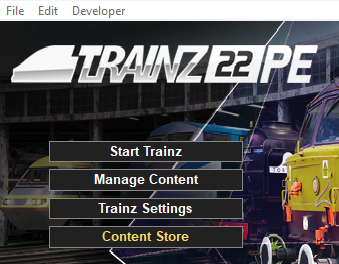
| Start your copy of Trainz which will load to show the Launcher Window (shown below). | ||||||||||
 |
|
|||||||||

Open the Trainz Settings Controls |
|
 |
|
|
 |
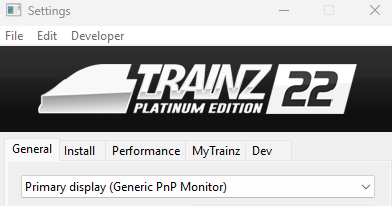
The Trainz Settings control how Trainz interacts with your Operating System and Graphics Display, where it stores your data, its overall performance, etc |
|
It also stores your login credentials which, amongst other things, gives you free access to the Download Station or DLS where assets such as routes, sessions, rolling stock and many different types of scenery can be downloaded and installed |
|
||||||||||||||||||||



The General Settings |
|
|
|
|
|
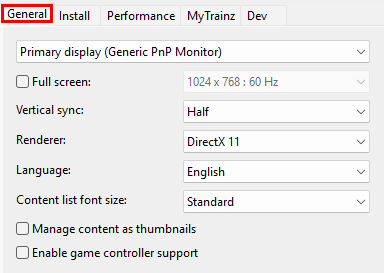
These settings are your display characteristics such as the screen resolution, synchronisation, preferred language and font size. |
|
 |
The Install Settings |
|
|
|
|
|
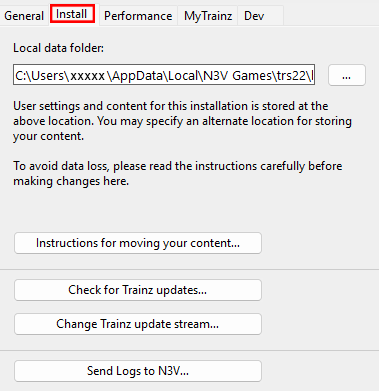
These settings identify the location of your User Data Folder where all your assets are kept and the type of program updates you want to receive. |
|
 |
The Performance Settings |
|
|
|
|
|
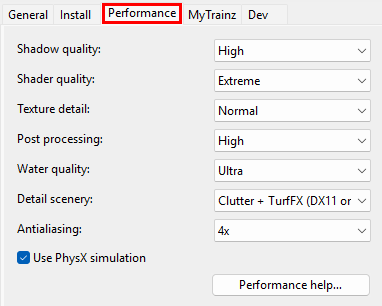
These settings are where you can "fine tune" the performance of the program to better match the hardware of your computer system and the demands of the routes you are running. |
|
You may need to experiment with these settings to get the best match with your system and the routes you run. |
 |
The MyTrainz Settings |
 |
|
|
|
|
|
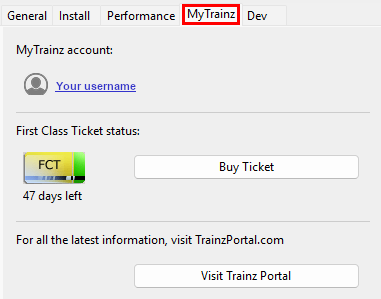
These settings identify your user login details. In some older versions this Tab is labelled Internet. |
|
You can also check your current FCT status and, if required, purchase more FCT access. |
 |
|
|||||||||
Enter Login Details |
|
 |
|
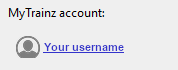
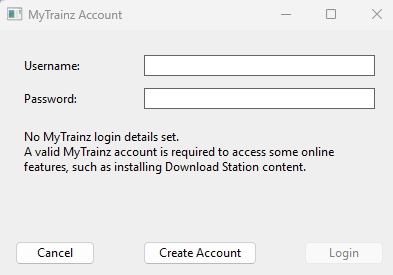
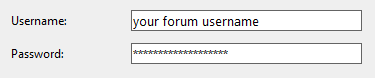
Your Log In details are needed to access the Download Station and your FCT data. |
|
Your Trainz Log In is the same as the Trainz Forum Login that you used to purchase or subscribe to your current copy of Trainz. |
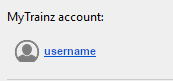
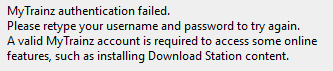
| IF you have NOT entered your Log In details into your copy of Trainz before then you will see the following information in the MyTrainz tab depending on your version of Trainz. | ||
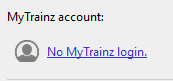 TRS22 and Trainz Plus version |
 TRS19 version |
|
|
|||||||||||||||||





First Class Ticket |
|
|
|
The FCT or First Class Ticket is an optional prepaid feature that gives you higher speed priority access to the Download Station or DLS. |
|
An FCT is automatically included in all Trainz Plus subscriptions for the duration of the subscription. |
| An FCT gives you higher speed access with no download limits to all the assets available on the Download Station. The exact speed will depend on external factors such as the speed of your internet connection, the paths taken by the data to reach your system, the speed of the servers used by N3V and any restrictions imposed on you by your Internet Service Provider. |
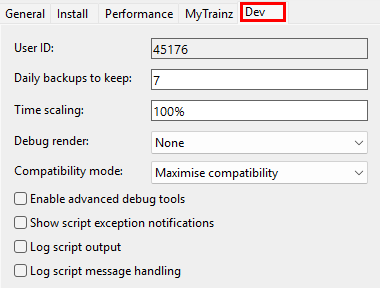
The Dev Settings |
|
|
|
|
|
These settings are designed for asset developers ONLY to test the performance and other features of the assets they create. |
|
Unless you are an experienced asset developer you are strongly advised to NOT change these settings. |
|
They also control how often automatic backups will be made of any routes or sessions that you are currently developing in Surveyor. |
 |


