How to Create a Clean Install: Difference between revisions
mNo edit summary |
|||
| Line 1: | Line 1: | ||
<table width=1000 bgcolor=#000000 cellpadding=2> | |||
<tr valign="top"> | |||
<td> | |||
<table width=996 bgcolor=#ffffff cellpadding=2> | |||
<tr valign="middle"> | |||
<td width=35>[[image:Information.png|35px|link=]]</td> | |||
<td><span style="font-size: 15px;">This Wiki Page describes how to set up one (or more) alternative '''User Data Folders''' that can contain different sets of installed assets from a bare minimum '''Clean Install''' (with '''Built-in''' and '''Base''' assets only) to various specialist installs such as a '''DLS Install''' (with '''Built-in''', '''Base''' and '''Downloaded from DLS''' assets only). This document applies to '''T:ANE''', '''TRS19''', '''TRS22''' and '''Trainz Plus'''.</span></td> | |||
</tr> | |||
</table> | |||
</td> | |||
</tr> | |||
</table> | |||
<br> | |||
<table width=1000> | <table width=1000> | ||
<tr valign="top"> | <tr valign="top"> | ||
<td> | <td></td> | ||
</tr> | </tr> | ||
</table> | </table> | ||
| Line 558: | Line 571: | ||
---- | ---- | ||
---- | ---- | ||
='''Trainz Wiki'''= | ='''Trainz Wiki'''= | ||
<table width=1000> | <table width=1000> | ||
| Line 568: | Line 580: | ||
<td> | <td> | ||
<span style="font-size: 17px;">'''More Tutorials and Guides to Using Trainz'''</span><br> | <span style="font-size: 17px;">'''More Tutorials and Guides to Using Trainz'''</span><br> | ||
*'''<span class="plain; | *'''<span class="plain;">[http://online.ts2009.com/mediaWiki/index.php/HowTo How to Guides]</span>''' | ||
*'''[[Driver Commands List]]''' | *'''[[Driver Commands List]]''' | ||
*'''[[Session Rule List with Parameters|Session Rules List (Alphabetical) with Parameters]]''' | *'''[[Session Rule List with Parameters|Session Rules List (Alphabetical) with Parameters]]''' | ||
| Line 590: | Line 602: | ||
</table> | </table> | ||
---- | ---- | ||
This page was created by Trainz user '''<span class="plain; | This page was created by Trainz user '''<span class="plain;">[http://online.ts2009.com/mediaWiki/index.php/User:Pware pware]</span>''' in November 2023 and was last updated as shown below. | ||
---- | ---- | ||
[[Category:How-to guides]] | [[Category:How-to guides]] | ||
Revision as of 04:18, 26 July 2026
|
|
What is a "Clean Install" |
 |
 |
 |
A Clean Install is a User Data Folder that contains only those assets that were originally installed with your version of Trainz |
|
There will be no assets that are Installed from DLS, Payware, Packaged or Modified but these can be added |
| A Clean Install will create a User Data Folder that is identical to the one that existed immediately after you first installed your current version of Trainz. | ||||||||||||||||||||||||||||
|
|
|||||||||||||||||||||||||||

Setting Up the New User Data Folder |
 |
|
|
|
the new folder can be created in a location (drive and folder tree) of your choosing |
|
it is strongly recommended that you record the location of your original User Data Folder and any alternative User Data Folders that you create |
| Steps: | ||||||||||||||
| 1 | Create a Destination Folder for the New User Data Install
|
|||||||||||||
| 2 | Start Trainz |
|||||||||||||
| 3 | Open Trainz Settings From the Trainz Launcher select Trainz Settings 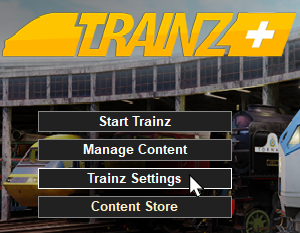 |
|||||||||||||
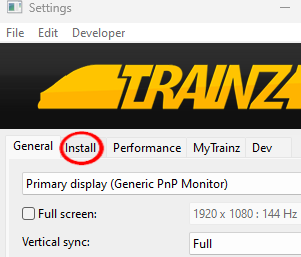
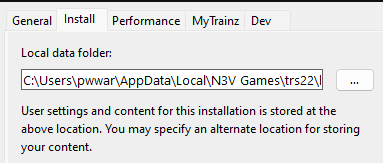
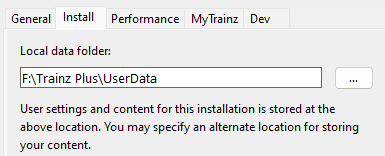
| 4 | Open Install Left Click on the Install tab
|
|||||||||||||
| 5 | Copy and Save the Current Folder Address Strongly Recommended But Not Required
|
|||||||||||||
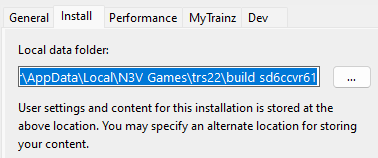
| 6 | Point Trainz to the New User Data Folder
|
|||||||||||||
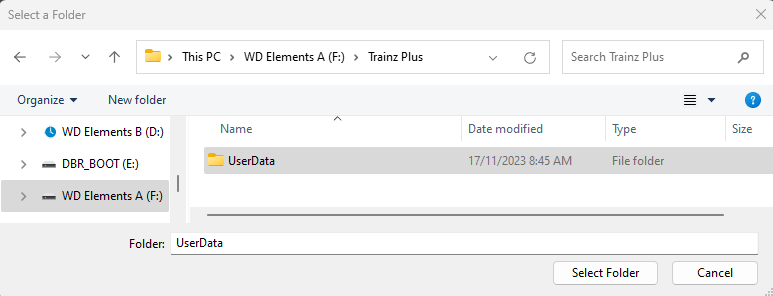 |
||||||||||||||
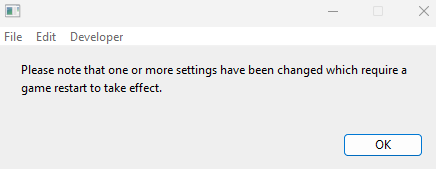
| 7 | Close the Trainz Settings Window You will be shown a message asking for a restart.
|
|||||||||||||
| 8 | Close the Trainz Launcher Dropping you back to the Windows desktop. |
|||||||||||||
| 9 | Restart Trainz Launcher You may get a dialogue window asking you to set your display options (Ultra, etc). If so select one to suit. |
|||||||||||||
|
||||||||||||||



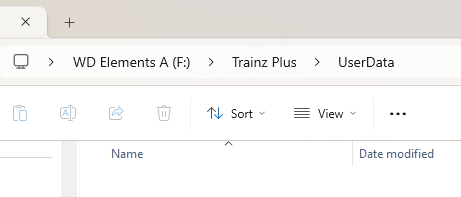




|
Switching Between User Data Folders |
|
 |
|
|
You can switch Trainz between your seperate User Data Folders at any time |
|
Only those assets installed in your currently selected User Data Folder will be available for use in Trainz |
|

Different User Data Folders can be created containing different sets of assets. Some examples:-
|
| Steps: | ||||||||||||||||||
| 1 | Open the Trainz Settings Install Tab (A repeat of Steps 2 , 3 and 4 in the section above)
|
|||||||||||||||||
| 2 | Navigate to the Alternative User Data Folder
|
|||||||||||||||||
| 3 | Close the Trainz Settings Window You will be shown a message asking for a restart.
|
|||||||||||||||||
| 4 | Close the Trainz Launcher Dropping you back to the Windows desktop. |
|||||||||||||||||
| 5 | Restart Trainz Launcher You may get a dialogue window asking you to set your display options (Ultra, etc). If so select one to suit. |
|||||||||||||||||
| 6 | Start Trainz Select the Start Trainz option from the Launcher |
|||||||||||||||||
|
|
|
Trainz Wiki
|
|


This page was created by Trainz user pware in November 2023 and was last updated as shown below.


