How to Move Your User Data Folder: Difference between revisions
mNo edit summary |
|||
| Line 1: | Line 1: | ||
<table width=1000 bgcolor=#000000 cellpadding=2> | |||
<tr valign="top"> | |||
<td> | |||
<table width=996 bgcolor=#ffffff cellpadding=2> | |||
<tr valign="middle"> | |||
<td width=35>[[image:Information.png|35px|link=]]</td> | |||
<td><span style="font-size: 15px;">This Wiki Page takes you through the process of moving your '''User Data Folder''' to a new location. This document applies to '''T:ANE''', '''TRS19''', '''TRS22''' and '''Trainz Plus'''.</span></td> | |||
</tr> | |||
</table> | |||
</td> | |||
</tr> | |||
</table> | |||
<br> | <br> | ||
<table width=1000> <!-- BEGIN Nav Buttons Table --> | <table width=1000> <!-- BEGIN Nav Buttons Table --> | ||
| Line 349: | Line 360: | ||
---- | ---- | ||
---- | ---- | ||
='''Trainz Wiki'''= | ='''Trainz Wiki'''= | ||
<table width=1000> | <table width=1000> | ||
| Line 359: | Line 369: | ||
<td> | <td> | ||
<span style="font-size: 17px;">'''More Tutorials and Guides to Using Trainz'''</span><br> | <span style="font-size: 17px;">'''More Tutorials and Guides to Using Trainz'''</span><br> | ||
*'''<span class="plain; | *'''<span class="plain;">[http://online.ts2009.com/mediaWiki/index.php/HowTo How to Guides]</span>''' | ||
*'''[[Driver Commands List]]''' | *'''[[Driver Commands List]]''' | ||
*'''[[Session Rule List with Parameters|Session Rules List (Alphabetical) with Parameters]]''' | *'''[[Session Rule List with Parameters|Session Rules List (Alphabetical) with Parameters]]''' | ||
| Line 381: | Line 391: | ||
</table> | </table> | ||
---- | ---- | ||
This page was created by Trainz user '''<span class="plain; | This page was created by Trainz user '''<span class="plain;">[http://online.ts2009.com/mediaWiki/index.php/User:Pware pware]</span>''' in November 2023 and was last updated as shown below. | ||
---- | ---- | ||
[[Category:How-to guides]] | [[Category:How-to guides]] | ||
Latest revision as of 04:24, 26 July 2026
|
 |
 |
The User Data Folder contains all the assets that came installed with your version of Trainz plus those that you have downloaded or have created yourself. This includes all routes and sessions |
|
This folder is created when Trainz is installed and is located (in Windows) on the C:\ drive in the Users\AppData folder. The AppData folder is normally a hidden folder |
|
The folder can be moved to another location such as a different drive BUT Trainz must know where to find the new User Data Folder so the move must be performed correctly using a specific method |
Why Move the User Data Folder?
| When you install Trainz it will default to installing the program code and the user data on the C: drive. During the install you be given the option of installing on another drive but most users will use the default. As you add more data, such as DLC and DLS downloads plus create new assets (e.g. routes and sessions) of your own, the size of the User Data will grow significantly. Several GB (gigabytes) of data is not unusual for even a modest installation. Some users have data sets measured in TB (terabytes). Eventually, the C: drive may not be large enough to store all the Trainz data plus all the other Windows software and data. |
|


Moving the User Data
|
The User Data Folder (also called the Local Data Folder) does not contain the Trainz.exe (e.g. trs19.exe, trs22.exe) executables. These are stored in a different folder |
|

| Steps: | ||||||||||
| 1 | Start Trainz |
|||||||||
| 2 | Open Trainz Settings From the Trainz Launcher select Trainz Settings 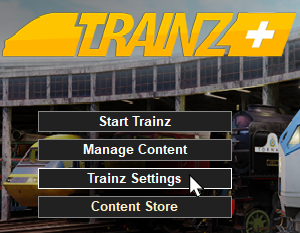 |
|||||||||
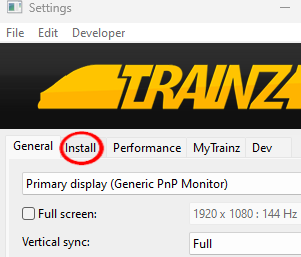
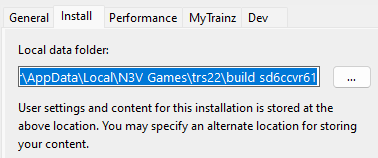
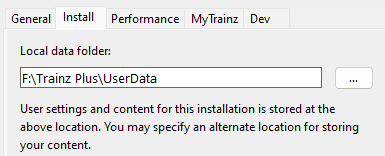
| 3 | Open Install Left Click on the Install tab 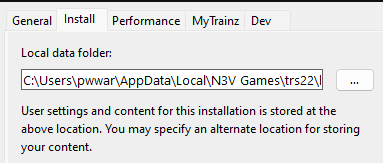 |
|||||||||
| 4 | Copy the Folder Address Left Click inside the box containing the address details then highlight and copy (press the Ctrl + A keys then the Ctrl + C keys). The address will be copied to your systems clipboard.
|
|||||||||
|
||||||||||
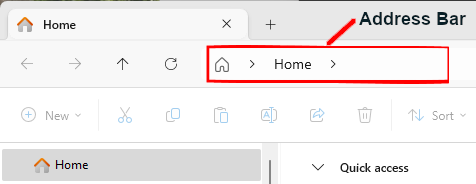
| 5 | Open Windows File Explorer In Windows 10 and 11 you will find the File Explorer on the Task Bar at the bottom of the screen. |
|||||||||
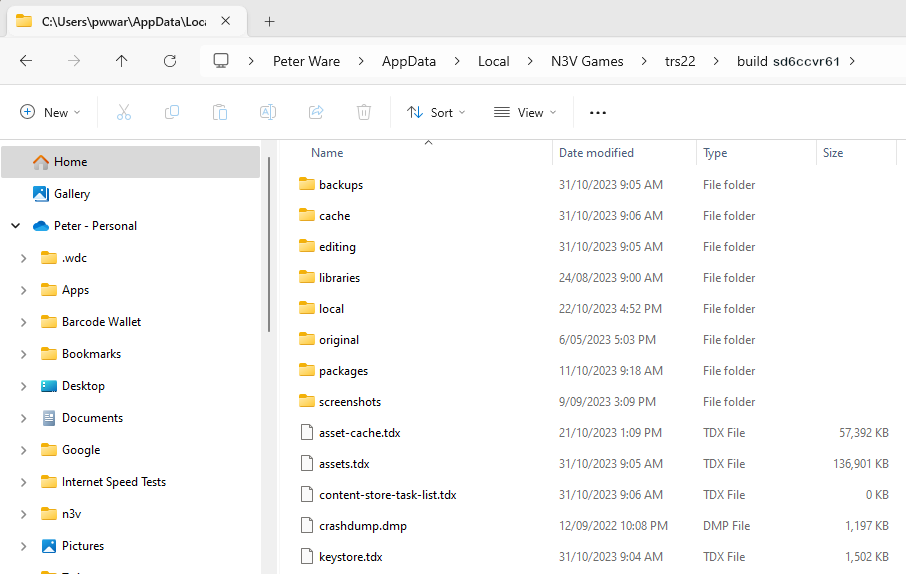
| 6 |
|
|||||||||
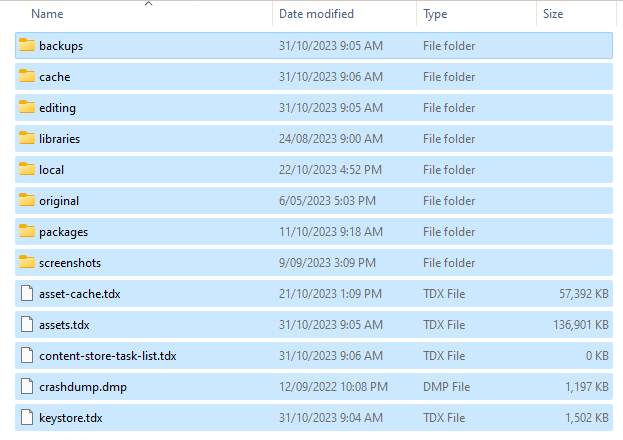
| 7 | Copy the Folders and Files Left Click on one of the items (a file or a folder) shown in the list then highlight and copy (press the Ctrl + A keys then the Ctrl + C keys) all the folders and files shown |
|||||||||
| 8 | Navigate to the New Folder Location In File Explorer navigate to the drive and/or folder where the User Data Folder will be placed.
|
|||||||||
| 9 | Paste the Copied Files and Folders into the Destination Left Click in the empty Name Display Area and paste (press the Ctrl + V keys) the copied files and folders into their new location - this may take some time depending on how much data you have. As the files and folders are copied across they will appear in the File Explorer display window. |
|||||||||
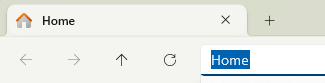
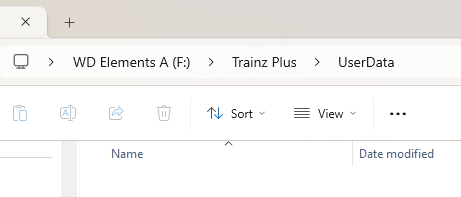
| 10 | Copy the New Folder Address Left Click in the File Explorer Address Bar then highlight and copy (press the Ctrl + A keys then the Ctrl + C keys) into your system clipboard the new folder address you created for the user data 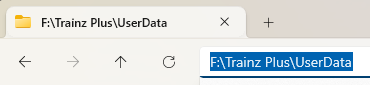 |
|||||||||
| 11 | Paste the Address into Trainz Settings
|
|||||||||
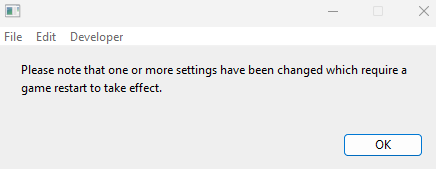
| 12 | Close the Trainz Settings Window You will be shown a message asking for a restart.
|
|||||||||
| 13 | Close the Trainz Launcher Dropping you back to the Windows desktop. |
|||||||||
| 14 | Restart Trainz Launcher You may get a dialogue asking you to set your display options (Ultra, etc). If so select one to suit.
|
|||||||||
| 15 | Start Trainz Select the Start Trainz option from the Launcher |
|||||||||





|
 |
Trainz Wiki
|
|


This page was created by Trainz user pware in November 2023 and was last updated as shown below.


