How to Log into Trainz: Difference between revisions
From TrainzOnline
Jump to navigationJump to search
No edit summary |
|||
| Line 187: | Line 187: | ||
='''The MyTrainz Settings'''= | ='''The MyTrainz Settings'''= | ||
</td> | </td> | ||
<td width=50>[[image:SkipDown.png|link=# | <td width=50>[[image:SkipDown.png|link=#skipMyTrainzNewAccount|Skip Down]]</td> <!-- skip Down --> | ||
<td width=50> </td> | <td width=50> </td> | ||
<td width=46>[[image:BackToTop.png|link=#top|alt=Top|Top]]</td> | <td width=46>[[image:BackToTop.png|link=#top|alt=Top|Top]]</td> | ||
| Line 209: | Line 209: | ||
<table width=1000> | <table width=1000> | ||
<tr valign="top"> | <tr valign="top"> | ||
<td><span style="font-weight: 700; font-size: 15px; background-color: lightcyan;"> Left Click </span> on the <span style="font-weight: 700; font-size: 15px;"> MyTrainz </span> tab</td> | <td><span style="font-weight: 700; font-size: 15px; background-color: lightcyan;"> Left Click </span> on the <span style="font-weight: 700; font-size: 15px; background-color: #dcdcdc;"> MyTrainz </span> tab</td> | ||
</tr> | </tr> | ||
</table> | </table> | ||
| Line 215: | Line 215: | ||
<table width=1000> | <table width=1000> | ||
<tr valign="top"> | <tr valign="top"> | ||
<td | <td><span style="font-weight: 700; font-size: 15px;">IF</span> you have <span style="font-weight: 700; font-size: 15px;">NOT</span> set up a '''Trainz Account''' then you will see the following information in the '''MyTrainz''' tab, depending on your version of '''Trainz'''. | ||
< | |||
<table> | <table> | ||
<tr valign="top"> | <tr valign="top"> | ||
<td | <td width=280 align="center">[[image:TRS22MyTrainzTabNoLogMinimum.png|link=]]<br> | ||
'''TRS22''' and '''Trainz Plus''' version</td> | |||
<td width=280 width=10> </td> | |||
<td align="center">[[image:TRS19MyTrainzTabNoLogMinimum.png|link=]]<br> | |||
Older version</td> | |||
</tr> | |||
</table> | |||
<br> | |||
<span style="font-weight: 700; font-size: 15px;">IF</span> you have already set up a '''Trainz Account''' this should show your '''Trainz''' login name. It will be the same username and password for both '''Trainz''' and the '''Trainz Forum'''.</td> | |||
</tr> | </tr> | ||
<tr valign="top"> | <tr valign="top"> | ||
<td | <td></td> | ||
</tr> | |||
</table> | |||
<br> | <br> | ||
< | <table bgcolor=#000000 cellpadding=2> | ||
<table> | <tr valign="top"> | ||
<td> | |||
<table bgcolor=#ffffff cellpadding=2> | |||
<tr valign="top"> | <tr valign="top"> | ||
<td width= | <td width=25>[[image:DotPoint.JPG|link=]]</td> | ||
<td>To create a '''Trainz Account''' follow the instruction in the next section [[image:PageLink.PNG|link=]] '''[[#skipMyTrainzNewAccount|Create an Account]]'''.</td> | |||
''' | |||
</tr> | </tr> | ||
</ | <tr valign="top"> | ||
</td> | <td>[[image:DotPoint.JPG|link=]]</td> | ||
<td>To simply test or confirm an exiting '''Trainz Account''' follow the instruction in the section [[image:PageLink.PNG|link=]] '''[[#skipMyTrainzEnterLogin|Enter Login Details]]''' below.</td> | |||
</tr> | </tr> | ||
</table> | </table> | ||
| Line 244: | Line 252: | ||
<table width=1000> <!-- BEGIN Nav Buttons Table SKIPS --> | <table width=1000> <!-- BEGIN Nav Buttons Table SKIPS --> | ||
<tr valign="top"> | <tr valign="top"> | ||
<td width=629><span id=" | <td width=629><span id="skipMyTrainzNewAccount"></span> | ||
==''' | =='''Create an Account'''== | ||
</td> | </td> | ||
<td width=50>[[image:SkipDown.png|link=# | <td width=50>[[image:SkipDown.png|link=#skipMyTrainzEnterLogin|Skip Down]]</td> <!-- skip Down --> | ||
<td width=50>[[image:SkipUp.png|link=#stepTabMyTrainz|Skip Up]]</td> <!-- skip Up --> | <td width=50>[[image:SkipUp.png|link=#stepTabMyTrainz|Skip Up]]</td> <!-- skip Up --> | ||
<td width=46> </td> | <td width=46> </td> | ||
<td width=75> </td> | <td width=75> </td> | ||
<td width=75> </td> | <td width=75> </td> | ||
<td width=75> | <td width=75>[[image:BackToBottom.png|link=#bottom|alt=Bottom|Bottom]]</td> | ||
</tr> | </tr> | ||
</table> <!-- END Nav Buttons Table --> | </table> <!-- END Nav Buttons Table --> | ||
| Line 259: | Line 267: | ||
<tr valign="top"> | <tr valign="top"> | ||
<td width=10>[[image:BlueDot10x10.png|link=]]</td> | <td width=10>[[image:BlueDot10x10.png|link=]]</td> | ||
<td> | <td>You will need a '''Trainz Account''' to be able to access the online features of '''Trainz''' including the '''Download Station''' where there is a vast library of free assets (routes and sessions, locomotives and rolling stock, signals and tracks, scenery of all types, ground textures, etc) available for you to download and install.</td> | ||
</tr> | </tr> | ||
<tr valign="top"> | <tr valign="top"> | ||
<td>[[image:BlueDot10x10.png|link=]]</td> | <td>[[image:BlueDot10x10.png|link=]]</td> | ||
<td> | <td>A '''Trainz Account''' will also give you a '''Trainz Forum Login''' username and password to access the '''Trainz Forum'''.</td> | ||
</tr> | </tr> | ||
</table> | </table> | ||
| Line 270: | Line 278: | ||
<tr valign="top"> | <tr valign="top"> | ||
<td> | <td> | ||
<table width=996 bgcolor=# | <table width=996 bgcolor=#ffffb0 cellpadding=2> | ||
<tr valign="top"> | <tr valign="top"> | ||
<td | <td width=25>[[image:NotePad.PNG|link=]]</td> | ||
<td width=975><span style="font-size: 17px; font-weight: 700;">Notes:'''</span><br> | |||
---- | |||
If you already have a '''Trainz Forum''' username and password then you already have a '''Trainz Account''' that will also log you into the '''Trainz''' program as described in the section [[image:PageLink.PNG|link=]] '''[[#skipMyTrainzEnterLogin|Enter Login Details]]''' above. In this case you <span style="font-weight: 700; font-size: 15px;">do not need to create a new account</span>.<br> | |||
<br> | |||
The '''Trainz Forum''' is located at [[image:WikiLink.PNG|link=]] '''<span class="plain;">[https://forums.auran.com/ Trainz]</span>'''. Near the top right of the '''Forum''' home page, between the links for '''Code of Conduct''' and '''Search''', if you see a letter on a round coloured background followed by a <span style="font-weight: 700; color: blue;">name</span>, then that is your username and you already have an account. If you see a link called <span style="font-weight: 700; color: blue;">Login</span> then you most likely do not have an account and you will need to login with the account details that will be created by following the '''Steps''' described below.</td> | |||
</tr> | </tr> | ||
</table> | </table> | ||
</td> | </td> | ||
</tr> | </tr> | ||
</table> | |||
<br> | |||
<table width=1000 bgcolor=#000000 cellpadding=2> | |||
<tr valign="top"> | <tr valign="top"> | ||
<td> | <td> | ||
<table bgcolor=# | <table width=996 bgcolor=#ffffff cellpadding=2> | ||
<tr valign="top"> | <tr valign="top"> | ||
<td | <td colspan=3><span style="font-weight: 700; font-size: 15px;">Steps:</span> To Create a '''New Account''':</td> | ||
</tr> | </tr> | ||
</ | <tr valign="top"> | ||
</td> | <td width=25>[[image:DotPoint1.JPG|link=]]</td> | ||
<td><span style="font-weight: 700; font-size: 15px; background-color: lightcyan;"> Left Click </span> on the link <span style="font-weight: 700; color: blue;"><u>No MyTrainz login</u></span> or <span style="font-weight: 700; color: blue;"><u>username</u></span></td> | |||
<td rowspan=5 width=395>[[image:MyTrainz-CreateAccountDialogue.png|link=]]</td> | |||
</tr> | </tr> | ||
</ | <tr valign="top"> | ||
</td> | <td>[[image:DotPoint2.JPG|link=]]</td> | ||
<td>In the dialogue window where you are asked to enter your '''Username''' and '''Password''' <span style="font-weight: 700; font-size: 15px; background-color: lightcyan;"> Left Click </span> on the [[image:MyTrainz-CreateAccountBtn.png|link=]] button.</td> | |||
<!-- <td></td> --> | <!-- <td></td> --> | ||
</tr> | </tr> | ||
<tr valign="top"> | <tr valign="top"> | ||
<td>[[image:DotPoint3.JPG|link=]]</td> | <td>[[image:DotPoint3.JPG|link=]]</td> | ||
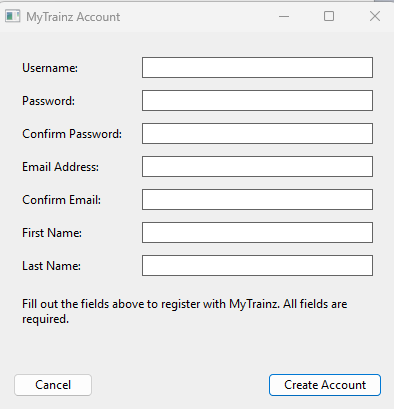
<td> | <td>In the '''New Account Dialogue Window''' (shown right) enter '''ALL''' the information requested.</td> | ||
<!-- <td></td> --> | <!-- <td></td> --> | ||
</tr> | </tr> | ||
<tr valign="top"> | <tr valign="top"> | ||
<td>[[image:DotPoint4.JPG|link=]]</td> | |||
<td>When complete, <span style="font-weight: 700; font-size: 15px; background-color: lightcyan;"> Left Click </span> on the [[image:MyTrainz-CreateAccountBtn.png|link=]] button. This will create a new '''Trainz Account''' which you will use to enter into your '''Trainz''' program and into the '''Trainz Forum'''.</td> | |||
<td>[[image: | |||
<td>[[image:MyTrainz- | |||
</td> | |||
<!-- <td></td> --> | <!-- <td></td> --> | ||
</tr> | </tr> | ||
<tr valign="top"> | <tr valign="top"> | ||
<td>[[image:DotPoint5.JPG|link=]]</td> | <td>[[image:DotPoint5.JPG|link=]]</td> | ||
<td | <td>After entering your login details, close the '''Trainz Settings''' dialogue window and exit the '''Trainz Launcher'''. Then restart '''Trainz'''.<br> | ||
If required, you can then enter your login details into '''Trainz''' as described in the section [[image:PageLink.PNG|link=]] '''[[#skipMyTrainzEnterLogin|Enter Login Details]]''' above.<br> | |||
You will also be able to login to the '''Trainz Forum''' under your own name - open the [[image:WikiLink.PNG|link=]] '''<span class="plain;">[https://forums.auran.com/ Trainz Forum]</span>''' home page and click the <span style="font-weight: 700; color: blue;">Login</span> link. Then enter the same username and password that you entered in the '''New Account Dialogue Window'''. Each time you access the forum this username and password will be used automatically to identify you without having to login again.</td> | |||
<!-- <td></td> --> | |||
</tr> | </tr> | ||
</table> | </table> | ||
| Line 338: | Line 333: | ||
<table width=1000> <!-- BEGIN Nav Buttons Table SKIPS --> | <table width=1000> <!-- BEGIN Nav Buttons Table SKIPS --> | ||
<tr valign="top"> | <tr valign="top"> | ||
<td width=629><span id=" | <td width=629><span id="skipMyTrainzEnterLogin"></span> | ||
=='''Enter Login Details'''== | |||
==''' | |||
</td> | </td> | ||
<td width=50> | <td width=50>[[image:SkipDown.png|link=#bottom|Skip Down]]</td> <!-- skip Down --> | ||
<td width=50>[[image:SkipUp.png|link=# | <td width=50>[[image:SkipUp.png|link=#skipMyTrainzNewAccount|Skip Up]]</td> <!-- skip Up --> | ||
<td width=46> </td> | <td width=46> </td> | ||
<td width=75> </td> | <td width=75> </td> | ||
<td width=75> </td> | <td width=75> </td> | ||
<td width=75> | <td width=75> </td> | ||
</tr> | </tr> | ||
</table> <!-- END Nav Buttons Table --> | </table> <!-- END Nav Buttons Table --> | ||
| Line 354: | Line 348: | ||
<tr valign="top"> | <tr valign="top"> | ||
<td width=10>[[image:BlueDot10x10.png|link=]]</td> | <td width=10>[[image:BlueDot10x10.png|link=]]</td> | ||
<td> | <td>Your '''Login''' details are needed to access the '''Download Station''' and other online data.</td> | ||
</tr> | </tr> | ||
<tr valign="top"> | <tr valign="top"> | ||
<td>[[image:BlueDot10x10.png|link=]]</td> | <td>[[image:BlueDot10x10.png|link=]]</td> | ||
<td> | <td>Your '''Trainz Login''' is the same as the '''Trainz Forum Login'''. If you do not have login then you can create a new account.</td> | ||
</tr> | </tr> | ||
</table> | </table> | ||
| Line 365: | Line 359: | ||
<tr valign="top"> | <tr valign="top"> | ||
<td> | <td> | ||
<table width=996 bgcolor=# | <table width=996 bgcolor=#ffffff cellpadding=2> | ||
<tr valign="top"> | |||
<td colspan=3><span style="font-weight: 700; font-size: 15px;">Steps:</span> To Enter your '''User Details''' into '''Trainz''':</td> | |||
</tr> | |||
<tr valign="top"> | |||
<td width=25>[[image:DotPoint1.JPG|link=]]</td> | |||
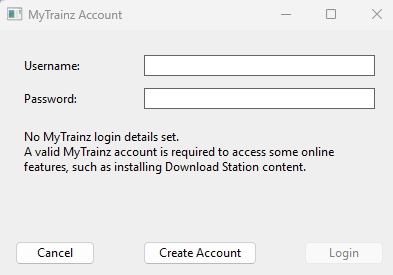
<td><span style="font-weight: 700; font-size: 15px; background-color: lightcyan;"> Left Click </span> on the link <span style="font-weight: 700; color: blue;"><u>No MyTrainz login</u></span> or <span style="font-weight: 700; color: blue;"><u>username</u></span><br> | |||
<table bgcolor=#ffffe0 cellpadding=2> | |||
<tr valign="top"> | <tr valign="top"> | ||
<td width=25>[[image: | <td width=25>[[image:PencilTips.PNG|link=]]</td> | ||
<td | <td>If you simply need to confirm your current login you can <span style="font-weight: 700; font-size: 15px; background-color: lightcyan;"> Left Click </span> on your displayed name link and re-enter your details.</td> | ||
If you | |||
</tr> | </tr> | ||
</table> | </table> | ||
</td> | </td> | ||
<td rowspan=4 width=395>[[image:MyTrainz-NewLogin.png|link=]]</td> | |||
</tr> | </tr> | ||
<tr valign="top"> | <tr valign="top"> | ||
<td>[[image:DotPoint2.JPG|link=]]</td> | |||
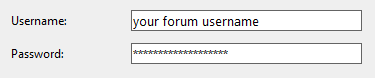
<td>Enter your Trainz Forum '''Username''' and '''Password''' into the dialogue window text boxes. | |||
<table> | |||
<tr valign="top"> | |||
<td>[[image:MyTrainz-NewLoginAdd.png|link=]]</td> | |||
<td> | <td> | ||
<table | <table bgcolor=#ffffb0 cellpadding=2> | ||
<tr valign="top"> | <tr valign="top"> | ||
<td | <td width=25>[[image:NotePad.PNG|link=]]</td> | ||
<td>If you do not have a '''Trainz Account''' login then go to the section<br> | |||
[[image:PageLink.PNG|link=]] '''[[#skipMyTrainzNewAccount|Create an Account]]''' above.</td> | |||
</tr> | |||
</table> | |||
</td> | |||
</tr> | </tr> | ||
< | </table> | ||
</td> | |||
< | <!-- <td></td> --> | ||
</tr> | </tr> | ||
<tr valign="top"> | <tr valign="top"> | ||
<td>[[image: | <td>[[image:DotPoint3.JPG|link=]]</td> | ||
<td> | <td><span style="font-weight: 700; font-size: 15px; background-color: lightcyan;"> Left Click </span> on the [[image:MyTrainz-NewLoginAddLogin.png|link=]] button which will become active as soon as data has been entered</td> | ||
<!-- <td></td> --> | <!-- <td></td> --> | ||
</tr> | </tr> | ||
<tr valign="top"> | <tr valign="top"> | ||
<td>[[image: | <td colspan=2>There will be a delay while the data is checked. This will be followed by one of two messages | ||
<td> | <table> | ||
<tr valign="top"> | |||
<td>[[image:MyTrainz-NewLoginCorrect.png|link=]]</td> | |||
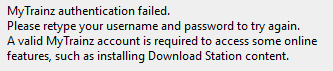
<td>[[image:MyTrainz-NewLoginFailed.png|link=]]</td> | |||
</tr> | |||
</table> | |||
</td> | |||
<!-- <td></td> --> | <!-- <td></td> --> | ||
</tr> | </tr> | ||
<tr valign="top"> | <tr valign="top"> | ||
<td>[[image:DotPoint4.JPG|link=]]</td> | <td>[[image:DotPoint4.JPG|link=]]</td> | ||
<td> | <td colspan=2><span style="font-weight: 700; font-size: 15px;">IF</span> you see the <span style="font-weight: 700; font-size: 15px;">login succeeded</span> message then <span style="font-weight: 700; font-size: 15px; background-color: lightcyan;"> Left Click </span> on the [[image:MyTrainz-NewLoginClose.png|link=]] button.<br> | ||
<span style="font-weight: 700; font-size: 15px;">IF</span> you see the <span style="font-weight: 700; font-size: 15px;">failed</span> message then try again (you may have mistyped the username or password). If the '''failed''' message persists then contact the '''Support''' desk.</td> | |||
</tr> | </tr> | ||
<tr valign="top"> | <tr valign="top"> | ||
<td>[[image:DotPoint5.JPG|link=]]</td> | <td>[[image:DotPoint5.JPG|link=]]</td> | ||
<td>After entering your login details, close the '''Trainz Settings''' dialogue window and exit the '''Trainz Launcher'''. Then restart '''Trainz''' | <td colspan=2>After entering your login details, close the '''Trainz Settings''' dialogue window and exit the '''Trainz Launcher'''. Then restart '''Trainz'''.</td> | ||
</tr> | </tr> | ||
</table> | </table> | ||
| Line 431: | Line 438: | ||
---- | ---- | ||
---- | ---- | ||
='''Trainz Wiki'''= | ='''Trainz Wiki'''= | ||
<table cellpadding=2 bgcolor=#ffffff> | <table cellpadding=2 bgcolor=#ffffff> | ||
Revision as of 00:50, 27 July 2026
|
 |
 |
|
|||||||||
Load the Trainz Launcher |
 |
|
|
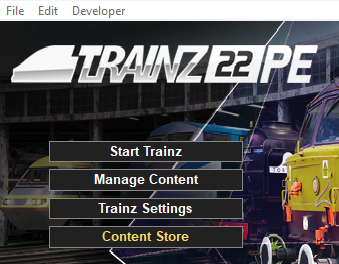
| Start your copy of Trainz which will load to show the Launcher Window (shown below). | ||||||||||
 |
|
|||||||||

Open the Trainz Settings Controls |
|
 |
|
|
 |
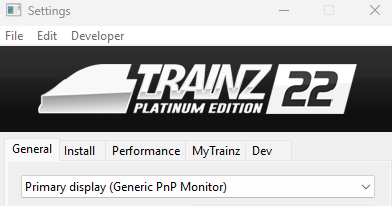
The Trainz Settings control how Trainz interacts with your Operating System and Graphics Display, where it stores your data, its overall performance, etc |
|
It also stores your login credentials which, amongst other things, gives you free access to the Download Station or DLS where assets such as routes, sessions, rolling stock and many different types of scenery can be downloaded and installed |
|
||||||||||||||||||

The MyTrainz Settings |
 |
|
|
|
|
These settings identify your user login details. In some older versions this Tab is labelled Internet. |
|
You can also check your current FCT status and, if required, purchase more FCT access. |
| Left Click on the MyTrainz tab |
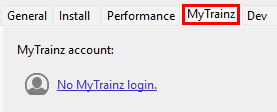
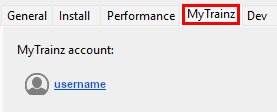
IF you have NOT set up a Trainz Account then you will see the following information in the MyTrainz tab, depending on your version of Trainz.
|
|||
|


Create an Account |
|
 |
|
|
You will need a Trainz Account to be able to access the online features of Trainz including the Download Station where there is a vast library of free assets (routes and sessions, locomotives and rolling stock, signals and tracks, scenery of all types, ground textures, etc) available for you to download and install. |
|
A Trainz Account will also give you a Trainz Forum Login username and password to access the Trainz Forum. |
|

|
||||||||||||||



Enter Login Details |
|
|
|
Your Login details are needed to access the Download Station and other online data. |
|
Your Trainz Login is the same as the Trainz Forum Login. If you do not have login then you can create a new account. |
|
||||||||||||||||||||||||||




|
|
Trainz Wiki
 |
More Tutorials and Guides to Using Trainz |
This page was created by Trainz user pware in July 2026 and was last updated as shown below.


