How to Configure Trainz Settings: Difference between revisions
| Line 1,047: | Line 1,047: | ||
<tr valign="top"> | <tr valign="top"> | ||
<td width=629><span id="skipUpdateStream"></span> | <td width=629><span id="skipUpdateStream"></span> | ||
=='''Trainz Update Stream'''== | |||
</td> | |||
<td width=50>[[image:SkipDown.png|link=#skipSendLogs|Skip Down]]</td> <!-- skip Down --> | |||
<td width=50>[[image:SkipUp.png|link=#skipTrainzUpdates|Skip Up]]</td> <!-- skip Up --> | |||
<td width=271> </td> | |||
</tr> | |||
</table> | |||
<table width=1000> | |||
<tr valign="top"> | |||
<td width=255>[[image:Install-UpdateStream.png|link=]]</td> | |||
<td>This allows you to switch between different update streams that the latest release '''Trainz''' versions have available.</td> | |||
</tr> | |||
</table> | |||
<br> | |||
<table width=1000> | |||
<tr valign="top"> | |||
<td colspan=2><span style="font-weight: 700; font-size: 15px;">What is a Trainz Update Stream?</span></td> | |||
</tr> | |||
<tr valign="top"> | |||
<td>Any version of '''Trainz''' that has not yet reached its '''End-of-Support''' date (see the Wiki link at [[image:WikiLink.PNG|link=]] '''[https://online.ts2009.com/mediaWiki/index.php/Trainz_Life-Cycle_Policy Trainz Life Cycle Policy]''' for the dates) will continue to receive updates. This includes the current (latest) release versions. These updates will be normal '''SP''' (Service Pack) and occasionally '''HF''' (Hot Fix) updates. They form the '''Normal Update Stream''' and are available to everyone who has a currently supported version of '''Trainz'''.</td> | |||
</tr> | |||
<tr valign="top"> | |||
<td>In addition, the next release of '''Trainz''', which could be a completely new version or more likely the next '''SP''' update, will be undergoing '''Beta Testing'''. These '''Beta''' test versions will have their own separate update stream, the '''Beta Update Stream'''. Usually there will be many beta updates released before the next '''Normal Update Stream''' release.</td> | |||
</tr> | |||
<tr valign="top"> | |||
<td> | |||
<br> | |||
<table bgcolor=#000000 cellpadding=2> | |||
<tr valign="top"> | |||
<td> | |||
<table bgcolor=#ffffb0 cellpadding=2> | |||
<tr valign="top"> | |||
<td width=25>[[image:NotePad.PNG|link=]]</td> | |||
<td width=975><span style="font-size: 17px; font-weight: 700;">Notes: The Beta Update Stream'''</span><br> | |||
---- | |||
'''Beta Test Versions''' of '''Trainz''' are always full of bugs - finding the bugs is the reason for the beta testing. They also have some normal features switched off, to make the testing easier, and contain annoying "pop-up" messages ("Assertions") that will halt the operation of the program whenever an "anomaly" is discovered.<br> | |||
<br> | |||
<span style="font-weight: 700; font-size: 15px;">Beta testing is not for everyone</span><br> | |||
Beta testing requires a lot of patience, some analytical skills and the ability to accurately report the events that led up to the discovery of a possible new bug. Sending possible bug reports to the '''Trainz Bug Report''' site is a vital part of beta testing.<br> | |||
<br> | |||
If you are not interested in doing any of that then '''Beta Testing''' is not for you. If all you are interested in is playing with the "cool new features" that may be present, then you will be disappointed and frustrated. If you later change your mind then you will find that it is '''NOT''' simple to switch back to the '''Normal Update Stream''' - you will either have to wait until the next normal stream update is released, which can be several months, or reinstall the program from scratch.</td> | |||
</tr> | |||
</table> | |||
</td> | |||
</tr> | |||
</table> | |||
</td> | |||
</tr> | |||
</table> | |||
<br> | |||
<table width=1000> | |||
<tr valign="top"> | |||
<td colspan=2><span style="font-weight: 700; font-size: 15px;">Steps: To Change Your Trainz Update Stream:-</span></td> | |||
</tr> | |||
<tr valign="top"> | |||
<td width=25>[[image:DotPoint1.JPG|link=]]</td> | |||
<td><span style="font-weight: 700; font-size: 15px; background-color: lightcyan;"> Left Click </span> on the [[image:Install-UpdateStream.png|link=]] button. This will open a the first of a series of dialogue windows.</td> | |||
</tr> | |||
<tr valign="top"> | |||
<td colspan=2> </td> | |||
</tr> | |||
<tr valign="top"> | |||
<td>[[image:DotPoint2.JPG|link=]]</td> | |||
<td>The first dialogue window will allow you to set where the patch will be installed. The current location, where your copy of '''Trainz''' is installed, will be shown in the window. | |||
<table> | |||
<tr valign="top"> | |||
<td width=550>[[image:Install-UpdateSelectStreamDialogue1.png|link=]]</td> | |||
<td> | |||
<table> | |||
<tr valign="top"> | |||
<td width=10>[[image:DotPoint.JPG|10px|link=]]</td> | |||
<td>To leave this unchanged <span style="font-weight: 700; font-size: 15px; background-color: lightcyan;"> Left Click </span> on the <span style="font-weight: 700; font-size: 15px;">Next</span> button</td> | |||
</tr> | |||
<tr valign="top"> | |||
<td>[[image:DotPoint.JPG|10px|link=]]</td> | |||
<td>To change the location <span style="font-weight: 700; font-size: 15px; background-color: lightcyan;"> Left Click </span> on the <span style="font-weight: 700; font-size: 15px;">Change Targets...</span> button (not '''Browse''' as named in the instructions shown in the image) then locate and select an available folder or drive and folder for the update patch</td> | |||
</tr> | |||
<tr valign="top"> | |||
<td colspan=2><br> | |||
This will display the second dialogue window</td> | |||
</tr> | |||
</table> | |||
</td> | |||
</tr> | |||
</table> | |||
</td> | |||
</tr> | |||
<tr valign="top"> | |||
<td colspan=2> </td> | |||
</tr> | |||
<tr valign="top"> | |||
<td>[[image:DotPoint3.JPG|link=]]</td> | |||
<td>in the second dialogue window enter your '''Trainz Login''' details | |||
<table> | |||
<tr valign="top"> | |||
<td width=550>[[image:Install-UpdateSelectStreamDialogue2.png|link=]]</td> | |||
<td> | |||
<table> | |||
<tr valign="top"> | |||
<td width=10>[[image:DotPoint.JPG|10px|link=]]</td> | |||
<td>Enter your '''username''' and '''password'''</td> | |||
</tr> | |||
<tr valign="top"> | |||
<td>[[image:DotPoint.JPG|10px|link=]]</td> | |||
<td>To confirm the entry <span style="font-weight: 700; font-size: 15px; background-color: lightcyan;"> Left Click </span> on the <span style="font-weight: 700; font-size: 15px;">Next</span> button. This will display the third dialogue window</td> | |||
</tr> | |||
<tr valign="top"> | |||
<td>[[image:DotPoint.JPG|10px|link=]]</td> | |||
<td>To backout and return to the previous dialogue window, <span style="font-weight: 700; font-size: 15px; background-color: lightcyan;"> Left Click </span> on the <span style="font-weight: 700; font-size: 15px;">Back</span> button</td> | |||
</tr> | |||
</table> | |||
</td> | |||
</tr> | |||
</table> | |||
</td> | |||
</tr> | |||
<tr valign="top"> | |||
<td colspan=2> </td> | |||
</tr> | |||
<tr valign="top"> | |||
<td>[[image:DotPoint4.JPG|link=]]</td> | |||
<td>The third dialogue window will show your current '''Update Stream''' | |||
<table> | |||
<tr valign="top"> | |||
<td width=550>[[image:Install-UpdateSelectStreamDialogue3.png|link=]]</td> | |||
<td> | |||
<table> | |||
<tr valign="top"> | |||
<td width=10>[[image:DotPoint.JPG|10px|link=]]</td> | |||
<td>To accept this and exit without changing the stream, <span style="font-weight: 700; font-size: 15px; background-color: lightcyan;"> Left Click </span> on the <span style="font-weight: 700; font-size: 15px;">Done</span> button</td> | |||
</tr> | |||
<tr valign="top"> | |||
<td>[[image:DotPoint.JPG|10px|link=]]</td> | |||
<td>To change the set '''Update Stream''' <span style="font-weight: 700; font-size: 15px; background-color: lightcyan;"> Left Click </span> on the <span style="font-weight: 700; font-size: 15px;">Change Stream...</span> button. This will display the fourth dialogue window</td> | |||
</tr> | |||
<tr valign="top"> | |||
<td>[[image:DotPoint.JPG|10px|link=]]</td> | |||
<td>To backout and return to the previous dialogue window, <span style="font-weight: 700; font-size: 15px; background-color: lightcyan;"> Left Click </span> on the <span style="font-weight: 700; font-size: 15px;">Back</span> button</td> | |||
</tr> | |||
</table> | |||
</td> | |||
</tr> | |||
</table> | |||
</td> | |||
</tr> | |||
<tr valign="top"> | |||
<td colspan=2> </td> | |||
</tr> | |||
<tr valign="top"> | |||
<td>[[image:DotPoint5.JPG|link=]]</td> | |||
<td>The fourth dialogue window will allow you to change your current '''Update Stream''' | |||
<table> | |||
<tr valign="top"> | |||
<td width=440>[[image:Install-UpdateSelectStreamDialogue4.png|link=]]</td> | |||
<td> | |||
<table> | |||
<tr valign="top"> | |||
<td width=10>[[image:DotPoint.JPG|10px|link=]]</td> | |||
<td>To exit without changing the stream, <span style="font-weight: 700; font-size: 15px; background-color: lightcyan;"> Left Click </span> on the <span style="font-weight: 700; font-size: 15px;">Cancel</span> button</td> | |||
</tr> | |||
<tr valign="top"> | |||
<td>[[image:DotPoint.JPG|10px|link=]]</td> | |||
<td>To change the '''Update Stream''', <span style="font-weight: 700; font-size: 15px; background-color: lightcyan;"> Left Click </span> inside the selection box to bring up a drop down menu of options<br> | |||
[[image:Install-UpdateSelectStreamDialogue5.png|link=]]</td> | |||
</tr> | |||
<tr valign="top"> | |||
<td>[[image:DotPoint.JPG|10px|link=]]</td> | |||
<td><span style="font-weight: 700; font-size: 15px; background-color: lightcyan;"> Left Click </span> on the required option then <span style="font-weight: 700; font-size: 15px; background-color: lightcyan;"> Left Click </span> on the <span style="font-weight: 700; font-size: 15px;">OK</span> button. This will display the final dialogue window</td> | |||
</tr> | |||
</table> | |||
</td> | |||
</tr> | |||
</table> | |||
</td> | |||
</tr> | |||
<tr valign="top"> | |||
<td colspan=2> </td> | |||
</tr> | |||
<tr valign="top"> | |||
<td>[[image:DotPoint6.JPG|link=]]</td> | |||
<td>The final dialogue window will display the new '''Update Stream'''. This is a repeat of the third dialogue window. | |||
<table> | |||
<tr valign="top"> | |||
<td width=550>[[image:Install-UpdateSelectStreamDialogue6.png|link=]]</td> | |||
<td> | |||
<table> | |||
<tr valign="top"> | |||
<td width=10>[[image:DotPoint.JPG|10px|link=]]</td> | |||
<td>To accept this and exit <span style="font-weight: 700; font-size: 15px; background-color: lightcyan;"> Left Click </span> on the <span style="font-weight: 700; font-size: 15px;">Done</span> button</td> | |||
</tr> | |||
<tr valign="top"> | |||
<td>[[image:DotPoint.JPG|10px|link=]]</td> | |||
<td>To change the set '''Update Stream''' <span style="font-weight: 700; font-size: 15px; background-color: lightcyan;"> Left Click </span> on the <span style="font-weight: 700; font-size: 15px;">Change Stream...</span> button. This will display the fourth dialogue window again to allow you to select a different '''Update Stream'''</td> | |||
</tr> | |||
<tr valign="top"> | |||
<td>[[image:DotPoint.JPG|10px|link=]]</td> | |||
<td>To backout and return to the previous dialogue window, <span style="font-weight: 700; font-size: 15px; background-color: lightcyan;"> Left Click </span> on the <span style="font-weight: 700; font-size: 15px;">Back</span> button</td> | |||
</tr> | |||
</table> | |||
</td> | |||
</tr> | |||
</table> | |||
</td> | |||
</tr> | |||
</table> | |||
<br> | |||
<table width=1000 bgcolor=#000000 cellpadding=2> | |||
<tr valign="top"> | |||
<td> | |||
<table width=996 bgcolor=#ffffb0 cellpadding=2> | |||
<tr valign="top"> | |||
<td width=25>[[image:NotePad.PNG|link=]]</td> | |||
<td>You can change your '''Trainz Update Stream''' at any time but going from the '''Beta Update Stream''' back to the '''Normal Update Stream''' is best performed after the beta test program has finished and the beta and normal versions have the same build numbers. If you remain on the '''Beta Update Stream''' then you will automatically get the first beta update for the next '''SP''' version when it is released.</td> | |||
</tr> | |||
</table> | |||
</td> | |||
</tr> | |||
</table> | |||
<br> | |||
<table width=1000> <!-- BEGIN Nav Buttons Table SKIPS --> | |||
<tr valign="top"> | |||
<td width=629><span id="skipSendLogs"></span> | |||
=='''Trainz Update Stream'''== | =='''Trainz Update Stream'''== | ||
</td> | </td> | ||
| Line 1,279: | Line 1,501: | ||
<tr valign="top"> | <tr valign="top"> | ||
<td width=260>[[image:Install-SendLogs.png|link=]]</td> | <td width=260>[[image:Install-SendLogs.png|link=]]</td> | ||
<td>This allows you to send diagnostic logs directly to '''N3V''' for analysis or to copy the logs to your system clipboard.</td> | <td>This allows you to send diagnostic logs directly to the '''N3V Games Helpdesk''' for analysis or to copy the logs to your system clipboard.</td> | ||
</tr> | </tr> | ||
</table> | </table> | ||
| Line 1,285: | Line 1,507: | ||
<table width=1000> | <table width=1000> | ||
<tr valign="top"> | <tr valign="top"> | ||
<td>'''Trainz''' keeps a text copy, a "log", of a wide range of actions by the program. These include the results of running a '''DBR''', or an '''EDBR''', error and warning messages generated when assets are installed, assertions created by a beta version, build startups and logins, configuration changes, etc. These logs are '''NOT''' sent | <td>'''Trainz''' keeps a text copy, a "log", of a wide range of actions by the program. These include the results of running a '''DBR''', or an '''EDBR''', error and warning messages generated when assets are installed, assertions created by a beta version, build startups and logins, configuration changes, etc. These logs are '''NOT''' sent automatically. You have to manually choose this option each time you want to send the logs. Alternatively, they can be sent to your system clipboard. | ||
</td> | </td> | ||
</tr> | </tr> | ||
</table> | </table> | ||
<br> | <br> | ||
<table width=1000 bgcolor=#000000 cellpadding=2> | |||
<tr valign="top"> | |||
<td> | |||
<table width=996 bgcolor=#ffffff cellpadding=2> | |||
<tr valign="top"> | |||
<td colspan=2><span style="font-weight: 700; font-size: 15px;">Steps: To Send Logs to N3V or to Your Clipboard:- </span></td> | |||
</tr> | |||
<tr valign="top"> | |||
<td width=25>[[image:DotPoint1.JPG|link=]]</td> | |||
<td><span style="font-weight: 700; font-size: 15px; background-color: lightcyan;"> Left Click </span> on the [[image:Install-SendLogs.png|link=]] button</td> | |||
</tr> | |||
<tr valign="top"> | |||
<td colspan=2> </td> | |||
</tr> | |||
<tr valign="top"> | |||
<td>[[image:DotPoint2.JPG|link=]]</td> | |||
<td>Enter a valid '''Contact Email''' address where the '''Helpdesk''' can contact you.<br> | |||
[[image:Install-LogDetails.png|link=]]<br> | |||
When an email address has been added the <span style="font-weight: 700; font-size: 15px;">Send Logs to N3V</span> button will be selectable</td> | |||
</tr> | |||
<tr valign="top"> | |||
<td colspan=2> </td> | |||
</tr> | |||
<tr valign="top"> | |||
<td>[[image:DotPoint3.JPG|link=]]</td> | |||
<td>Type a report in the '''Notes:''' section describing the problem. Include as much detail as possible. </td> | |||
</tr> | |||
<tr valign="top"> | |||
<td colspan=2> </td> | |||
</tr> | |||
<tr valign="top"> | |||
<td>[[image:DotPoint4.JPG|link=]]</td> | |||
<td><span style="font-weight: 700; font-size: 15px; background-color: lightcyan;"> Left Click </span> on either the | |||
</td> | |||
</tr> | |||
</table> | |||
</td> | |||
</tr> | |||
</table> | |||
<br> | |||
<table width=1000> <!-- BEGIN Nav Buttons Table NO SKIPS --> | <table width=1000> <!-- BEGIN Nav Buttons Table NO SKIPS --> | ||
<tr valign="top"> | <tr valign="top"> | ||
Revision as of 07:55, 6 August 2026
|
 |
 |
|
|||||||||||||||||

Load the Trainz Launcher |
 |
|
|
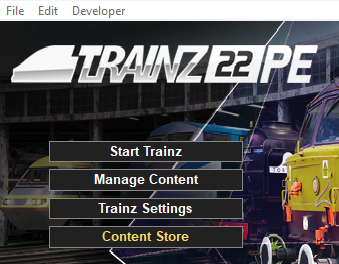
| Start your copy of Trainz which will load to show the Launcher Window (shown below). | ||||||||||
 |
|
|||||||||

Open the Trainz Settings Controls |
|
 |
|
|
 |
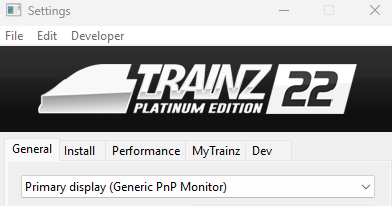
The Trainz Settings control how Trainz interacts with your Operating System and Graphics Display, where it stores your data, its overall performance, etc |
|
It also stores your login credentials which, amongst other things, gives you free access to the Download Station or DLS where assets such as routes, sessions, rolling stock and many different types of scenery can be downloaded and installed |
|
||||||||||||||||||||

The General Settings |
 |
|
|
|
|
|
These settings are your display characteristics such as the screen resolution, synchronisation, preferred language and font size. |
 |
Left Click on the General tab |
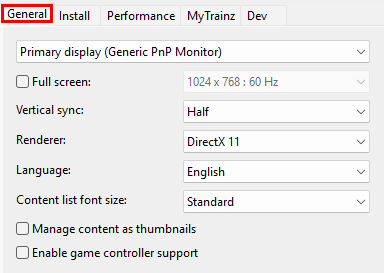 |
Some of these settings may require experimentation on your part to get the visual and performance results that you like. The settings will depend on your hardware and the characteristics of the routes that you run. |
Display Settings |
|
 |
|
This sets the display monitor that Trainz will run on, its screen resolution and other features. |
| Primary Monitor | |||||||||
IF you have more than one display monitor/screen attached to your computer then you can select the one that you want Trainz to use.
|
|||||||||

| Screen Size and Display Resolution | |
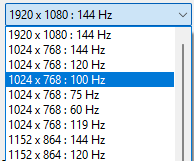
| This sets the screen size (as in full screen or windowed), its resolution (in pixels) and the refresh rate (in Hertz or cycles per second). | |
 |
If the Full Screen box is NOT checked then Trainz will run in windowed mode with the Trainz Railroad Simulator bar at the top of the program window and the Windows Tool Bar at the bottom of the screen. |
| This allows you to resize the window when required and to easily switch to other programs when needed. The resolution settings drop box cannot be opened if the Full Screen is not checked. | |
 |
If the Full Screen box is checked then Trainz will run in full screen mode WITHOUT the Trainz Railroad Simulator bar at the top of the program and the Windows Tool Bar at the bottom of the screen. |
|
|
 |
||||||||||
| Vertical Synchronization |
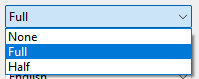
| This is a technology that matches (synchronizes) the construction of each video frame between your graphics card and your display monitor. Vertical Synchronization, when turned on, prevents the next frame from being sent to your display monitor before the previous frame has been fully drawn on its screen.  |
|
|||||||||||||||
| Renderer | ||||
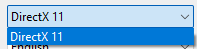
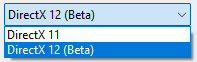
DirectX is the program interface (API) used by Windows to render 3D images on your display monitor. Currently there are two versions in use by most games and simulations.
|
||||
|
|
|
|||||||||
Language and Font Settings |
|
|
|
The selected language sets the preferred language for all internal menus, palette titles and commands, drop down lists |
|
The language used in all driver session message popups and HTML pages is set within those assets and not in this configuration |
|
The selected font size option only applies to asset lists |
| Language |
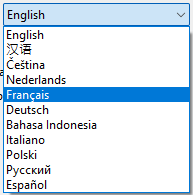
| Trainz allows you to choose a preferred display language for all menus, option boxes, command lists, etc that are part of the program. The default language is English. |
|
||||||||||||||||||||||||

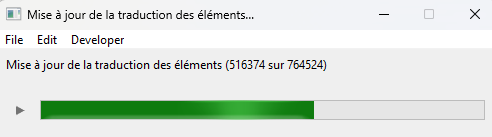
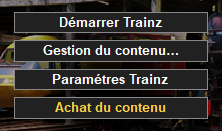
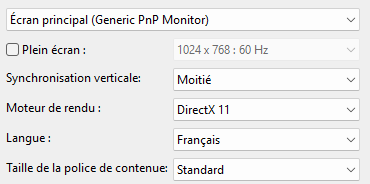
| Font Size |
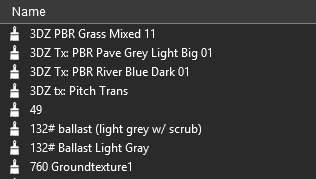
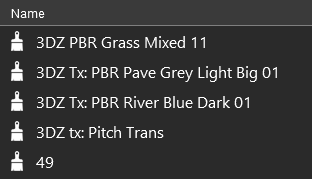
| This allows you to display lists of assets (content) in a larger font size. It applies to the asset lists shown in some Surveyor 2.0 Palettes and in Content Manager. |
|
||||||||||||||||||

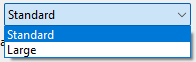
Misc Settings |
|
|
| Key Points:- | |
|
You can display all assets in Content Manager using their thumbnails |
|
You can add support or some non-keyboard game controllers |
| Content Manager Thumbnails |
 |
| This allows you to display all the assets in Content Manager using their thumbnails. The thumbnails will be constructed from the actual mesh and texture files (if present) in the assets and not from the Thumbnail.jpg images supplied by the creator. |
|
||||||||
| Game Controller Support |
 |
| This allows you to control Trainz using an external game controller instead of the keyboard and mouse. The RailDriver Controller is one example. You must have the necessary software drivers installed. |
|
||||
The Install Settings |
|
|
|
|
|
|
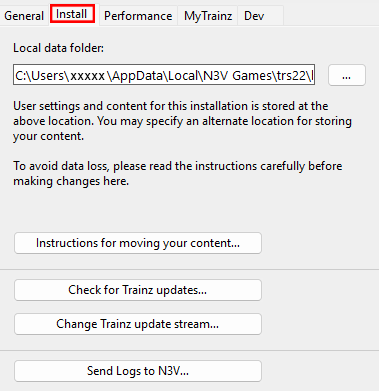
These settings identify the location of your Local Data Folder where all your assets are kept and the type of program updates you want to receive. |
| Left Click on the Install tab |
 |
|
|||||||||||||||

|

| Instructions for moving or copying the Local Data Folder can be found on the Trainz Wiki. | |||
| Error creating thumbnail: /bin/bash: line 1: /usr/bin/convert: No such file or directory Error code: 127 | A Left Click on the button labelled Instructions for moving your content will load the page at Moving Content. | ||
| Error creating thumbnail: /bin/bash: line 1: /usr/bin/convert: No such file or directory Error code: 127 | Other related pages on the Wiki can be found at:-
|
||
Trainz Updates |
|
|
 |
This will allow you to manually check if any new updates (Service Packs or Hot Fixes) are available for your version and buld number of Trainz. If you are a beta tester then it will also check for new beta updates. | |||
|
|
||||
|
||||||||||||||||||||


|
||||||||||||||||||||||||
Trainz Update Stream |
|
|
 |
This allows you to switch between different update streams that the latest release Trainz versions have available. |
| What is a Trainz Update Stream? | |||
Any version of Trainz that has not yet reached its End-of-Support date (see the Wiki link at  Trainz Life Cycle Policy for the dates) will continue to receive updates. This includes the current (latest) release versions. These updates will be normal SP (Service Pack) and occasionally HF (Hot Fix) updates. They form the Normal Update Stream and are available to everyone who has a currently supported version of Trainz. |
|||
| In addition, the next release of Trainz, which could be a completely new version or more likely the next SP update, will be undergoing Beta Testing. These Beta test versions will have their own separate update stream, the Beta Update Stream. Usually there will be many beta updates released before the next Normal Update Stream release. | |||
|
|
|||
| Steps: To Change Your Trainz Update Stream:- | |||||||||
 |
Left Click on the button. This will open a the first of a series of dialogue windows. |
||||||||
 |
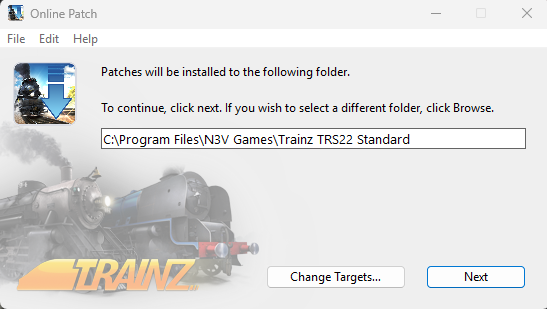
The first dialogue window will allow you to set where the patch will be installed. The current location, where your copy of Trainz is installed, will be shown in the window.
|
||||||||
 |
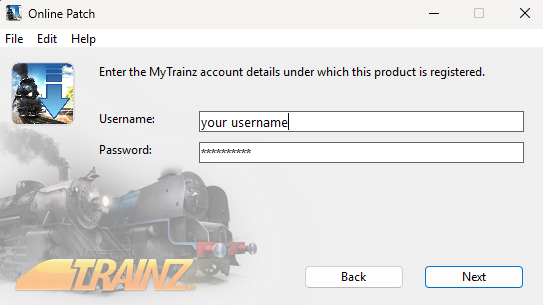
in the second dialogue window enter your Trainz Login details
|
||||||||
 |
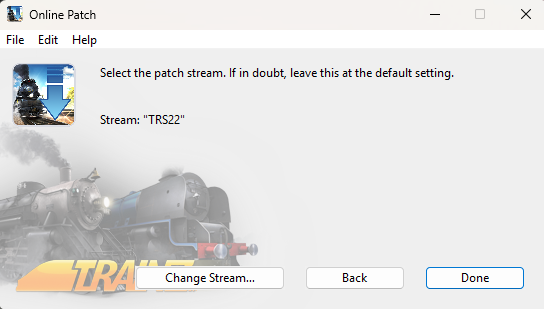
The third dialogue window will show your current Update Stream
|
||||||||
 |
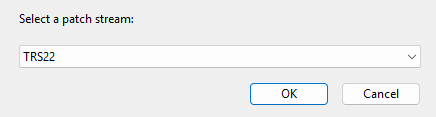
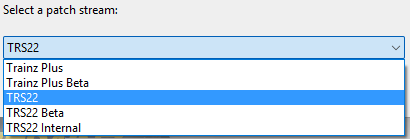
The fourth dialogue window will allow you to change your current Update Stream
|
||||||||
 |
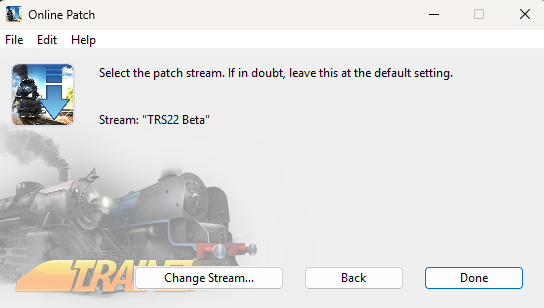
The final dialogue window will display the new Update Stream. This is a repeat of the third dialogue window.
|
||||||||
|
Trainz Update Stream |
|
|
|
This allows you to switch between different update streams that the latest release Trainz versions have available. |
| What is a Trainz Update Stream? | |||
| Any version of Trainz that has not yet reached its End-of-Support date (see the Wiki link at Trainz Life Cycle Policy for the dates) will continue to receive updates. This includes the current (latest) release versions. These updates will be normal SP (Service Pack) and occasionally HF (Hot Fix) updates. They form the Normal Update Stream and are available to everyone who has a currently supported version of Trainz. |
|||
| In addition, the next release of Trainz, which could be a completely new version or more likely the next SP update, will be undergoing Beta Testing. These Beta test versions will have their own separate update stream, the Beta Update Stream. Usually there will be many beta updates released before the next Normal Update Stream release. | |||
|
|
|||
| Steps: To Change Your Trainz Update Stream:- | |||||||||
|
Left Click on the button. This will open a the first of a series of dialogue windows. |
||||||||
|
The first dialogue window will allow you to set where the patch will be installed. The current location, where your copy of Trainz is installed, will be shown in the window.
|
||||||||
|
in the second dialogue window enter your Trainz Login details
|
||||||||
|
The third dialogue window will show your current Update Stream
|
||||||||
|
The fourth dialogue window will allow you to change your current Update Stream
|
||||||||
|
The final dialogue window will display the new Update Stream. This is a repeat of the third dialogue window.
|
||||||||
|
Send Logs to N3V |
|
|
 |
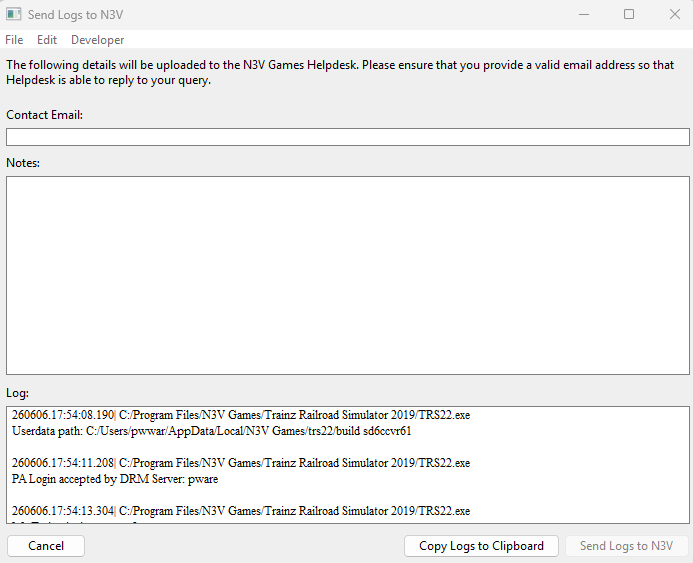
This allows you to send diagnostic logs directly to the N3V Games Helpdesk for analysis or to copy the logs to your system clipboard. |
| Trainz keeps a text copy, a "log", of a wide range of actions by the program. These include the results of running a DBR, or an EDBR, error and warning messages generated when assets are installed, assertions created by a beta version, build startups and logins, configuration changes, etc. These logs are NOT sent automatically. You have to manually choose this option each time you want to send the logs. Alternatively, they can be sent to your system clipboard. |
|
||||||||||||||||
The Performance Settings |
|
|
|
|
|
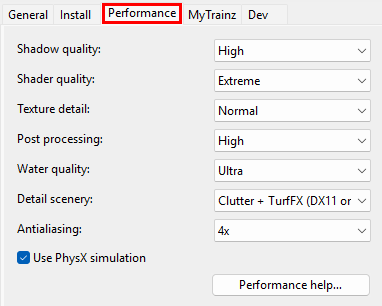
These settings are where you can "fine tune" the performance of the program to better match the hardware of your computer system and the demands of the routes you are running. |
|
You may need to experiment with these settings to get the best match with your system and the routes you run. |
| Left Click on the Performance tab |
 |
The MyTrainz Settings |
|
|
|
|
|
|
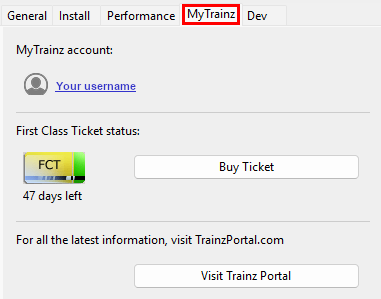
These settings identify your user login details. In some older versions this Tab is labelled Internet. |
|
You can also check your current FCT status and, if required, purchase more FCT access. |
| Left Click on the MyTrainz tab |
 |
|
||||||||||||
Enter Login Details |
|
|
|
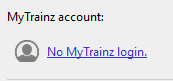
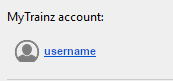
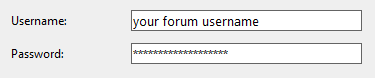
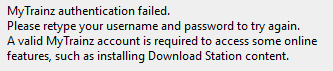
Your Login details are needed to access the Download Station and other online data. |
|
Your Trainz Login is the same as the Trainz Forum Login that you used to purchase or subscribe to your current copy of Trainz. If you do not have a Trainz Forum Login then you can create a new account. |
|
||||||||||||||||||||||||||



Create an Account |
|
|
|
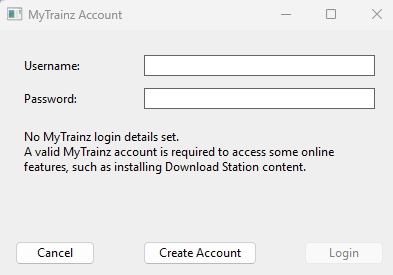
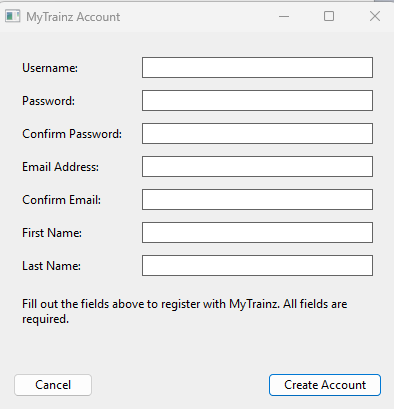
You will need a Trainz Account to be able to access the online features of Trainz including the Download Station where there is a vast library of free assets (routes and sessions, locomotives and rolling stock, signals and tracks, scenery of all types, ground textures, etc) available for you to download and install. |
|
A Trainz Account will also give you a Trainz Forum Login username and password to access the Trainz Forum. |
|
|
|||||||||||||||||||||||
First Class Ticket |
|
|
|
The FCT or First Class Ticket is an optional prepaid feature that gives you higher speed priority access to the Download Station or DLS. |
|
An FCT is automatically included in all Trainz Plus subscriptions for the duration of the subscription. |
| With an FCT:- | |
| Error creating thumbnail: /bin/bash: line 1: /usr/bin/convert: No such file or directory Error code: 127 | there is no limit to how much or how often you can download from the DLS. |
| Error creating thumbnail: /bin/bash: line 1: /usr/bin/convert: No such file or directory Error code: 127 | you get priority Download Station access. |
| Error creating thumbnail: /bin/bash: line 1: /usr/bin/convert: No such file or directory Error code: 127 | Only 1 FCT is needed per account, not 1 per Trainz product. So if you own both TRS19 and TRS22 then the same FCT will be used for both. |
| Error creating thumbnail: /bin/bash: line 1: /usr/bin/convert: No such file or directory Error code: 127 | you will get increased download speeds. The exact speed will depend on external factors such as the speed of your internet connection, the paths taken by the data to reach your system, the access speed of the servers used by N3V and any restrictions imposed by your Internet Service Provider. |
|
 |
The FCT Status indicates how many days are left on your current active FCT.
 button to purchase another FCT (you can activate it at any time after purchase). |
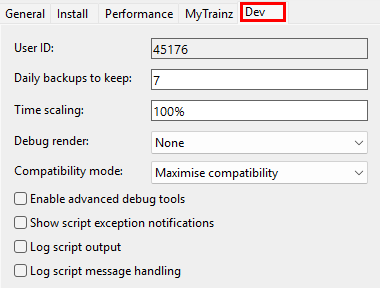
The Dev Settings |
|
|
|
|
|
These settings are designed for asset developers ONLY to test the performance and other features of the assets they create. |
|
Unless you are an experienced asset developer you are strongly advised to NOT change these settings. |
|
They also control how often automatic backups will be made of any routes or sessions that you are currently developing in Surveyor. |
| Left Click on the Dev tab |
 |
|
|
Trainz Wiki
 |
More Tutorials and Guides to Using Trainz |
This page was created by Trainz user pware in July 2026 and was last updated as shown below.


