|
|
| Line 1,047: |
Line 1,047: |
| <tr valign="top"> | | <tr valign="top"> |
| <td width=629><span id="skipUpdateStream"></span> | | <td width=629><span id="skipUpdateStream"></span> |
| =='''Trainz Update Stream'''==
| |
| </td>
| |
| <td width=50>[[image:SkipDown.png|link=#skipSendLogs|Skip Down]]</td> <!-- skip Down -->
| |
| <td width=50>[[image:SkipUp.png|link=#skipTrainzUpdates|Skip Up]]</td> <!-- skip Up -->
| |
| <td width=271> </td>
| |
| </tr>
| |
| </table>
| |
| <table width=1000>
| |
| <tr valign="top">
| |
| <td width=255>[[image:Install-UpdateStream.png|link=]]</td>
| |
| <td>This allows you to switch between different update streams that the latest release '''Trainz''' versions have available.</td>
| |
| </tr>
| |
| </table>
| |
| <br>
| |
| <table width=1000>
| |
| <tr valign="top">
| |
| <td colspan=2><span style="font-weight: 700; font-size: 15px;">What is a Trainz Update Stream?</span></td>
| |
| </tr>
| |
| <tr valign="top">
| |
| <td>Any version of '''Trainz''' that has not yet reached its '''End-of-Support''' date (see the Wiki link at [[image:WikiLink.PNG|link=]] '''[https://online.ts2009.com/mediaWiki/index.php/Trainz_Life-Cycle_Policy Trainz Life Cycle Policy]''' for the dates) will continue to receive updates. This includes the current (latest) release versions. These updates will be normal '''SP''' (Service Pack) and occasionally '''HF''' (Hot Fix) updates. They form the '''Normal Update Stream''' and are available to everyone who has a currently supported version of '''Trainz'''.</td>
| |
| </tr>
| |
| <tr valign="top">
| |
| <td>In addition, the next release of '''Trainz''', which could be a completely new version or more likely the next '''SP''' update, will be undergoing '''Beta Testing'''. These '''Beta''' test versions will have their own separate update stream, the '''Beta Update Stream'''. Usually there will be many beta updates released before the next '''Normal Update Stream''' release.</td>
| |
| </tr>
| |
| <tr valign="top">
| |
| <td>
| |
| <br>
| |
| <table bgcolor=#000000 cellpadding=2>
| |
| <tr valign="top">
| |
| <td>
| |
| <table bgcolor=#ffffb0 cellpadding=2>
| |
| <tr valign="top">
| |
| <td width=25>[[image:NotePad.PNG|link=]]</td>
| |
| <td width=975><span style="font-size: 17px; font-weight: 700;">Notes: The Beta Update Stream'''</span><br>
| |
| ----
| |
| '''Beta Test Versions''' of '''Trainz''' are always full of bugs - finding the bugs is the reason for the beta testing. They also have some normal features switched off, to make the testing easier, and contain annoying "pop-up" messages ("Assertions") that will halt the operation of the program whenever an "anomaly" is discovered.<br>
| |
| <br>
| |
| <span style="font-weight: 700; font-size: 15px;">Beta testing is not for everyone</span><br>
| |
| Beta testing requires a lot of patience, some analytical skills and the ability to accurately report the events that led up to the discovery of a possible new bug. Sending possible bug reports to the '''Trainz Bug Report''' site is a vital part of beta testing.<br>
| |
| <br>
| |
| If you are not interested in doing any of that then '''Beta Testing''' is not for you. If all you are interested in is playing with the "cool new features" that may be present, then you will be disappointed and frustrated. If you later change your mind then you will find that it is '''NOT''' simple to switch back to the '''Normal Update Stream''' - you will either have to wait until the next normal stream update is released, which can be several months, or reinstall the program from scratch.</td>
| |
| </tr>
| |
| </table>
| |
| </td>
| |
| </tr>
| |
| </table>
| |
| </td>
| |
| </tr>
| |
| </table>
| |
| <br>
| |
| <table width=1000>
| |
| <tr valign="top">
| |
| <td colspan=2><span style="font-weight: 700; font-size: 15px;">Steps: To Change Your Trainz Update Stream:-</span></td>
| |
| </tr>
| |
| <tr valign="top">
| |
| <td width=25>[[image:DotPoint1.JPG|link=]]</td>
| |
| <td><span style="font-weight: 700; font-size: 15px; background-color: lightcyan;"> Left Click </span> on the [[image:Install-UpdateStream.png|link=]] button. This will open a the first of a series of dialogue windows.</td>
| |
| </tr>
| |
| <tr valign="top">
| |
| <td colspan=2> </td>
| |
| </tr>
| |
| <tr valign="top">
| |
| <td>[[image:DotPoint2.JPG|link=]]</td>
| |
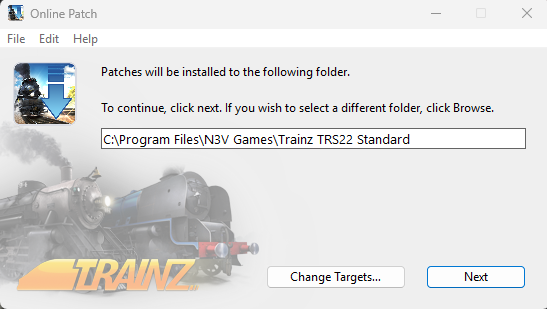
| <td>The first dialogue window will allow you to set where the patch will be installed. The current location, where your copy of '''Trainz''' is installed, will be shown in the window.
| |
| <table>
| |
| <tr valign="top">
| |
| <td width=550>[[image:Install-UpdateSelectStreamDialogue1.png|link=]]</td>
| |
| <td>
| |
| <table>
| |
| <tr valign="top">
| |
| <td width=10>[[image:DotPoint.JPG|10px|link=]]</td>
| |
| <td>To leave this unchanged <span style="font-weight: 700; font-size: 15px; background-color: lightcyan;"> Left Click </span> on the <span style="font-weight: 700; font-size: 15px;">Next</span> button</td>
| |
| </tr>
| |
| <tr valign="top">
| |
| <td>[[image:DotPoint.JPG|10px|link=]]</td>
| |
| <td>To change the location <span style="font-weight: 700; font-size: 15px; background-color: lightcyan;"> Left Click </span> on the <span style="font-weight: 700; font-size: 15px;">Change Targets...</span> button (not '''Browse''' as named in the instructions shown in the image) then locate and select an available folder or drive and folder for the update patch</td>
| |
| </tr>
| |
| <tr valign="top">
| |
| <td colspan=2><br>
| |
| This will display the second dialogue window</td>
| |
| </tr>
| |
| </table>
| |
| </td>
| |
| </tr>
| |
| </table>
| |
| </td>
| |
| </tr>
| |
| <tr valign="top">
| |
| <td colspan=2> </td>
| |
| </tr>
| |
| <tr valign="top">
| |
| <td>[[image:DotPoint3.JPG|link=]]</td>
| |
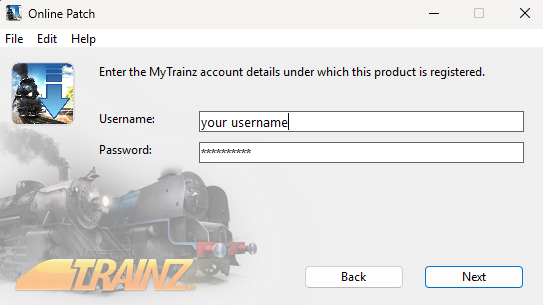
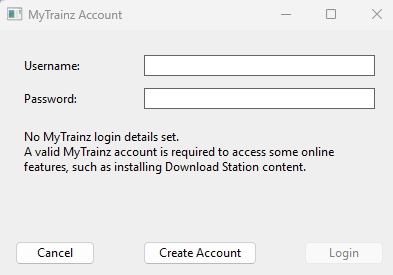
| <td>in the second dialogue window enter your '''Trainz Login''' details
| |
| <table>
| |
| <tr valign="top">
| |
| <td width=550>[[image:Install-UpdateSelectStreamDialogue2.png|link=]]</td>
| |
| <td>
| |
| <table>
| |
| <tr valign="top">
| |
| <td width=10>[[image:DotPoint.JPG|10px|link=]]</td>
| |
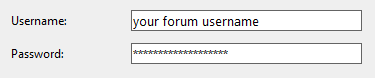
| <td>Enter your '''username''' and '''password'''</td>
| |
| </tr>
| |
| <tr valign="top">
| |
| <td>[[image:DotPoint.JPG|10px|link=]]</td>
| |
| <td>To confirm the entry <span style="font-weight: 700; font-size: 15px; background-color: lightcyan;"> Left Click </span> on the <span style="font-weight: 700; font-size: 15px;">Next</span> button. This will display the third dialogue window</td>
| |
| </tr>
| |
| <tr valign="top">
| |
| <td>[[image:DotPoint.JPG|10px|link=]]</td>
| |
| <td>To backout and return to the previous dialogue window, <span style="font-weight: 700; font-size: 15px; background-color: lightcyan;"> Left Click </span> on the <span style="font-weight: 700; font-size: 15px;">Back</span> button</td>
| |
| </tr>
| |
| </table>
| |
| </td>
| |
| </tr>
| |
| </table>
| |
| </td>
| |
| </tr>
| |
| <tr valign="top">
| |
| <td colspan=2> </td>
| |
| </tr>
| |
| <tr valign="top">
| |
| <td>[[image:DotPoint4.JPG|link=]]</td>
| |
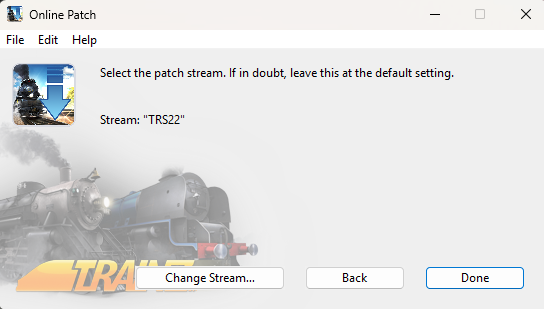
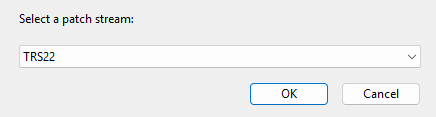
| <td>The third dialogue window will show your current '''Update Stream'''
| |
| <table>
| |
| <tr valign="top">
| |
| <td width=550>[[image:Install-UpdateSelectStreamDialogue3.png|link=]]</td>
| |
| <td>
| |
| <table>
| |
| <tr valign="top">
| |
| <td width=10>[[image:DotPoint.JPG|10px|link=]]</td>
| |
| <td>To accept this and exit without changing the stream, <span style="font-weight: 700; font-size: 15px; background-color: lightcyan;"> Left Click </span> on the <span style="font-weight: 700; font-size: 15px;">Done</span> button</td>
| |
| </tr>
| |
| <tr valign="top">
| |
| <td>[[image:DotPoint.JPG|10px|link=]]</td>
| |
| <td>To change the set '''Update Stream''' <span style="font-weight: 700; font-size: 15px; background-color: lightcyan;"> Left Click </span> on the <span style="font-weight: 700; font-size: 15px;">Change Stream...</span> button. This will display the fourth dialogue window</td>
| |
| </tr>
| |
| <tr valign="top">
| |
| <td>[[image:DotPoint.JPG|10px|link=]]</td>
| |
| <td>To backout and return to the previous dialogue window, <span style="font-weight: 700; font-size: 15px; background-color: lightcyan;"> Left Click </span> on the <span style="font-weight: 700; font-size: 15px;">Back</span> button</td>
| |
| </tr>
| |
| </table>
| |
| </td>
| |
| </tr>
| |
| </table>
| |
| </td>
| |
| </tr>
| |
| <tr valign="top">
| |
| <td colspan=2> </td>
| |
| </tr>
| |
| <tr valign="top">
| |
| <td>[[image:DotPoint5.JPG|link=]]</td>
| |
| <td>The fourth dialogue window will allow you to change your current '''Update Stream'''
| |
| <table>
| |
| <tr valign="top">
| |
| <td width=440>[[image:Install-UpdateSelectStreamDialogue4.png|link=]]</td>
| |
| <td>
| |
| <table>
| |
| <tr valign="top">
| |
| <td width=10>[[image:DotPoint.JPG|10px|link=]]</td>
| |
| <td>To exit without changing the stream, <span style="font-weight: 700; font-size: 15px; background-color: lightcyan;"> Left Click </span> on the <span style="font-weight: 700; font-size: 15px;">Cancel</span> button</td>
| |
| </tr>
| |
| <tr valign="top">
| |
| <td>[[image:DotPoint.JPG|10px|link=]]</td>
| |
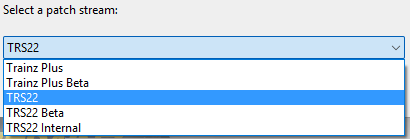
| <td>To change the '''Update Stream''', <span style="font-weight: 700; font-size: 15px; background-color: lightcyan;"> Left Click </span> inside the selection box to bring up a drop down menu of options<br>
| |
| [[image:Install-UpdateSelectStreamDialogue5.png|link=]]</td>
| |
| </tr>
| |
| <tr valign="top">
| |
| <td>[[image:DotPoint.JPG|10px|link=]]</td>
| |
| <td><span style="font-weight: 700; font-size: 15px; background-color: lightcyan;"> Left Click </span> on the required option then <span style="font-weight: 700; font-size: 15px; background-color: lightcyan;"> Left Click </span> on the <span style="font-weight: 700; font-size: 15px;">OK</span> button. This will display the final dialogue window</td>
| |
| </tr>
| |
| </table>
| |
| </td>
| |
| </tr>
| |
| </table>
| |
| </td>
| |
| </tr>
| |
| <tr valign="top">
| |
| <td colspan=2> </td>
| |
| </tr>
| |
| <tr valign="top">
| |
| <td>[[image:DotPoint6.JPG|link=]]</td>
| |
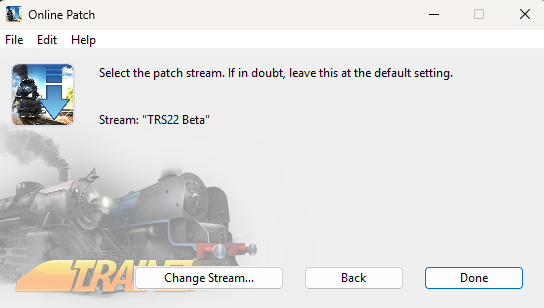
| <td>The final dialogue window will display the new '''Update Stream'''. This is a repeat of the third dialogue window.
| |
| <table>
| |
| <tr valign="top">
| |
| <td width=550>[[image:Install-UpdateSelectStreamDialogue6.png|link=]]</td>
| |
| <td>
| |
| <table>
| |
| <tr valign="top">
| |
| <td width=10>[[image:DotPoint.JPG|10px|link=]]</td>
| |
| <td>To accept this and exit <span style="font-weight: 700; font-size: 15px; background-color: lightcyan;"> Left Click </span> on the <span style="font-weight: 700; font-size: 15px;">Done</span> button</td>
| |
| </tr>
| |
| <tr valign="top">
| |
| <td>[[image:DotPoint.JPG|10px|link=]]</td>
| |
| <td>To change the set '''Update Stream''' <span style="font-weight: 700; font-size: 15px; background-color: lightcyan;"> Left Click </span> on the <span style="font-weight: 700; font-size: 15px;">Change Stream...</span> button. This will display the fourth dialogue window again to allow you to select a different '''Update Stream'''</td>
| |
| </tr>
| |
| <tr valign="top">
| |
| <td>[[image:DotPoint.JPG|10px|link=]]</td>
| |
| <td>To backout and return to the previous dialogue window, <span style="font-weight: 700; font-size: 15px; background-color: lightcyan;"> Left Click </span> on the <span style="font-weight: 700; font-size: 15px;">Back</span> button</td>
| |
| </tr>
| |
| </table>
| |
| </td>
| |
| </tr>
| |
| </table>
| |
| </td>
| |
| </tr>
| |
| </table>
| |
| <br>
| |
| <table width=1000 bgcolor=#000000 cellpadding=2>
| |
| <tr valign="top">
| |
| <td>
| |
| <table width=996 bgcolor=#ffffb0 cellpadding=2>
| |
| <tr valign="top">
| |
| <td width=25>[[image:NotePad.PNG|link=]]</td>
| |
| <td>You can change your '''Trainz Update Stream''' at any time but going from the '''Beta Update Stream''' back to the '''Normal Update Stream''' is best performed after the beta test program has finished and the beta and normal versions have the same build numbers. If you remain on the '''Beta Update Stream''' then you will automatically get the first beta update for the next '''SP''' version when it is released.</td>
| |
| </tr>
| |
| </table>
| |
| </td>
| |
| </tr>
| |
| </table>
| |
| <br>
| |
| <table width=1000> <!-- BEGIN Nav Buttons Table SKIPS -->
| |
| <tr valign="top">
| |
| <td width=629><span id="skipSendLogs"></span>
| |
| =='''Trainz Update Stream'''==
| |
| </td>
| |
| <td width=50>[[image:SkipDown.png|link=#skipSendLogs|Skip Down]]</td> <!-- skip Down -->
| |
| <td width=50>[[image:SkipUp.png|link=#skipTrainzUpdates|Skip Up]]</td> <!-- skip Up -->
| |
| <td width=271> </td>
| |
| </tr>
| |
| </table>
| |
| <table width=1000>
| |
| <tr valign="top">
| |
| <td width=255>[[image:Install-UpdateStream.png|link=]]</td>
| |
| <td>This allows you to switch between different update streams that the latest release '''Trainz''' versions have available.</td>
| |
| </tr>
| |
| </table>
| |
| <br>
| |
| <table width=1000>
| |
| <tr valign="top">
| |
| <td colspan=2><span style="font-weight: 700; font-size: 15px;">What is a Trainz Update Stream?</span></td>
| |
| </tr>
| |
| <tr valign="top">
| |
| <td>Any version of '''Trainz''' that has not yet reached its '''End-of-Support''' date (see the Wiki link at [[image:WikiLink.PNG|link=]] '''[https://online.ts2009.com/mediaWiki/index.php/Trainz_Life-Cycle_Policy Trainz Life Cycle Policy]''' for the dates) will continue to receive updates. This includes the current (latest) release versions. These updates will be normal '''SP''' (Service Pack) and occasionally '''HF''' (Hot Fix) updates. They form the '''Normal Update Stream''' and are available to everyone who has a currently supported version of '''Trainz'''.</td>
| |
| </tr>
| |
| <tr valign="top">
| |
| <td>In addition, the next release of '''Trainz''', which could be a completely new version or more likely the next '''SP''' update, will be undergoing '''Beta Testing'''. These '''Beta''' test versions will have their own separate update stream, the '''Beta Update Stream'''. Usually there will be many beta updates released before the next '''Normal Update Stream''' release.</td>
| |
| </tr>
| |
| <tr valign="top">
| |
| <td>
| |
| <br>
| |
| <table bgcolor=#000000 cellpadding=2>
| |
| <tr valign="top">
| |
| <td>
| |
| <table bgcolor=#ffffb0 cellpadding=2>
| |
| <tr valign="top">
| |
| <td width=25>[[image:NotePad.PNG|link=]]</td>
| |
| <td width=975><span style="font-size: 17px; font-weight: 700;">Notes: The Beta Update Stream'''</span><br>
| |
| ----
| |
| '''Beta Test Versions''' of '''Trainz''' are always full of bugs - finding the bugs is the reason for the beta testing. They also have some normal features switched off, to make the testing easier, and contain annoying "pop-up" messages ("Assertions") that will halt the operation of the program whenever an "anomaly" is discovered.<br>
| |
| <br>
| |
| <span style="font-weight: 700; font-size: 15px;">Beta testing is not for everyone</span><br>
| |
| Beta testing requires a lot of patience, some analytical skills and the ability to accurately report the events that led up to the discovery of a possible new bug. Sending possible bug reports to the '''Trainz Bug Report''' site is a vital part of beta testing.<br>
| |
| <br>
| |
| If you are not interested in doing any of that then '''Beta Testing''' is not for you. If all you are interested in is playing with the "cool new features" that may be present, then you will be disappointed and frustrated. If you later change your mind then you will find that it is '''NOT''' simple to switch back to the '''Normal Update Stream''' - you will either have to wait until the next normal stream update is released, which can be several months, or reinstall the program from scratch.</td>
| |
| </tr>
| |
| </table>
| |
| </td>
| |
| </tr>
| |
| </table>
| |
| </td>
| |
| </tr>
| |
| </table>
| |
| <br>
| |
| <table width=1000>
| |
| <tr valign="top">
| |
| <td colspan=2><span style="font-weight: 700; font-size: 15px;">Steps: To Change Your Trainz Update Stream:-</span></td>
| |
| </tr>
| |
| <tr valign="top">
| |
| <td width=25>[[image:DotPoint1.JPG|link=]]</td>
| |
| <td><span style="font-weight: 700; font-size: 15px; background-color: lightcyan;"> Left Click </span> on the [[image:Install-UpdateStream.png|link=]] button. This will open a the first of a series of dialogue windows.</td>
| |
| </tr>
| |
| <tr valign="top">
| |
| <td colspan=2> </td>
| |
| </tr>
| |
| <tr valign="top">
| |
| <td>[[image:DotPoint2.JPG|link=]]</td>
| |
| <td>The first dialogue window will allow you to set where the patch will be installed. The current location, where your copy of '''Trainz''' is installed, will be shown in the window.
| |
| <table>
| |
| <tr valign="top">
| |
| <td width=550>[[image:Install-UpdateSelectStreamDialogue1.png|link=]]</td>
| |
| <td>
| |
| <table>
| |
| <tr valign="top">
| |
| <td width=10>[[image:DotPoint.JPG|10px|link=]]</td>
| |
| <td>To leave this unchanged <span style="font-weight: 700; font-size: 15px; background-color: lightcyan;"> Left Click </span> on the <span style="font-weight: 700; font-size: 15px;">Next</span> button</td>
| |
| </tr>
| |
| <tr valign="top">
| |
| <td>[[image:DotPoint.JPG|10px|link=]]</td>
| |
| <td>To change the location <span style="font-weight: 700; font-size: 15px; background-color: lightcyan;"> Left Click </span> on the <span style="font-weight: 700; font-size: 15px;">Change Targets...</span> button (not '''Browse''' as named in the instructions shown in the image) then locate and select an available folder or drive and folder for the update patch</td>
| |
| </tr>
| |
| <tr valign="top">
| |
| <td colspan=2><br>
| |
| This will display the second dialogue window</td>
| |
| </tr>
| |
| </table>
| |
| </td>
| |
| </tr>
| |
| </table>
| |
| </td>
| |
| </tr>
| |
| <tr valign="top">
| |
| <td colspan=2> </td>
| |
| </tr>
| |
| <tr valign="top">
| |
| <td>[[image:DotPoint3.JPG|link=]]</td>
| |
| <td>in the second dialogue window enter your '''Trainz Login''' details
| |
| <table>
| |
| <tr valign="top">
| |
| <td width=550>[[image:Install-UpdateSelectStreamDialogue2.png|link=]]</td>
| |
| <td>
| |
| <table>
| |
| <tr valign="top">
| |
| <td width=10>[[image:DotPoint.JPG|10px|link=]]</td>
| |
| <td>Enter your '''username''' and '''password'''</td>
| |
| </tr>
| |
| <tr valign="top">
| |
| <td>[[image:DotPoint.JPG|10px|link=]]</td>
| |
| <td>To confirm the entry <span style="font-weight: 700; font-size: 15px; background-color: lightcyan;"> Left Click </span> on the <span style="font-weight: 700; font-size: 15px;">Next</span> button. This will display the third dialogue window</td>
| |
| </tr>
| |
| <tr valign="top">
| |
| <td>[[image:DotPoint.JPG|10px|link=]]</td>
| |
| <td>To backout and return to the previous dialogue window, <span style="font-weight: 700; font-size: 15px; background-color: lightcyan;"> Left Click </span> on the <span style="font-weight: 700; font-size: 15px;">Back</span> button</td>
| |
| </tr>
| |
| </table>
| |
| </td>
| |
| </tr>
| |
| </table>
| |
| </td>
| |
| </tr>
| |
| <tr valign="top">
| |
| <td colspan=2> </td>
| |
| </tr>
| |
| <tr valign="top">
| |
| <td>[[image:DotPoint4.JPG|link=]]</td>
| |
| <td>The third dialogue window will show your current '''Update Stream'''
| |
| <table>
| |
| <tr valign="top">
| |
| <td width=550>[[image:Install-UpdateSelectStreamDialogue3.png|link=]]</td>
| |
| <td>
| |
| <table>
| |
| <tr valign="top">
| |
| <td width=10>[[image:DotPoint.JPG|10px|link=]]</td>
| |
| <td>To accept this and exit without changing the stream, <span style="font-weight: 700; font-size: 15px; background-color: lightcyan;"> Left Click </span> on the <span style="font-weight: 700; font-size: 15px;">Done</span> button</td>
| |
| </tr>
| |
| <tr valign="top">
| |
| <td>[[image:DotPoint.JPG|10px|link=]]</td>
| |
| <td>To change the set '''Update Stream''' <span style="font-weight: 700; font-size: 15px; background-color: lightcyan;"> Left Click </span> on the <span style="font-weight: 700; font-size: 15px;">Change Stream...</span> button. This will display the fourth dialogue window</td>
| |
| </tr>
| |
| <tr valign="top">
| |
| <td>[[image:DotPoint.JPG|10px|link=]]</td>
| |
| <td>To backout and return to the previous dialogue window, <span style="font-weight: 700; font-size: 15px; background-color: lightcyan;"> Left Click </span> on the <span style="font-weight: 700; font-size: 15px;">Back</span> button</td>
| |
| </tr>
| |
| </table>
| |
| </td>
| |
| </tr>
| |
| </table>
| |
| </td>
| |
| </tr>
| |
| <tr valign="top">
| |
| <td colspan=2> </td>
| |
| </tr>
| |
| <tr valign="top">
| |
| <td>[[image:DotPoint5.JPG|link=]]</td>
| |
| <td>The fourth dialogue window will allow you to change your current '''Update Stream'''
| |
| <table>
| |
| <tr valign="top">
| |
| <td width=440>[[image:Install-UpdateSelectStreamDialogue4.png|link=]]</td>
| |
| <td>
| |
| <table>
| |
| <tr valign="top">
| |
| <td width=10>[[image:DotPoint.JPG|10px|link=]]</td>
| |
| <td>To exit without changing the stream, <span style="font-weight: 700; font-size: 15px; background-color: lightcyan;"> Left Click </span> on the <span style="font-weight: 700; font-size: 15px;">Cancel</span> button</td>
| |
| </tr>
| |
| <tr valign="top">
| |
| <td>[[image:DotPoint.JPG|10px|link=]]</td>
| |
| <td>To change the '''Update Stream''', <span style="font-weight: 700; font-size: 15px; background-color: lightcyan;"> Left Click </span> inside the selection box to bring up a drop down menu of options<br>
| |
| [[image:Install-UpdateSelectStreamDialogue5.png|link=]]</td>
| |
| </tr>
| |
| <tr valign="top">
| |
| <td>[[image:DotPoint.JPG|10px|link=]]</td>
| |
| <td><span style="font-weight: 700; font-size: 15px; background-color: lightcyan;"> Left Click </span> on the required option then <span style="font-weight: 700; font-size: 15px; background-color: lightcyan;"> Left Click </span> on the <span style="font-weight: 700; font-size: 15px;">OK</span> button. This will display the final dialogue window</td>
| |
| </tr>
| |
| </table>
| |
| </td>
| |
| </tr>
| |
| </table>
| |
| </td>
| |
| </tr>
| |
| <tr valign="top">
| |
| <td colspan=2> </td>
| |
| </tr>
| |
| <tr valign="top">
| |
| <td>[[image:DotPoint6.JPG|link=]]</td>
| |
| <td>The final dialogue window will display the new '''Update Stream'''. This is a repeat of the third dialogue window.
| |
| <table>
| |
| <tr valign="top">
| |
| <td width=550>[[image:Install-UpdateSelectStreamDialogue6.png|link=]]</td>
| |
| <td>
| |
| <table>
| |
| <tr valign="top">
| |
| <td width=10>[[image:DotPoint.JPG|10px|link=]]</td>
| |
| <td>To accept this and exit <span style="font-weight: 700; font-size: 15px; background-color: lightcyan;"> Left Click </span> on the <span style="font-weight: 700; font-size: 15px;">Done</span> button</td>
| |
| </tr>
| |
| <tr valign="top">
| |
| <td>[[image:DotPoint.JPG|10px|link=]]</td>
| |
| <td>To change the set '''Update Stream''' <span style="font-weight: 700; font-size: 15px; background-color: lightcyan;"> Left Click </span> on the <span style="font-weight: 700; font-size: 15px;">Change Stream...</span> button. This will display the fourth dialogue window again to allow you to select a different '''Update Stream'''</td>
| |
| </tr>
| |
| <tr valign="top">
| |
| <td>[[image:DotPoint.JPG|10px|link=]]</td>
| |
| <td>To backout and return to the previous dialogue window, <span style="font-weight: 700; font-size: 15px; background-color: lightcyan;"> Left Click </span> on the <span style="font-weight: 700; font-size: 15px;">Back</span> button</td>
| |
| </tr>
| |
| </table>
| |
| </td>
| |
| </tr>
| |
| </table>
| |
| </td>
| |
| </tr>
| |
| </table>
| |
| <br>
| |
| <table width=1000 bgcolor=#000000 cellpadding=2>
| |
| <tr valign="top">
| |
| <td>
| |
| <table width=996 bgcolor=#ffffb0 cellpadding=2>
| |
| <tr valign="top">
| |
| <td width=25>[[image:NotePad.PNG|link=]]</td>
| |
| <td>You can change your '''Trainz Update Stream''' at any time but going from the '''Beta Update Stream''' back to the '''Normal Update Stream''' is best performed after the beta test program has finished and the beta and normal versions have the same build numbers. If you remain on the '''Beta Update Stream''' then you will automatically get the first beta update for the next '''SP''' version when it is released.</td>
| |
| </tr>
| |
| </table>
| |
| </td>
| |
| </tr>
| |
| </table>
| |
| <br>
| |
| <table width=1000> <!-- BEGIN Nav Buttons Table SKIPS -->
| |
| <tr valign="top">
| |
| <td width=629><span id="skipSendLogs"></span>
| |
| =='''Trainz Update Stream'''== | | =='''Trainz Update Stream'''== |
| </td> | | </td> |
| Line 1,794: |
Line 1,350: |
| <tr valign="top"> | | <tr valign="top"> |
| <td width=25>[[image:PencilTips.PNG|link=]]</td> | | <td width=25>[[image:PencilTips.PNG|link=]]</td> |
| <td>An alternative method of reporting a problem to the developers at '''N3V''' is to fillout and submit a '''Bug Report''' form. The form can be found at:-<br> | | <td>An alternative method of reporting a problem to the developers at '''N3V''' is to fill out and submit a '''Bug Report''' form. The form can be found at:-<br> |
| '''[https://n3vgames.typeform.com/to/xRdryu https://n3vgames.typeform.com/to/xRdryu]'''</td>
| | <span style="font-weight: 700; font-size: 15px;">[https://n3vgames.typeform.com/to/xRdryu https://n3vgames.typeform.com/to/xRdryu]</span></td> |
| </tr> | | </tr> |
| </table> | | </table> |
| Line 1,805: |
Line 1,361: |
| <tr valign="top"> | | <tr valign="top"> |
| <td width=629><span id="stepTabPerformance"></span> | | <td width=629><span id="stepTabPerformance"></span> |
|
| |
| ='''The Performance Settings'''= | | ='''The Performance Settings'''= |
| </td> | | </td> |





















 Trainz Life Cycle Policy for the dates) will continue to receive updates. This includes the current (latest) release versions. These updates will be normal SP (Service Pack) and occasionally HF (Hot Fix) updates. They form the Normal Update Stream and are available to everyone who has a currently supported version of Trainz.



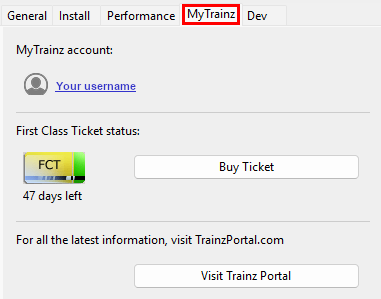




 button to purchase another FCT (you can activate it at any time after purchase).