How to Deal with Missing Assets: Difference between revisions
mNo edit summary |
No edit summary |
||
| Line 51: | Line 51: | ||
</table> | </table> | ||
<br> | <br> | ||
='''The Causes of Missing Assets | ='''The Causes of Missing Dependencies (Assets)'''= | ||
<table width=1000> | <table width=1000> | ||
| Line 57: | Line 57: | ||
<td colspan=2><span style="font-weight: 700; font-size: 15px;">Missing Dependencies can occur when an asset:-</span></td> | <td colspan=2><span style="font-weight: 700; font-size: 15px;">Missing Dependencies can occur when an asset:-</span></td> | ||
</tr> | </tr> | ||
</table> | |||
<table width=1000> | |||
<tr valign="top"> | <tr valign="top"> | ||
<td width=25>[[image:Ablue.png|link=]]</td> | <td width=25>[[image:Ablue.png|link=]]</td> | ||
<td>has been installed from a '''.cdp''' file (e.g. from a 3rd party web site) or from a folder (e.g. on your HD) without also installing other assets it requires.<br> | <td>has been installed from a '''.cdp''' file (e.g. from a 3rd party web site) or from a '''content folder''' (e.g. on your HD) without also installing other assets it requires.<br> | ||
If an asset with '''Missing Dependencies''' has been installed using the <span style="font-weight: 700; font-size: 15px;">Import Content Files...</span> or <span style="font-weight: 700; font-size: 15px;">Import Content Folder...</span> options in the <span style="font-weight: 700; font-size: 15px;">File</span> menu of '''Content Manager''', then the missing assets may be on the '''DLS'''. When these two import methods are used '''Content Manager''' does not check the '''DLS''' for any missing dependencies.< | If an asset with '''Missing Dependencies''' has been installed using the <span style="font-weight: 700; font-size: 15px;">Import Content Files...</span> or <span style="font-weight: 700; font-size: 15px;">Import Content Folder...</span> options in the <span style="font-weight: 700; font-size: 15px;">File</span> menu of '''Content Manager''', then the missing assets may be on the '''DLS'''. When these two import methods are used '''Content Manager''' does not check the '''DLS''' for any missing dependencies.</td> | ||
<table bgcolor=# | </tr> | ||
<tr valign="top"> | |||
<td> </td> | |||
<td> | |||
<table bgcolor=#0000 cellpadding=2> | |||
<tr valign="top"> | <tr valign="top"> | ||
<td> | <td> | ||
| Line 78: | Line 85: | ||
<tr valign="top"> | <tr valign="top"> | ||
<td>[[image:DotPoint3.JPG|link=]]</td> | <td>[[image:DotPoint3.JPG|link=]]</td> | ||
<td><span style="font-weight: 700; font-size: 15px;">IF</span> any are labelled as '''Available for Download''' then <span style="font-weight: 700; font-size: 15px; background-color: lightcyan;"> Right Click </span> on them and select the option <span style="font-weight: 700; font-size: 15px;">Download</span></td> | <td><span style="font-weight: 700; font-size: 15px;">IF</span> any of the listed assets in the new '''Content Manager''' window are labelled as '''Available for Download''' then <span style="font-weight: 700; font-size: 15px; background-color: lightcyan;"> Right Click </span> on them and select the option <span style="font-weight: 700; font-size: 15px;">Download</span></td> | ||
</tr> | </tr> | ||
</table> | </table> | ||
| Line 86: | Line 93: | ||
</td> | </td> | ||
</tr> | </tr> | ||
</table> | |||
<br> | |||
<table width=1000> | |||
<tr valign="top"> | <tr valign="top"> | ||
<td width=25>[[image:Bblue.png|link=]]</td> | <td width=25>[[image:Bblue.png|link=]]</td> | ||
<td>has | <td>has been '''Disabled''' or '''Deleted''' in '''Content Manager'''.<br> | ||
If an asset has been '''Disabled''' then it is still installed but it is blocked from being used. If an asset has been '''Deleted''' then it is no longer installed.</td> | |||
</tr> | |||
<tr valign="top"> | |||
<td> </td> | |||
<td> | |||
<table bgcolor=#000000 cellpadding=2> | |||
<tr valign="top"> | |||
<td> | |||
<table bgcolor=#ffffff cellpadding=2> | |||
<tr valign="top"> | |||
<td><span style="font-weight: 700; font-size: 15px;">Steps: To Identify and Restore any Disabled Sssets in Content Manager:-</span></td> | |||
</tr> | |||
<tr valign="top"> | |||
<td> | |||
<table width=576> | |||
<tr valign="top"> | |||
<td width=25>[[image:DotPoint1.JPG|link=]]</td> | |||
<td>In '''Content Manager''' select (highlight) the assets that have been marked as having '''Missing Dependencies'''</td> | |||
</tr> | |||
<tr valign="top"> | |||
<td>[[image:DotPoint2.JPG|link=]]</td> | |||
<td><span style="font-weight: 700; font-size: 15px; background-color: lightcyan;"> Right Click </span> on any one of the highlighted assets and select the option <span style="font-weight: 700; font-size: 15px;">List Dependencies</span></td> | |||
</tr> | |||
<tr valign="top"> | |||
<td>[[image:DotPoint3.JPG|link=]]</td> | |||
<td><span style="font-weight: 700; font-size: 15px; background-color: lightcyan;"> Left Click </span> on the <span style="font-weight: 700; font-size: 15px;">Status</span> column heading to sort the rows into category order (i.e. all '''Built-in''' assets together, all '''Installed for DLS''' assets together, all '''Packaged''' assets together, etc).</td> | |||
</tr> | |||
<tr valign="top"> | |||
<td>[[image:DotPoint4.JPG|link=]]</td> | |||
<td>Scroll down through the list. Any assets that have been '''Disabled''' will appear at the end of each category. Select (highlight) the '''Disabled''' assets.</td> | |||
</tr> | |||
<tr valign="top"> | |||
<td>[[image:DotPoint5.JPG|link=]]</td> | |||
<td>Open the <span style="font-weight: 700; font-size: 15px;">Content</span> and select the <span style="font-weight: 700; font-size: 15px;">Enable</span> option.</td> | |||
</tr> | |||
</table> | |||
</td> | |||
<td width=10> </td> | |||
<td> | |||
<table width=420 bgcolor=#ffffe0> | |||
<tr valign="top"> | |||
<td>[[image:PencilTips.PNG|link=]]</td> | |||
<td>If the '''Status''' column is not present in the '''Content Manager''' display, then:- | |||
<table bgcolor=#ffffff cellpadding=2> | |||
<tr valign="top"> | |||
<td colspan=2><span style="font-weight: 700; font-size: 15px;">Steps: To Add the <span style="font-size: 17px;">Status</span> Column:-</span></td> | |||
</tr> | |||
<tr valign="top"> | |||
<td width=25>[[image:DotPoint1.JPG|link=]]</td> | |||
<td><span style="font-weight: 700; font-size: 15px; background-color: lightcyan;">Right Click</span> on the column heading where you want it to be inserted</td> | |||
</tr> | |||
<tr valign="top"> | |||
<td>[[image:DotPoint2.JPG|link=]]</td> | |||
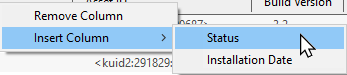
<td>select <span style="font-weight: 700; font-size: 15px; color: white; background-color: black;"> Insert Column </span> and then <span style="font-weight: 700; font-size: 15px; color: white; background-color: black;"> Status </span></td> | |||
</tr> | |||
</table> | |||
[[image:StatusAddStatusColumn.png|link=|alt=insert Status Column]]</td> | |||
</tr> | |||
</table> | |||
</td> | |||
</tr> | |||
</table> | |||
</td> | |||
</tr> | |||
</table> | |||
</td> | |||
</tr> | |||
<tr valign="top"> | |||
<td> </td> | |||
<td> | |||
<table bgcolor=#000000 cellpadding=2> | |||
<tr valign="top"> | |||
<td> | |||
<table bgcolor=#ffffff cellpadding=2> | |||
<tr valign="top"> | |||
<td><span style="font-weight: 700; font-size: 15px;">Steps: To Identify and Restore any Deleted Assets in Content Manager:-</span><br> | |||
<table bgcolor=#ffffb0 cellpadding=2> | |||
<tr valign="top"> | |||
<td width=25>[[image:NotePad.PNG|link=]]</td> | |||
<td>If the deleted asset is not on the '''DLS''' then this method will not locate and download it</td> | |||
</tr> | |||
</table> | |||
</td> | |||
</tr> | |||
<tr valign="top"> | |||
<td> | |||
<table width=576> | |||
<tr valign="top"> | |||
<td width=25>[[image:DotPoint1.JPG|link=]]</td> | |||
<td>In '''Content Manager''' select (highlight) the assets that have been marked as having '''Missing Dependencies'''</td> | |||
</tr> | |||
<tr valign="top"> | |||
<td>[[image:DotPoint2.JPG|link=]]</td> | |||
<td><span style="font-weight: 700; font-size: 15px; background-color: lightcyan;"> Right Click </span> on any one of the highlighted assets and select the option <span style="font-weight: 700; font-size: 15px;">List Dependencies</span></td> | |||
</tr> | |||
<tr valign="top"> | |||
<td>[[image:DotPoint3.JPG|link=]]</td> | |||
<td><span style="font-weight: 700; font-size: 15px; background-color: lightcyan;"> Left Click </span> on the <span style="font-weight: 700; font-size: 15px;">Status</span> column heading to sort the rows into category order (i.e. all the '''Available for Download''' assets together).</td> | |||
</tr> | |||
<tr valign="top"> | |||
<td>[[image:DotPoint4.JPG|link=]]</td> | |||
<td>Scroll down through the list. Select (highlight) any assets that are labled '''Available for Download'''.</td> | |||
</tr> | |||
<tr valign="top"> | |||
<td>[[image:DotPoint5.JPG|link=]]</td> | |||
<td><span style="font-weight: 700; font-size: 15px; background-color: lightcyan;"> Right Click </span> on any one of the selected assets and select the option <span style="font-weight: 700; font-size: 15px;">Download</span></td> | |||
</tr> | |||
</table> | |||
</td> | |||
</tr> | |||
</table> | |||
</td> | |||
</tr> | |||
</table> | |||
</td> | |||
</tr> | </tr> | ||
</table> | |||
<br> | |||
<table width=1000> | |||
<tr valign="top"> | <tr valign="top"> | ||
<td width=25>[[image:Cblue.png|link=]]</td> | <td width=25>[[image:Cblue.png|link=]]</td> | ||
Revision as of 09:45, 17 October 2026
|
 |
 |
|
|||||||||
The Causes of Missing Dependencies (Assets)
| Missing Dependencies can occur when an asset:- |
 |
has been installed from a .cdp file (e.g. from a 3rd party web site) or from a content folder (e.g. on your HD) without also installing other assets it requires. If an asset with Missing Dependencies has been installed using the Import Content Files... or Import Content Folder... options in the File menu of Content Manager, then the missing assets may be on the DLS. When these two import methods are used Content Manager does not check the DLS for any missing dependencies. |
|||||||||
|
||||||||||


 |
has been Disabled or Deleted in Content Manager. If an asset has been Disabled then it is still installed but it is blocked from being used. If an asset has been Deleted then it is no longer installed. |
|||||||||||||||||||||||
|
||||||||||||||||||||||||
|
||||||||||||||||||||||||



 |
has been downloaded from the DLS but contains dependency assets that are not on the DLS or built-in. Downloaded assets can sometimes contain dependencies that are not on the DLS or Built-in (ones that came installed with Trainz). This can lead to frustrations especially if the creator of the downloaded asset has not provided any information on where these missing assets can be found. Even when the location, such as a 3rd party web site, has been identified that site may no longer exist. |
| If the missing assets are not on the DLS then fixing this may not be easy. Possible solutions are:- | |
| Error creating thumbnail: /bin/bash: line 1: /usr/bin/convert: No such file or directory Error code: 127 | There is a very long thread in the Trainz Forum where you can find posts looking for the same missing/unknown assets. See  Missing kuids? Post them here |
| Error creating thumbnail: /bin/bash: line 1: /usr/bin/convert: No such file or directory Error code: 127 | You can try contacting the route creator via email (their address may be in the config.txt file) or by a Direct Message through the Trainz Forum |
| Neither is a guaranteed solution. | |
| One option is to delete the missing assets or objects from the route or session but it is recommended that you first check to see that deleting them will not significantly affect the operation of the route or its sessions. |
Locating Missing Dependencies in a Layout
 |
Missing splines and tracks in a layout will be shown as white dotted lines |
|
Missing textures will be, conditionally, shown as a bright blue colour |
|
Missing scenery objects, including rolling stock track objects (e.g. signals, switches) will NOT be visible at all |
Missing Splines (including Track)
| In the following examples... | |
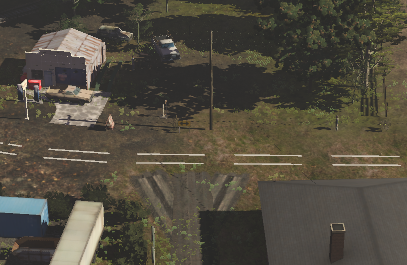 |
The missing spline asset is most likely a road. If deleted it will leave a "space" in the route but it will not affect the operation of sessions that use this route, just their appearence. |
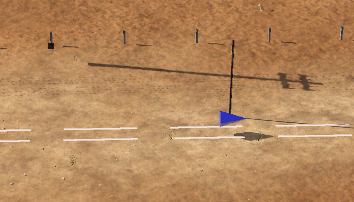 |
The missing spline asset is rail track - the presence of the track objects is a major clue. If deleted it WILL affect the operation of sessions that use this route. |
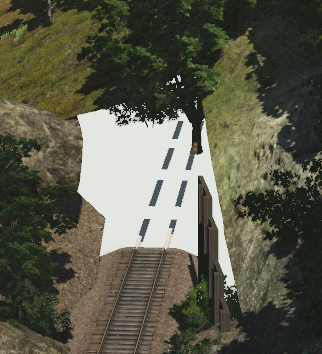 |
The missing spline asset is a tunnel with track. If deleted it will leave a gap in the route and it WILL affect the operation of sessions that use this route. |
Missing Textures
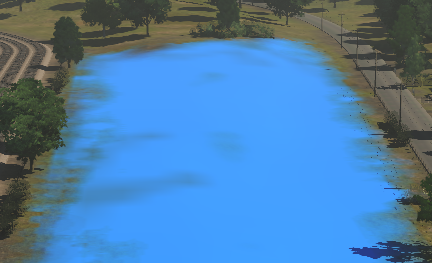 |
The false blue colour indicates that the missing asset is a ground texture. If deleted it will not affect the operation of the route, just its appearence.
|
Missing Scenery Objects (incl Rolling Stock and Track Objects)
|
| Locating these objects in a layout can give you useful clues as to what the missing assets are (e.g. trees/bushes, cars, buildings, signals, wagons, etc). |
|
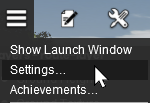
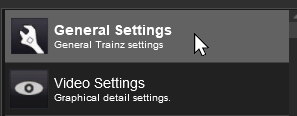
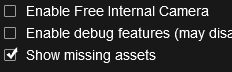


| With the Show missing assets check box set on, each scenery object that is missing from the route or session will be shown as an Orange Wire Frame Box in Surveyor. They will still be invisible in Driver. |
| In the following examples... | |
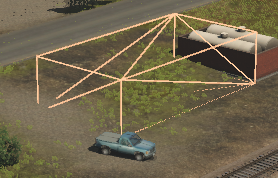 |
From its size and shape, the missing asset is most probably a building. If deleted it will leave a "space" in the route but it will not affect the operation of sessions that use this route, just their appearence. |
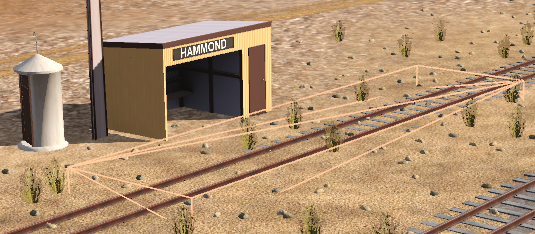 |
The missing asset is almost certainly an Industry Active Platform, possibly an invisible platform. The presence of a visible station building indicates that the missing asset is just the platform. If deleted it WILL affect the operation of sessions that use this route. |
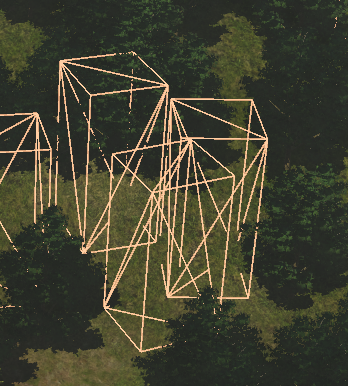 |
From its size, shape and location, the missing asset (or assets - there may be several different missing assets) is most likely a tree. If deleted it will leave gaps in the forest but it will not affect the operation of sessions that use this route, just their appearence. |
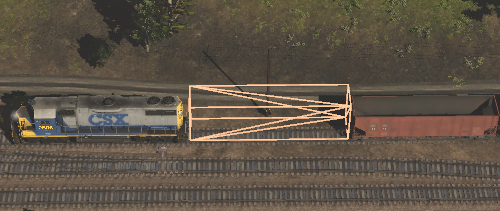 |
The missing asset is clearly rolling stock. If deleted it WILL affect the operation of the session. |
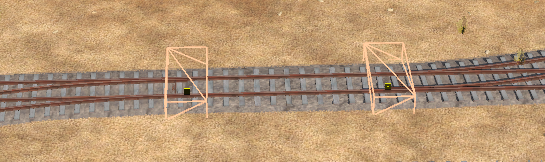 |
Because of its position on the track the missing asset is clearly a track object and almost certainly a track switch. If deleted it COULD affect the operation of the session depending on the type of track object (switch track objects WILL have an effect while caution and whistle signs will probably not). |
Deleting Missing Dependencies
Currently Under Construction
 |
 |
Trainz Wiki
|
|


This page was created by Trainz user pware in October 2026 and was last updated as shown below.


