How to Use Track Priority Markers
From TrainzOnline
The information in this Wiki Page applies to both TANE and TRS19.
What are Track Priority Markers?
| In Summary: | |
 |
Track priority markers are purple coloured track marker that are invisible in Driver Mode but visible in Surveyor Mode. They are used to direct specific trains away from the track section where they are placed |
|
Track priority markers are NOT a substitute for Driver Commands with trackmarks or for Interlocking Towers |
|
Track priority markers will be IGNORED if there is no alternative path for a redirected train |
Adding a Track Priority Marker
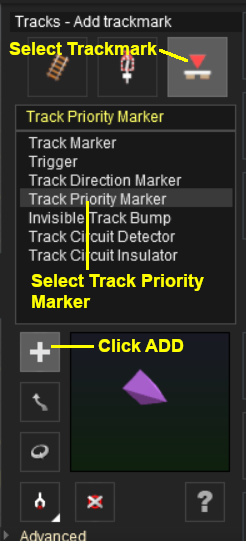 |
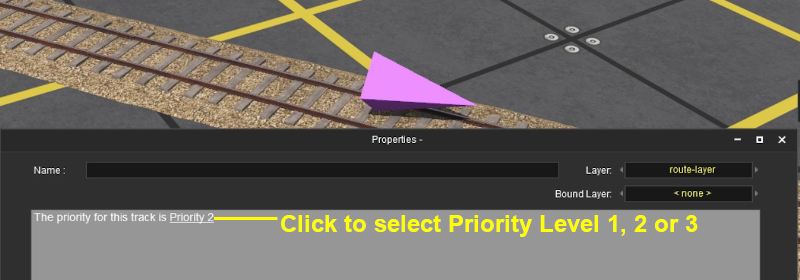
These priority values have no set meanings but can be assigned to specific trains to give them avoidance behaviour on that section of track (the track sections are defined as between consecutive junction point sets). |
||||||

Trainz Wiki
 |
More Tutorials and Guides to Using Trainz |
