How to Use Driver Setup Rule

From TrainzOnline
Jump to navigationJump to search

The information in this Wiki Page applies to both TANE and TRS19.

Driver Setup Rule

The Driver Setup Rule assigns drivers to consists and issues them with Driver Commands.
Driver Commands are lists of instructions or "orders" that drivers are tasked to complete under the control of the Trainz AI system.


A list of available Driver Commands can be found on the Trainz Wiki Page at:-


The Driver Setup Rule is automatically added to the Session Editor of every Session.

Error creating thumbnail: /bin/bash: line 1: /usr/bin/convert: No such file or directory Error code: 127

Steps:
  1. Open the Session Editor by selecting Edit Session from the Surveyor Main Menu in TANE/TRS19 or the Surveyor Edit Menu in TRS19 SP1
  2. Select the Driver Setup Rule shown left (it is usually the rule at the top of the list)
  3. Click the Edit button at the bottom of the Session Editor window


If the Driver Setup Rule is not shown in the list then...
  1. Click the Add button at the bottom of the Session Editor window
  2. Scroll through the list of rules to locate and select the Driver Setup Rule
  3. Click the icon on the rule list window

More information on the Session Editor can be found on the Trainz Wiki Page at:-

Driver Command Rule

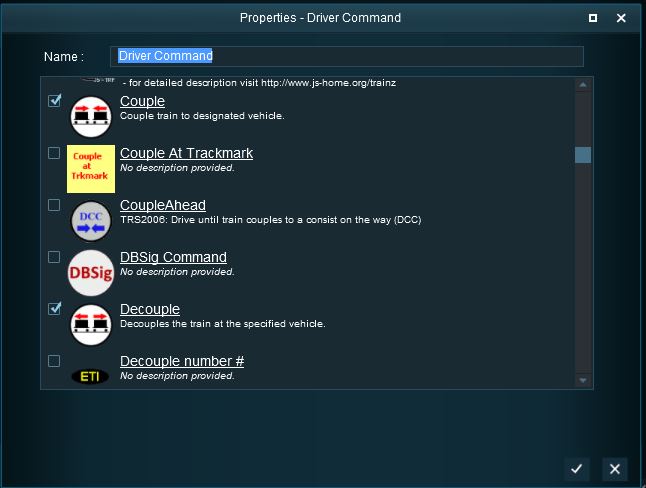
The Driver Command Rule controls which Driver Commands will be available in a Session. This applies to both:-
  • Driver Commands added to the Driver Setup Rule in the Session Editor in Surveyor Mode, and
  • Driver Commands for the user to manually add to the Command Bar of user and AI controlled trains running in Driver Mode.
Removing commands such as Navigate To will force players to manually drive trains when in Driver Mode instead of allowing them to use the Trainz AI system to do all the work.


The Driver Command Rule is automatically added to the Session Editor of every Session.

Error creating thumbnail: /bin/bash: line 1: /usr/bin/convert: No such file or directory Error code: 127
Steps:
  1. Select the Driver Command Rule shown left (it is usually the rule near the top of the list)
  2. Click the Edit button at the bottom of the Session Editor window


If the Driver Command Rule is not shown in the list then...
  1. Click the Add button at the bottom of the Session Editor window
  2. Scroll through the list of rules to locate and select the Driver Command Rule
  3. Click the icon on the rule list window
This will add the rule to the Session Editor.


The Rule properties window will open to show all the Driver Commands that have been installed in TANE and TRS19 on your system. This list includes the commands that are built in and those that have been downloaded from the DLS.


Settings:
  • Commands that are Checked ON will be available in the Driver Setup Rule Command List in the Session Editor and for the user in Driver Mode
  • Commands that are Checked OFF will NOT be available in the Driver Setup Rule Command List in the Session Editor and for the user in Driver Mode
  • To change the status of a command simply check it ON or OFF


Notes:
  • Some Driver Commands that have been checked ON will not appear in the Command List if there is no target for their action. For example:
    • The Wait For Trigger command will not be available to any drivers if there are no triggers set.
    • The Call At command will not be available to any drivers if there are no industry active assets or passenger enabled stations.
If a command that you want to use does not appear in the list, then check in Content Manager that it has been installed or downloaded and is free of errors.


Trainz Wiki

More Tutorials and Guides to Using Trainz