How to Create a Picklist

From TrainzOnline
Revision as of 01:22, 23 April 2023 by Pware (talk | contribs)
Jump to navigationJump to search

The information in this Wiki Page applies to TANE, TRS19, Trainz Plus and TRS22.


In Summary:
A Picklist is a user created list of commonly used assets (scenery, track objects, splines, textures, rolling stock - anything that you can add to a layout)
You can create multiple picklists of related items (e.g. Bushes, Buildings, Trees, 4 wheel wagons, etc) that will be grouped together for easier selection


Trainz provides you with two different methods of creating Picklists, using either Content Manager (or  Manage Content  from the Trainz Launcher) or in Surveyor.

  Top   Next Down Bottom

Using Content Manager (CM)


Steps
 Select the Assets:

From the Trainz Launcher
  1. select  Manage Content 
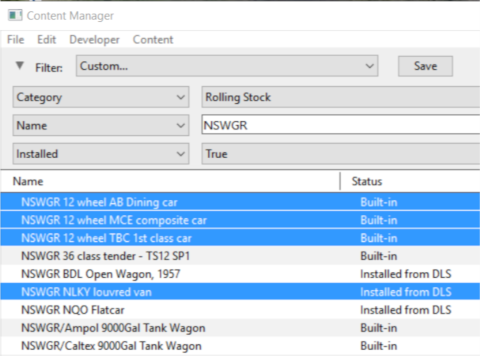
  2. (optional step) in Content Manager select a filter or create a custom filter to show the assets you want in the Picklist
  3. hold down either the  Ctrl  key OR the  Shift  key while you Left Click on each asset that is to be added to the Picklist

   Add the Assets to the Picklist:
Only assets that are installed on your system can be added to a Picklist. They can be built-in, base, payware or installed from the DLS
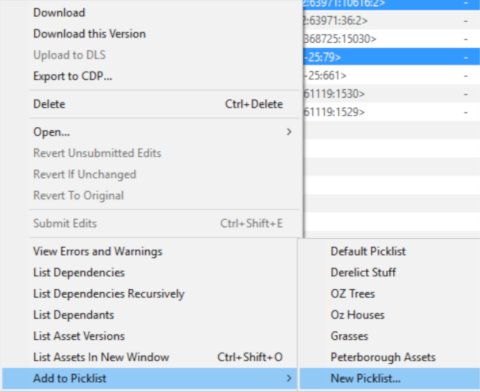
  1. Right Click on any one of the highlighted assets
  2. select Add to Picklist from the popup menu
  3. select either:-
  1. an existing Picklist (if any) to add the assets to that Picklist, or
  2. New Picklist to create a new list


In T:ANE, TRS19 SP3 and Trainz Plus SP3 the Default Picklist should only be used for temporary assets that are used in the current project because this list cannot be backed up or moved to another installation of Trainz. This limitation has been removed in TRS19 SP4, Trainz Plus SP4 and TRS22.

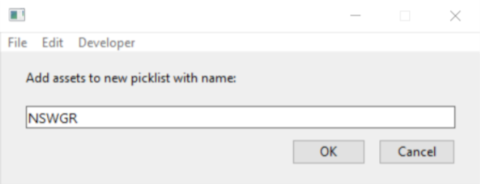
   Enter Picklist Name (for New Picklist Option Only):
  • type a name for the new Picklist and Left Click OK


  Top Next Up   Bottom

Using Surveyor


Steps
 Open the Picklist Window:

From Surveyor
  • press  Ctrl  +  Shift  +  F  to open the full Search Filter tool (Note: pressing  Ctrl  +  F  will only open the find named asset filter tool)
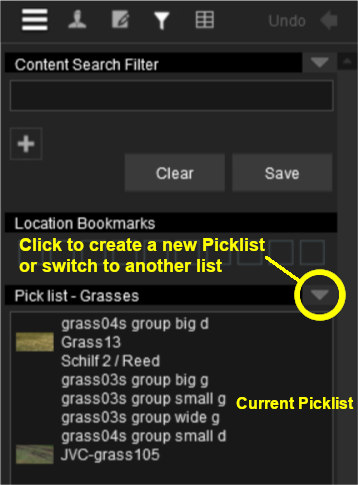
If you already have one or more Picklists then the current Picklist will be shown. An empty Picklist window indicates that no Picklist has been created
  • to switch to a different Picklist or to create a new one, Left Click on the down arrow icon shown in the image.

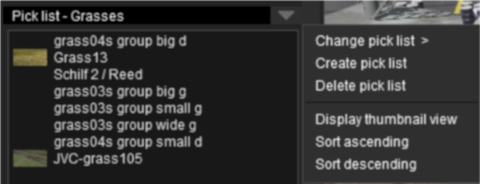
then Left Click either ...
  • Change pick list > to select a different Picklist, or
  • Create pick list to create a new one


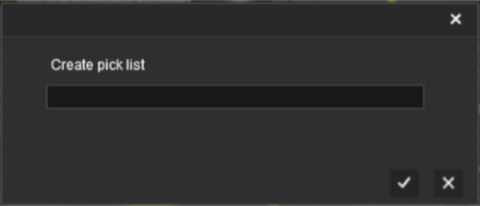
If you have selected Create pick list then you will have to enter a name for the list then Left Click the OK (tick) button.


   Add the Assets to the Picklist:
Choose from two alternative methods

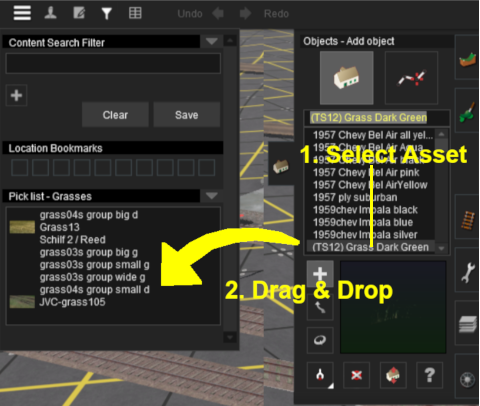
  1. Open the tool selection window for the types of assets to be added. For example: the Object Tool Window (F3 key)
  2. Scroll down the selection window to an asset that is to be added to the Picklist
  3. Drag & Drop the asset from the selection window to the Picklist window
  4. Repeat as required

  1. Open the tool selection window for the types of assets to be added. For example: the Object Tool Window (F3 key)
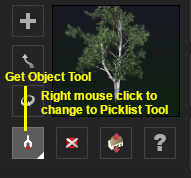
  2. Right Click the Get Object tool to change it to a Picklist tool ...
  3. and then simply Left Click on each object in the Surveyor Map to add it to the current Picklist

When finished, Right Click on the tool again to restore it to its Get Object state.


Each asset is automatically saved to the Picklist when it is added into the Picklist window
If an added asset does not appear in the window, then it usually means that the asset is already present in the list
To remove an asset from the Picklist simply drag it out of the Picklist window onto the Surveyor screen


To close the Search Filter/Picklist Tool:-
  • In TANE press the  ESC  (escape) key
  • In TRS19 and later Trainz versions press  Ctrl  +  Shift  +  F  again


  Top Next Up    


Trainz Wiki

More Tutorials and Guides to Using Trainz


This page was created by Trainz user pware in January 2019 and was last updated as shown below.