How to Use Variables in Sessions (Examples)

From TrainzOnline
Jump to navigationJump to search

The information in this Wiki Page applies to TANE, TRS19, Trainz Plus and TRS22. It gives examples of using variables in Sessions.

Variables store integer values in Sessions that can be used to:-
Test for certain events (e.g. if something has occurred a set number of times)
Make decisions according to the value held by a variable
Act as counters or score keepers
Variables can be used for basic arithmetic by having set values added or subtracted
Variables can have random values assigned to them


The scenarios shown below give examples of how variables can be used to control the operation of a session.

Example 1: Random Passenger Stop

    Top   Next Down Bottom
The Scenario:
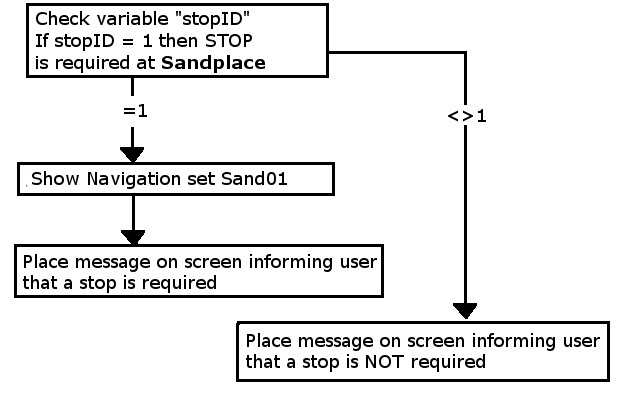
In the example shown below a random variable is to be used to decide which one of 3 stations a user controlled train will be required to stop at. The user will be informed of the decision, to stop or not, by a message placed on the screen before they reach each station. When the train approaches the first possible stopping place, Sandplace, the session checks the value stored in "stopID" and if it is "1" then a stop will be requested.
Error creating thumbnail: /bin/bash: line 1: /usr/bin/convert: No such file or directory Error code: 127 If a stop is required then a predefined Navigation Point is shown to indicate the stopping place
Error creating thumbnail: /bin/bash: line 1: /usr/bin/convert: No such file or directory Error code: 127 The same logic is repeated for the other two stations with stopID values of "2" and "3"


Preconditions:
Error creating thumbnail: /bin/bash: line 1: /usr/bin/convert: No such file or directory Error code: 127 The Randomize Rule is used at the start of the session to create a different sequence of random values each time the session is run
Setting the random variable stopID
Error creating thumbnail: /bin/bash: line 1: /usr/bin/convert: No such file or directory Error code: 127 The Navigation Display Rule is used to create three Navigation Point Sets, one for each stopping place
Error creating thumbnail: /bin/bash: line 1: /usr/bin/convert: No such file or directory Error code: 127 The Navigation Set Hide/Show Rule is used to initially hide all three navigation sets
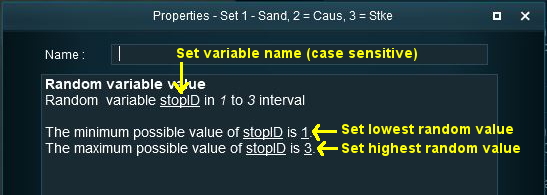
Error creating thumbnail: /bin/bash: line 1: /usr/bin/convert: No such file or directory Error code: 127 The Variable Random Rule is used to create a variable, stopID, with an integer random value from 1 to 3. Each number representing one of the stops


Rules Used:
In addition to those used in the Preconditions above:-
Error creating thumbnail: /bin/bash: line 1: /usr/bin/convert: No such file or directory Error code: 127 Trigger Check Rule to trigger the decision and message event
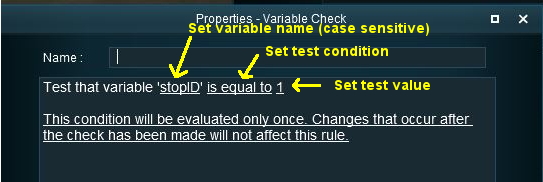
Error creating thumbnail: /bin/bash: line 1: /usr/bin/convert: No such file or directory Error code: 127 Variable Check Rule to check the value held in a session variable
Checking the variable stopID for the first stopping place
Error creating thumbnail: /bin/bash: line 1: /usr/bin/convert: No such file or directory Error code: 127 Navigation Set Hide/Show Rule to show the navigation set identified by the random variable
Error creating thumbnail: /bin/bash: line 1: /usr/bin/convert: No such file or directory Error code: 127 Message Popup Rule to open a message window on the screen


Session Editor Screenshot:


Description:
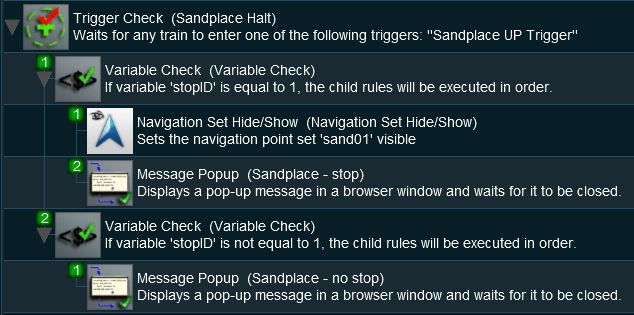
Line  1 : Trigger Check The event is triggered when the consist passes over a track trigger. This executes the following rules:-
Line  2 : Variable Check The value stored in the variable stopID is tested "=1". Lines 3 and 4 are executed only if stopID is equal to "1"
Line  3 : Navigation Set Hide/Show Displays a navigation point showing the stopping location
Line  4 : Message Popup Displays a message window showing that a stop has to be made at Sandplace
Line  5 : Variable Check The value stored in the variable stopID is tested "<>1". Line 6 is executed only if stopID is not equal to "1".
Line  6 : Message Popup Displays a message window showing that no stop has to be made at Sandplace


Example 2: Event Counter and Message Selection

    Top Next Up Next Down Bottom
The Scenario:
Each time a user causes a SPAD (Signal Passed At Danger) at specific locations, the event is counted and an appropriate message is displayed on the screen. The tone of the messages becomes more severe with each occurance.


Preconditions:
Error creating thumbnail: /bin/bash: line 1: /usr/bin/convert: No such file or directory Error code: 127 A variable, SetSPAD (value "0" or "1"), is used to indicate whether a SPAD event is to be counted and responded to or not. This is set to "0" or "1" by track triggers. Use the Variable Modify Rule to create and set this variable
Error creating thumbnail: /bin/bash: line 1: /usr/bin/convert: No such file or directory Error code: 127 A variable, SPADCounter, is used to count the SPAD events and is initially set at 0. Use the Variable Modify Rule to create and set this variable


Rules Used:
Error creating thumbnail: /bin/bash: line 1: /usr/bin/convert: No such file or directory Error code: 127 Signal Passed At Danger Check Rule set to trigger on every SPAD event
Error creating thumbnail: /bin/bash: line 1: /usr/bin/convert: No such file or directory Error code: 127 Variable Check Rule to check the value held in a session variable
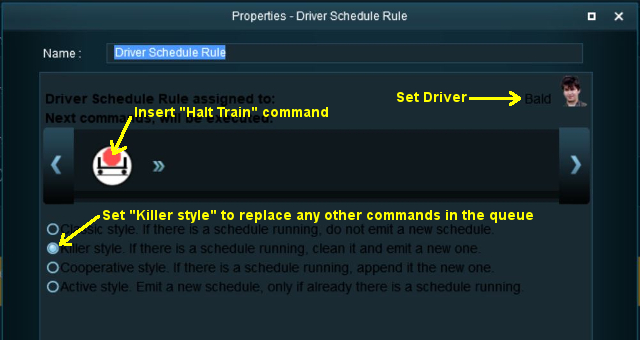
Error creating thumbnail: /bin/bash: line 1: /usr/bin/convert: No such file or directory Error code: 127 Driver Schedule Rule used to immediately stop the train
Using the Driver Schedule Rule to halt the train
Error creating thumbnail: /bin/bash: line 1: /usr/bin/convert: No such file or directory Error code: 127 Simultaneous List Rule to force all rules to run simultaneously for speed
Error creating thumbnail: /bin/bash: line 1: /usr/bin/convert: No such file or directory Error code: 127 Variable Modify Rule to alter the value held in a session variable
Error creating thumbnail: /bin/bash: line 1: /usr/bin/convert: No such file or directory Error code: 127 Variable Show Rule adds a session variable to the Heads Up Display
Error creating thumbnail: /bin/bash: line 1: /usr/bin/convert: No such file or directory Error code: 127 Message Popup Rule to open a message window on the screen


Session Editor Screenshot:


Description:
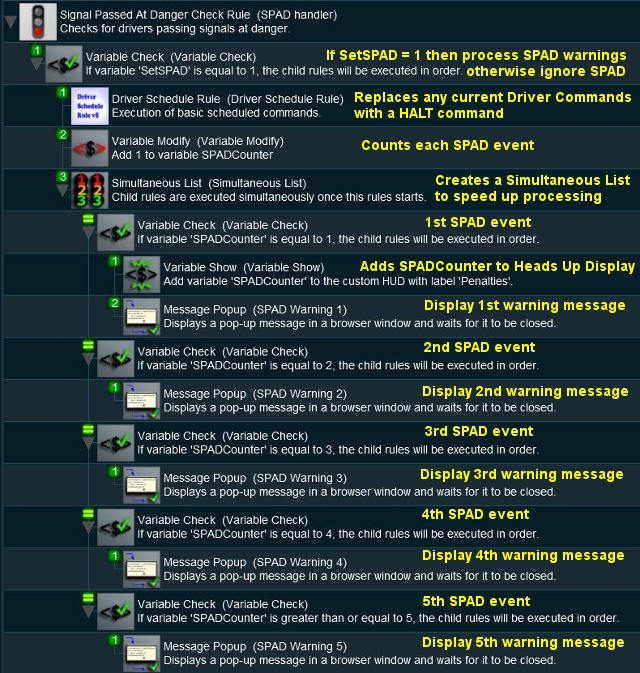
Line  1 : Signal Passed At Danger The event is triggered every time a consist passes a signal (or stop sign) set at STOP. This executes the following lines:-
Line  2 : Variable Check The value stored in the variable SetSPAD is tested "=1". If true then the following lines are executed. This executes the following lines:-
Line  3 : Driver Schedule The current schedule (if any) for the user controlled driver is replaced with a Halt Train command to bring the train to an immediate stop
Line  4 : Variable Modify The value stored in the variable SPADCounter is increased by 1
Line  5 : Simultaneous List This forces all the Variable Check Rules to be run simultaneously. This is not strictly necessary but without it all the Variable Check Rules will be tested, one after the other, when only one (or none) of them will be executed. This will (marginally) speed up the processing. This will execute the following lines:-
Line  6 : Variable Check The value stored in the variable SPADCounter is tested "=1". If true then the first SPAD event has occurred and the following lines are executed:-
Line  7 : Variable Show The value stored in the variable SPADCounter is added to the Custom HUD. Each time the value changes it will be updated in the HUD
Line  8 : Message Popup The first warning message is shown on the screen
Line  9 : Variable Check The value stored in the variable SPADCounter is tested "=2". If true then the second SPAD event has occurred and the following line is executed:-
Line  10 : Message Popup The second warning message is shown on the screen
Lines 9 and 10 are then repeated with variations as shown. If more than 5 SPADs occur, then no new messages will be shown (the driver is clearly taking no notice so what is the point?) but the SPADCounter will continue to be updated.


Example 3: Counting Consist Checks

    Top Next Up Next Down Bottom
The Scenario:
The Consist Check Rule cannot be set to trigger only once but sometimes you want it triggered only once on (for example) the 2nd time that a particular consist is formed. This example uses a variable to count the number of times the rule has been triggered and acts only when a set count has been reached. It could easily be modified to trigger a set number of times.


Preconditions:
Error creating thumbnail: /bin/bash: line 1: /usr/bin/convert: No such file or directory Error code: 127 A variable, ConsistCount, is initially set to "0". Use the Variable Modify Rule to create and set this variable


Rules Used:
Error creating thumbnail: /bin/bash: line 1: /usr/bin/convert: No such file or directory Error code: 127 Consist Check Rule set to trigger when a specific consist has been formed
Error creating thumbnail: /bin/bash: line 1: /usr/bin/convert: No such file or directory Error code: 127 Variable Modify Rule to set and increase the value held in a session variable
Error creating thumbnail: /bin/bash: line 1: /usr/bin/convert: No such file or directory Error code: 127 Variable Check Rule to check the value held in a session variable
Error creating thumbnail: /bin/bash: line 1: /usr/bin/convert: No such file or directory Error code: 127 Message Popup Rule to place a message on the screen


Session Editor Screenshot:


Description:
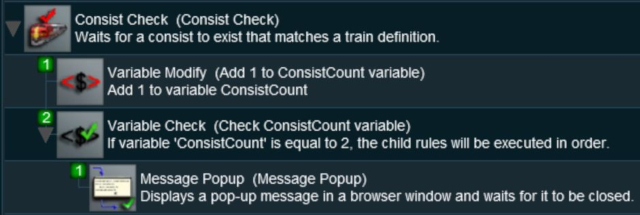
Line  1 : Consist Check Rule Triggered when the specified consist has been found. This executes the following lines:-
Line  2 : Variable Modify Rule Adds 1 to the variable ConsistCounter
Line  3 : Variable Check Compares the value stored in ConsistCounter to a set value (in this case 2). If it matches then the next line is executed:-
Line  4 : Places a message on the screen


Example 4: Train Status

    Top Next Up Next Down Bottom
The Scenario:
A consist identified by number 188 passes over the same trigger twice, once when empty and once when loaded. Each time the user needs to be given a different set of instructions


Preconditions:
Error creating thumbnail: /bin/bash: line 1: /usr/bin/convert: No such file or directory Error code: 127 A variable, T188Status is initially set to "1" signifying that the train is empty. This will be modified to "2" after it has been loaded. Use the Variable Modify Rule to create and set this variable


Rules Used:
Error creating thumbnail: /bin/bash: line 1: /usr/bin/convert: No such file or directory Error code: 127 Trigger Check Rule to trigger the event when the consist reaches the trigger
Error creating thumbnail: /bin/bash: line 1: /usr/bin/convert: No such file or directory Error code: 127 Variable Check Rule to check the value held in a session variable
Error creating thumbnail: /bin/bash: line 1: /usr/bin/convert: No such file or directory Error code: 127 Message Popup Rule to place a message on the screen


Session Editor Screenshot:


Description:
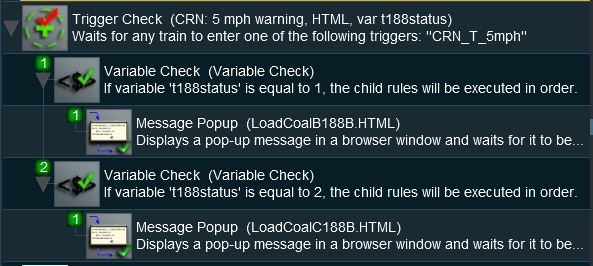
Line  1 : Trigger Check Rule Triggered by the train. This is NOT set to trigger once only. When triggered it will execute the following lines:-
Line  2 : Variable Check Compares the value stored in T188Status to 1, indicating "empty". If it matches then the next lines are executed:-
Line  3 : Message Popup Places a message on the screen
Line  4 : Variable Check Compares the value stored in T188Status to 2, indicating "loaded". If it matches then the next line is executed:-
Line  5 : Message Popup Places a message on the screen


Variable Rules and Commands

    Top Next Up   Bottom
These are the Session Rules that can access, create and/or modify Session variables
Error creating thumbnail: /bin/bash: line 1: /usr/bin/convert: No such file or directory Error code: 127 Randomize Rule - creates a different set of random numbers every time a session is run
Error creating thumbnail: /bin/bash: line 1: /usr/bin/convert: No such file or directory Error code: 127 Variable Check Rule - executes child rules according to the value of a specified variable
Error creating thumbnail: /bin/bash: line 1: /usr/bin/convert: No such file or directory Error code: 127 Variable Modify Rule - changes the value of a specified variable and creates new variables by setting their initial values
Error creating thumbnail: /bin/bash: line 1: /usr/bin/convert: No such file or directory Error code: 127 Variable Modify Continuous Rule - continuously changes the value of a specified variable
Error creating thumbnail: /bin/bash: line 1: /usr/bin/convert: No such file or directory Error code: 127 Variable Random Rule - assigns a random value to a variable
Error creating thumbnail: /bin/bash: line 1: /usr/bin/convert: No such file or directory Error code: 127 Variable Show Rule - adds or removes a specified variable and a descriptive label to the custom HUD


These are the Driver Commands that can access Session variables. The InputTable Rule must be added to the Session and configured with the names of the variables before these Driver Commands can be used.
Error creating thumbnail: /bin/bash: line 1: /usr/bin/convert: No such file or directory Error code: 127 Skip if Session Variable - conditionally jumps to the named command label in the Driver Command Bar if a selected session variable meets a set condition
Error creating thumbnail: /bin/bash: line 1: /usr/bin/convert: No such file or directory Error code: 127 Wait Until S-Variable V3 - AI driver waits for the specified variable condition to occur
      Top Next Up    


Trainz Wiki

More Tutorials and Guides to Using Trainz


This page was created by Trainz user pware in April 2018 and was last updated as shown below.