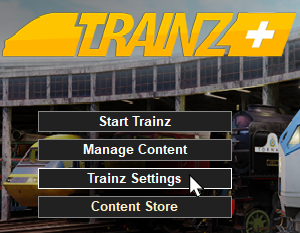
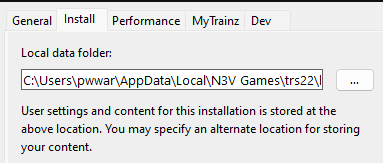
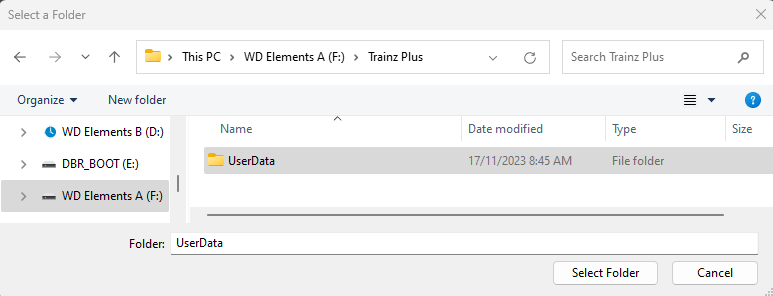
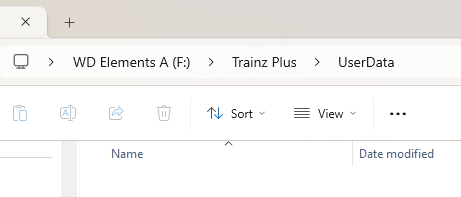
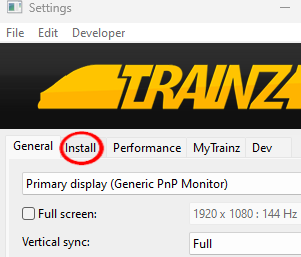
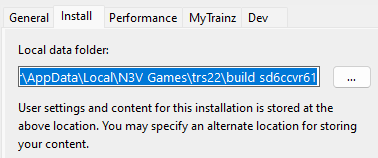
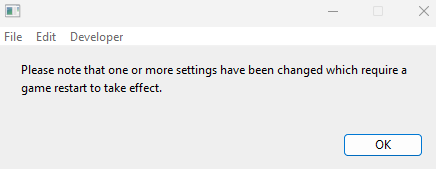
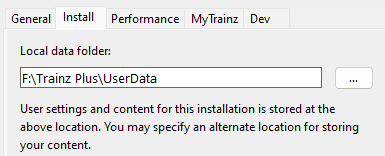
| The information in this Wiki Page applies to T:ANE, TRS19, TRS22 and Trainz Plus. It describes how to set up one (or more) alternative User Data Folders that can contain different sets of installed assets from a bare minimum (built-in and base assets only) to various specialist installs. |
What is a "Clean Install"
 |
A Clean Install is a User Data Folder that contains only those assets that were originally installed with your version of Trainz |
|
There will be no assets that are Installed from DLS, Payware, Packaged or Modified but these can be added |
| A Clean Install will create a User Data Folder that is identical to the one that existed immediately after you first installed your current version of Trainz. |
|
|
|
| On starting Trainz will scan the selected User Data Folder and discover that it is empty. It will then copy all the default assets (the Built-in and Base assets) from its install files into the new User Data Folder |
|
|
You can switch Trainz between your seperate User Data Folders at any time |
|
Only those assets installed in your currently selected User Data Folder will be available for use in Trainz |
Once you have set up an alternative User Data Folder or Folders you can easily switch between them and the original at any time.
| On starting Trainz will open the User Data Folder (you may see a Database Repair scan) and you will have normal access to all of its installed assets. This access includes installing new assets (from DLS, DLC, .cdp files or creating new assets yourself), deleting assets and modifying/cloning existing assets. The changes you make will not affect any other User Data Folders that you may have created. |
|
This page was created by Trainz user pware in November 2023 and was last updated as shown below.