Picklists cannot be saved as .cdp files so they cannot be backed up using that method. This guide will show you how to backup a Picklist in TRS19 or TANE (both programs use identical methods).
Access Your Current Picklists
 |
Step 1: Open CM and Your Picklists
From the TRS19/TANE Launcher
- select Manage Content
- in Content Manager open the Content menu
- select Edit Picklist
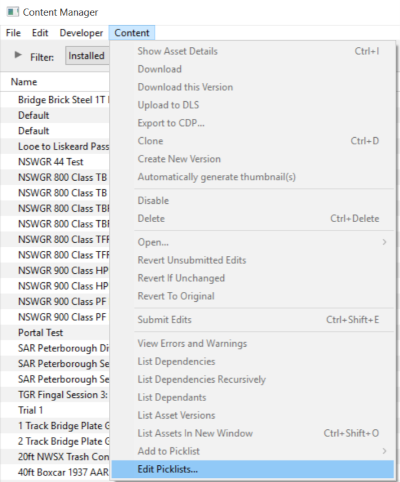
This will display all your current Picklists.
|
|
|
Step 2: Select the Picklist to be moved
- right mouse click on the required Picklist
- select Open Picklist from the popup menu
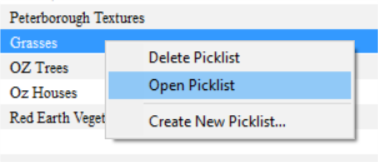
This will open the Picklist |
|
|
Step 3: Select Picklist Contents
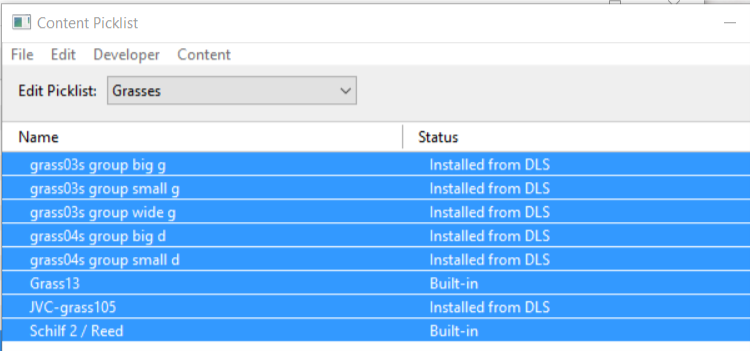
- left mouse click on any one of the items
- press Ctrl-A to Select All the items
 |
|
|
Step 4: Transfer List to a New Window
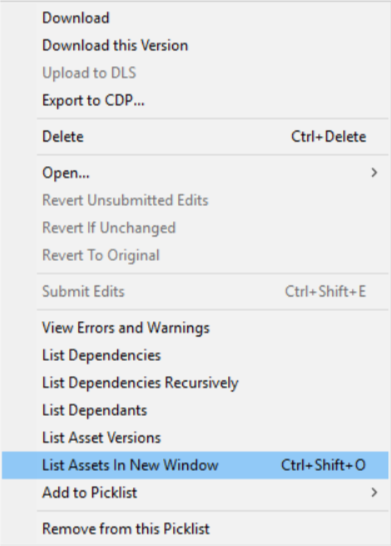
- right mouse click on any one of the items
- select List Assets in New Window from the popup menu
 |
|
|
Step 5: Copy Assets in Picklist
|
The Picklist assets will be listed by their kuids in the Asset KUID box of a new search filter

- click inside the Asset KUID box and press Ctrl-A to select them all
- copy the asset list to the clipboard (press Ctrl-C)
|
|
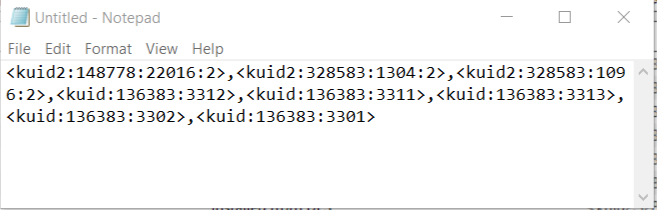
Transfer the List to Notepad (or any text editor)
|
Step 1: Open Notepad or any other suitable text editor program
- click inside the Notepad window and then press Ctrl-V (paste)
 |
|
|
Step 2: Save the Picklist as a text (.txt) file
- from the Notepad File menu select Save or press Ctrl-S. If you are not using Notepad, make that the file format is text (.txt) for compatibility
- select a suitable backup location for the backup file
- enter a filename - the same name as the Picklist would be a good idea - then save
|
|
Trainz Wiki
 |
More Tutorials and Guides to Using Trainz
|


