The information in this Wiki Page applies to TANE, TRS19 and Trainz Plus. This guide will explain automatic and manual backups in Trainz.
| Main Points: |
 |
Trainz will automatically backup your current route and session while you work. You can set the number of backups created each day |
|
You can use Content Manager to manually create backups of routes, sessions and assets as often as you need |
|
Both the manual and automatic backups can be restored to Trainz by Content Manager |
Automatic Backups vs Manual Backups
 Notes: |
| |
Automatic Backups |
Manual Backups |
| Pros |
- set and forget - no need to remember to perform the backups
- backups are stored in a set location
|
- you control where the backups are stored
- you control the backup file names
- assets can be backed up, not just routes and sessions
|
| Cons |
- identifying the exact backup file to restore may not be easy
- only routes and sessions can be backed up
|
- you have to remember to perform the backup
- you have to remember where you stored the backups
|
|
Automatic Backups
Creating Automatic Backups
| In Summary: |
|
Only a set number of backups are created each day |
|
Only 7 days of backups are kept |
This is a Set and Forget operation. You simply tell Trainz how many backups you want created each day and the program takes care of the rest.
| Notes: |
| Large Number of Daily Backups |
Small Number of Daily Backups |
- more backup storage space needed
- shorter time between backups so less work can be lost in a crash
|
- less backup storage space needed
- longer time between backups so more work can be lost in a crash
|
|
Only the last 7 days of backups are kept and this number cannot be changed.
Restoring Automatic Backups
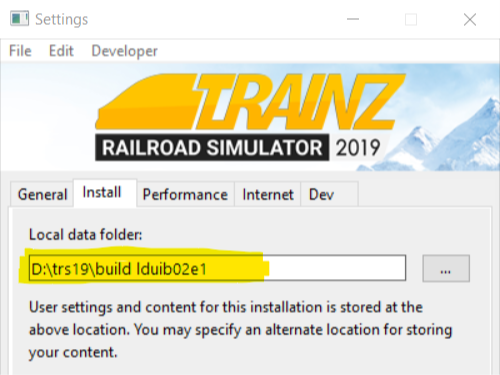
The automatic backups are stored in a backup folder in your Trainz local data folder. The location of this folder is held in your Launcher - Trainz Settings - Install tab.
|
 |
Step 1: Open the Backups Folder
- using Windows File Explorer, open your local data folder and then open the backups folder.
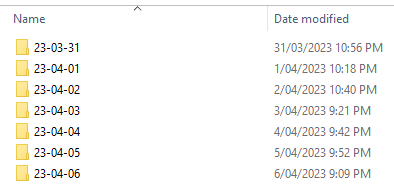
- the backups that have been created during the past week will be listed by their dates using the YY-MM-DD date format.
 |
|
|
Step 2: Identify the Backup Folder
- open the backup folder for the date that you want. A list of backup files and folders created that day will be shown.
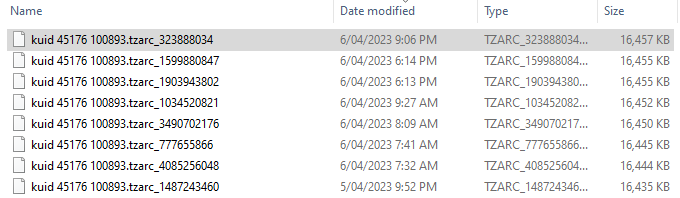
- if you know the time of the backup then sort the entries by date. Some entries, as shown above, have randomised names and will have to be sorted by date.
- if you know the kuid of the backup (it will be the same as used by the route/session) then sort the entries by name.
|
|
|
Step 3: Restore the Backup To Trainz
- open Content Manager
- drag and drop the selected backup folder from Windows File Explorer into Content Manager
- the item will be shown in Content Manager as Open for Edit. Select the item and Submit it.
|
|
More details, including tips on troubleshooting, can be found in the Trainz Knowledge Base at Restoring Backups
Manual Backups
| In Summary: |
|
You control the number and frequency of backups |
|
You control the backup location and filenames |
|
Assets, not just routes and sessions can be backed up |
Creating Manual Backups
|
Manual backups are stored as .CDP files |
|
Many assets can be stored in a single .CDP file |
Restoring Manual Backups
|
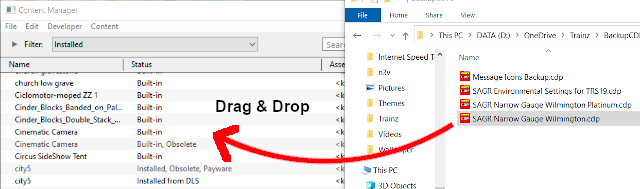
Simply drag and drop the backup CDP file or files into Content Manager |
|
|
Steps:
- open Content Manager
- open Windows File Explorer and locate the backup folder
- highlight the .CDP file or files to be restored
- drag and drop the file or files from Windows File Explorer into Content Manager
- if the assets being restored are already installed in Content Manager then their status will be Open for Edit. Submit the assets.
|
|
Backing Up and Restoring Picklists
|
Picklists have to be exported and imported as text files |
Picklists cannot be backed up manually using .CDP files. They must be exported as text files.
 |
Detailed instructions on backing up and restoring Picklists as text files can be found on the Trainz Wiki Page at:-
|
Trainz Wiki
 |
More Tutorials and Guides to Using Trainz
|
This page was created by Trainz user pware in January 2020 and was last updated as shown below.