How to Use Track Direction Markers

From TrainzOnline
Revision as of 05:14, 22 December 2022 by Pware (talk | contribs)
Jump to navigationJump to search

The information in this Wiki Page applies to TANE, TRS19, Trainz Plus and TRS22.

  Top   Next Down Bottom

What are Track Direction Markers?

In Summary:
Track Direction Markers are yellow coloured track markers that are invisible in Driver Mode but visible in Surveyor Mode. They are used as "One Way" signs to force trains under AI control to travel in a specific direction through the track section where they are placed
Track Direction Markers only work on AI controlled trains. They have no effect on manually controlled trains
Track direction markers are NOT a substitute for Driver Commands or Interlocking Towers


  Top Next Up Next Down Bottom

Adding a Track Direction Marker

Notes:

A Track Direction Marker has no useful properties other than the direction it is pointing. This is the direction that all AI controlled trains will be forced to take.


In Surveyor Classic (S10)


Steps:
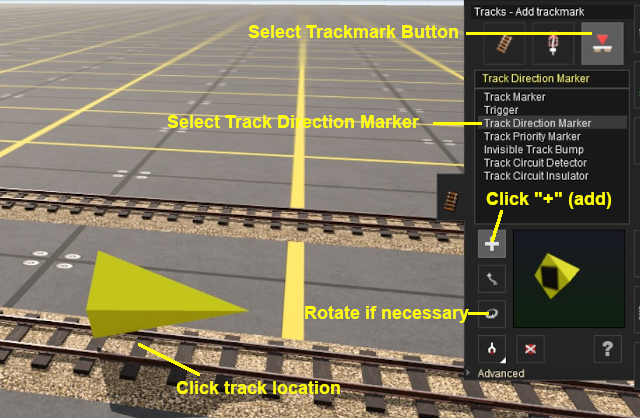
  1. Open the Track Tool
  2. Select the Trackmark button
  3. Select the Track Direction Marker
  4. Select the + (add) button - it may already be selected
  5. Left click on the track location where the direction marker is to be placed
  6. If it is not facing the correct direction, rotate the marker to point in the opposite direction


In Surveyor 2.0 (S20)

 Adding a Direction Marker 

In the Asset Palette either:-

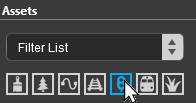
Left click the Track Mesh Filter icon

Track mesh

OR
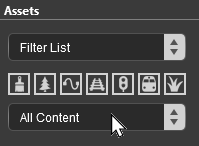
Left click the Content Drop-down Box

Filter List
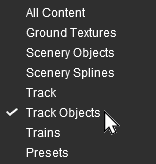
Then select Track Objects
Track Objects

 Shortcut 

If you already have a Direction Marker in your route then:-

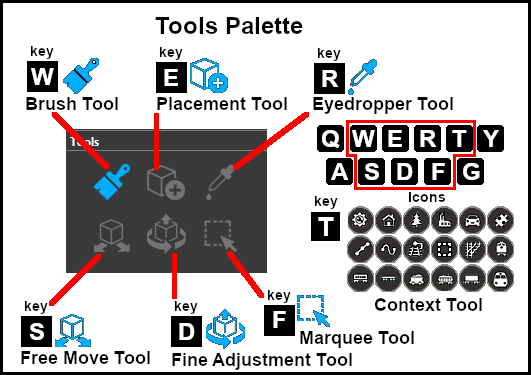
  1. select the Eyedropper Tool in the Tools Palette (or press the  R  key)
  2. Left click on the existing Track Mark object

This will instantly select the Direction Marker in the filter list.

Jump straight down to Step below.


To narrow down the filter list, type "mark" (UPPER/lower case does not matter) in the Search Text Box
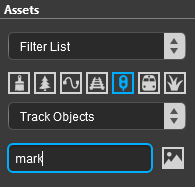
Text search
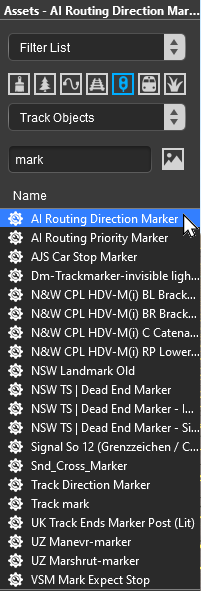
This will list all the Track Objects containing the text "mark" in the filter list.
Filtered list Select the item AI Routing Direction Marker or Track Direction Marker.


Notes:

Surveyor 2.0 provides two separate Direction Markers.

  • Track Direction Marker - this is the original version
  • AI Routing Direction Marker - this is similar to the original but it does not affect signal operations


If you are not sure about an asset then double-click on the name to bring up its image and description.

Place the Direction Marker on the track.
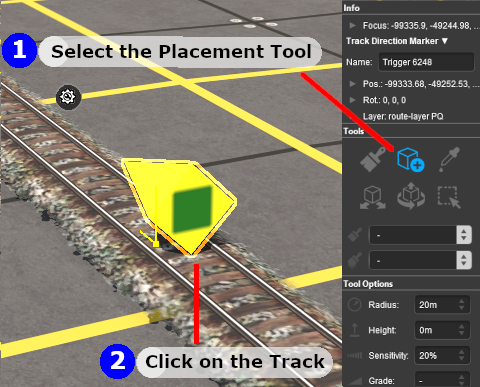
Add direction marker


Notes:

To delete a Direction Marker (or any asset):-

  1. select either the:-
    • Free Move Tool (or press  S ) or
    • Fine Adjustment Tool (or press  D )
  2. Left click on the Track Mark
  3. press the  Delete  key

Steps:
  1. Select the Placement Tool (or press the  E  key) from the Tools Palette
  2. Left click on the track at the position where you want to place the Direction Marker


The Direction Marker can be easily moved if needed - see below.


Tools and keymap for S20


 Set the Direction Marker Properties 

Change Its Direction

The direction the marker points is its ONLY important property.


If you need to rotate the Direction Marker to face the opposite direction then:-
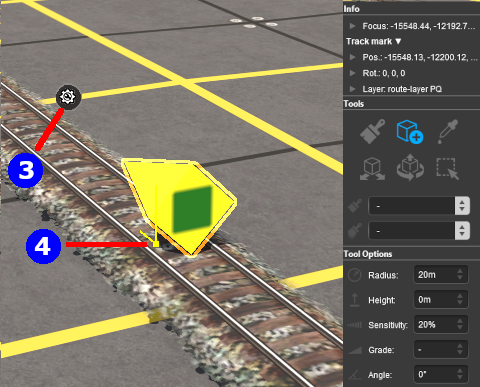
  1. Left mouse on its Context Tool ( in the image on the left or press the  T  key) to open up the object property and control menu
  2. from the popup menu select Rotate Trackside

Change Its Name
The name of the marker is only useful for finding it in the route. It is not needed for any operational purpose.
Steps:
  1. Left click on the Context Tool ( in the image on the left or press the  T  key) to open up the object property and control menu
  2. Left click on Edit Properties
  3. Enter a name for the Direction Marker

Move the Direction Marker Along the Track


Steps:
  1. Left click and hold down the mouse button on the Yellow Dot next to the Direction Marker ( in the image above)
  2. While holding down the Left mouse button, move the mouse Forward or Backward to drag the Direction Marker along the track


  Top Next Up   Bottom

Direction Marker Operation

Main Points:
Track Direction Markers only work on AI controlled trains. They have no effect on manually controlled trains
If the set path is blocked, then the AI will NOT attempt to find another path
A set path will be ignored if a shorter path is available

Consider the situation represented in the diagrams below. An AI controlled train is moving left to right towards a junction and a loop line. A Track Direction Marker (yellow triangle) has been set on the main line which only allows AI trains traveling right-to-left to pass along that section of track.

In Figure 1 below, The train approaches the junction at the start of the one way section.

Direction Map - approach
Figure 1


In Figure 2 below, the train has been forced to take the loop line to avoid the section controlled by the direction marker.

Direction Map - bypass
Figure 2


In Figure 3 below, the loop line has been blocked by another train. The moving train will attempt to use the loop line but it will be halted and will not attempt to find another path.

Direction Map - blocked
Figure 3


Direction Markers can be ignored by the AI
In Figure 4 below, the marker has been placed on the loop line and is pointing in the same direction as the moving train. However, the mainline path represents the shorter route for the consist so the "preferred" direction, as indicated by the direction marker, is ignored. Placing a direction marker is no guarantee that the path will be followed if more suitable paths are available.

Direction Map - path ignored
Figure 4

Related Links


  Top Next Up    


Trainz Wiki

More Tutorials and Guides to Using Trainz