The information in this Wiki Page applies to Surveyor 2.0 (S20) as found in Trainz Plus.
This document is under development
|
|
| In Summary: |
 |
|
|
|
|
|
|
 |
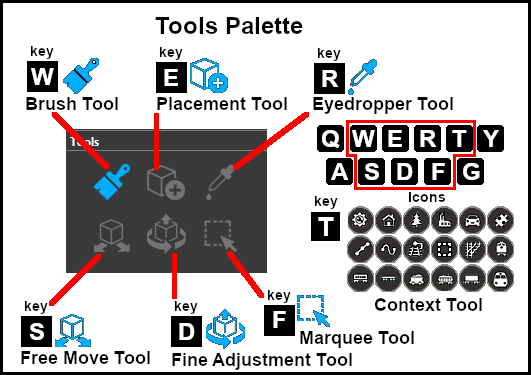
Keyboard Shortcut: W |
The Brush Tool is used for painting the landscape. It can:-
- adjust the height of the terrain
- add ground textures
- add Effect Layers
- add Scrapbook scenes
When selected, the Brush Tool will show two drop down menu lists.
|
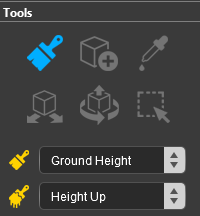 |
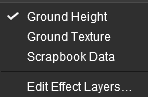
The first drop down menu will set the Brush Target, the type of brush. The Targets are:-
- Ground Height
- Ground Texture
- Scrapbook Data
- Edit Effect Layers
|
 |
Ground Height
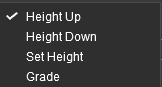
When this Target is selected, the second drop down box will give a choice of several Ground Height tools. The choices are:-
- Height Up
- Height Down
- Set Height
- Grade
|
 |
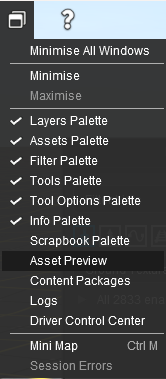
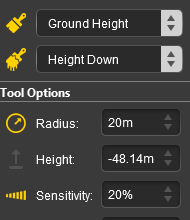
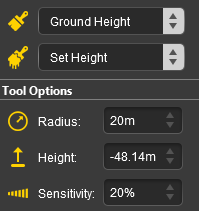
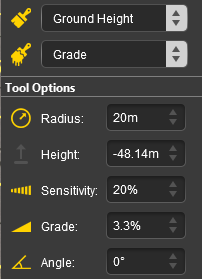
The different control options available with this brush tool are shown in the Tools Options Palette. If this palette is not visible on the screen then refer to the Notes at the top of this document.
The available brush tool options are shown with a Gold coloured icon next to their names. Those options that have their icon greyed out will be ignored, but they can still be edited. |
Height Up/Height Down
 |
Set Height
 |
Grade
 |
| Radius |
the brush radius (metres) - see Notes: below |
|
|
| Height |
the brush height (metres) |
|
|
| Sensitivity |
the rate at which the height changes |
| Range: |
1% (very slowly) to 100% (very fast) |
|
| Grade |
slope gradient - see Notes: below |
| Range: |
0% = flat ("Plateau" in Classic) to |
| |
±100% = steep (but not vertical) |
|
| Angle |
grade up direction (degrees) |
| Range: |
0° (North), to ±359°
a negative value reverses the grade |
|
|
 |
Notes:
|
|
Unlike Surveyor Classic, there appears to be no upper limit to the brush Radius . Brushes of hundreds of metres (even kilometres) in size are possible. However, if you are using the brush to set an entire baseboard, or many baseboards, to a specific height then the Marquee Tool may be a better choice. |
|
The Grade may cause some confusion. It is defined as height (vertical) over distance (horizontal) converted to a percentage figure. So a grade of 100% (the maximum allowed) would mean a slope formed by the height and distance being the same (e.g. a height increase of 50m over a distance of 50m). A vertical slope (a cliff) would have an infinite grade which is currently impossible in Surveyor. |
|
Ground Texture
When this Target is selected, the second drop down box will be disabled - there are no brush texture tool choices. The different control options available with this brush tool are shown in the Tools Options Palette. If this palette is not visible on the screen then refer to the Notes at the top of this document.
The available brush tool options are shown with a Gold coloured icon next to their names. Those options that have their icon greyed out will be ignored, but they can still be edited.
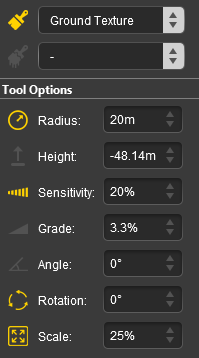 |
| Radius |
the brush radius (metres) - see Notes: below |
|
|
| Sensitivity |
texture transparency |
| Range: |
1% = almost transparent, to |
| |
100% = solid (opaque) |
|
| Rotation |
initial rotation angle (degrees) |
| Range: |
0° to ±360° (larger angles can be entered) |
|
| Scale |
the texture pattern size (scale) |
| Range: |
0.01% = smallest, to 100% = full size |
|
|
|
Notes:
|
|
Unlike Surveyor Classic, there appears to be no upper limit to the brush Radius . Brushes of hundreds of metres (even kilometres) in size are possible. If you are using the brush to paint an entire baseboard, or many baseboards, then the Marquee Tool will be quicker but it will not give the options of changing the scale and rotation angle. |
|
The Rotation controls the starting angle for the texture when painting and is often used to avoid pattern repetition. As in Surveyor Classic, holding down the [ or ] keys while painting will continuously change the angle.
Changing the rotation angle during painting is not recommended for PBR Textures. |
|
Scrapbook Data
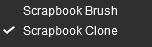
When this Target is selected, the second drop down box will give a choice of two Scrapbook Data tools. The choices are:-
- Scrapbook Clone
- Scrapbook Brush
|
 |
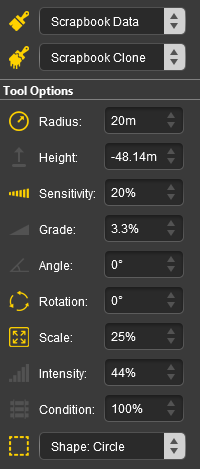
The different control options available with this brush tool are shown in the Tools Options Palette. This brush tool also uses the Scrapbook Palette. If both of these palette are not visible on the screen then refer to the Notes at the top of this document.
The available brush tool options are shown with a Gold coloured icon next to their names. Those options that have their icon greyed out will be ignored, but they can still be edited. |
Scrapbook Clone
 |
Scrapbook Brush
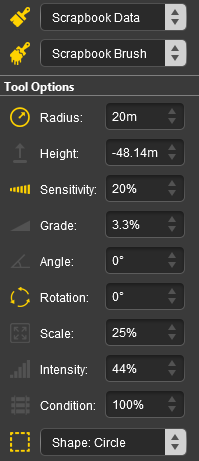 |
| Radius |
the brush radius (metres) - see Notes: below |
|
|
| Rotation |
initial rotation angle (degrees) |
| Range: |
0° to ±360° (larger angles can be entered) |
|
| Scale |
the texture pattern size (scale) |
| Range: |
0.01% = smallest, to 100% = full size |
|
| Shape |
brush shape |
| Options: |
Brush Circle, Brush Square, Brush Natural |
|
|
Edit Effect Layers...
 |
Keyboard Shortcut: E |
The Placement Tool is used to add assets to the landscape.
 |
Keyboard Shortcut: R |
The Eyedropper Tool is used to identify objects that are in the landscape. The objects can be textures, effect layers, scenery, rolling stock, track and track equipment, and splines.
 |
Keyboard Shortcut: S |
The Free Move Tool is used to move objects in the landscape.
 |
Keyboard Shortcut: D |
The Fine Adjustment Tool is used to make fine adjustments (XYZ axis, rotation, tilt) to objects in the landscape.
 |
Keyboard Shortcut: F |
The Marquee Tool is used to select areas of the landscape.
Trainz Wiki
 |
More Tutorials and Guides to Using Trainz
|
This page was created by Trainz user pware in January 2023 and was last updated as shown below.