How to Restore Deleted Assets

From TrainzOnline
Revision as of 22:45, 26 April 2025 by Pware (talk | contribs)
Jump to navigationJump to search
The information in this Wiki Page applies to TRS19, Trainz Plus and TRS22 and describes the methods that can be used to restore assets deleted by Content Manager.
          Next Down Bottom
Notes:

Error creating thumbnail: /bin/bash: line 1: /usr/bin/convert: No such file or directory Error code: 127 Base, Built-in, Packaged and Payware assets cannot be deleted using Content Manager. Not even those that have been made Obsolete by more recent updates.
Error creating thumbnail: /bin/bash: line 1: /usr/bin/convert: No such file or directory Error code: 127 Packaged and Payware assets can only be deleted by Uninstalling the DLC Package that installed them. This is done from the Content Store option selected from the Trainz Launcher.


Restore Deleted DLS Assets

    Top   Next Down Bottom
Deleted assets that were originally Installed from DLS can be easily restored by installing them again from the DLS


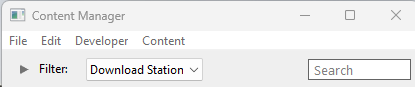
Deleted assets that were installed from the DLS are the easiest of all to restore. Simply use Content Manager to locate the assets and download them again.
Error creating thumbnail: /bin/bash: line 1: /usr/bin/convert: No such file or directory Error code: 127 Select the Download Station filter from the Filter drop down menu
Error creating thumbnail: /bin/bash: line 1: /usr/bin/convert: No such file or directory Error code: 127 Optional: Type part of the asset name in the Search box to narrow the search
Error creating thumbnail: /bin/bash: line 1: /usr/bin/convert: No such file or directory Error code: 127  Right Click  on the asset name in the displayed list and select the  Download  option


However, if for some reason you are unable to access the DLS and the deletion occurred during the last 7 days, then the assets can still be recovered from the automatic backups that Content Manager creates when assets are deleted. These backups are only held for 7 days. See  Restore Deleted Assets from the Backup for the details.


Restore Deleted .cdp File Assets

    Top Next Up Next Down Bottom
Deleted assets that were installed from .cdp files can be easily restored by reinstalling them from the same .cdp files


Deleted assets that were installed from .cdp files can be reinstalled from the same files.
Steps: To install an asset or assets from a .cdp file:-
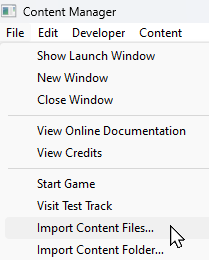
From the Content Manager File menu select the  Import Content Files...  option
Navigate to the location of the .cdp file or files
Select ( Left Click  or  Ctrl  +  Left Click ) each file to be restored
Click ( Left Click ) the Open button


However, if for some reason you are unable to locate the .cdp files and the deletion occurred during the last 7 days, then the assets can still be recovered from the automatic backups that Content Manager creates when assets are deleted. These backups are only held for 7 days. See  Restore Deleted Assets from the Backup for the details.


Restore Deleted Payware and Packaged Assets

    Top Next Up Next Down Bottom
Payware and Packaged assets that were installed from a DLC package can be restored by reinstalling the same DLC Package
If the identical Packaged asset is also on the DLS then it can be restored from there


Error creating thumbnail: /bin/bash: line 1: /usr/bin/convert: No such file or directory Error code: 127 DLC packages can be uninstalled and later reinstalled without any extra costs for an unlimited number of times. Each DLC package contains all the dependant assets in the one download even if those assets are already on the DLS.


Steps: To Reinstall a DLC Package:-
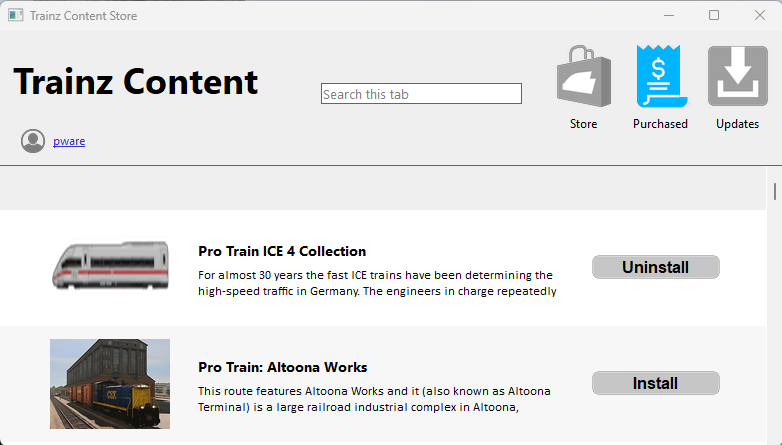
Open the Content Store from the Trainz Launcher. Make sure that the Purchased icon has been selected (is coloured blue).

This will show all the DLC Packages that you have purchased or previously installed.

Error creating thumbnail: /bin/bash: line 1: /usr/bin/convert: No such file or directory Error code: 127 Items marked with the Uninstall button are currently installed in your copy of Trainz
Error creating thumbnail: /bin/bash: line 1: /usr/bin/convert: No such file or directory Error code: 127 Items marked with the Install button have been purchased (or are available for free) but are not installed in your copy of Trainz
Error creating thumbnail: /bin/bash: line 1: /usr/bin/convert: No such file or directory Error code: 127 If you have Uninstalled a package then it will show the Install button


Scroll down the list to locate the package to be reinstalled. You can enter a partial name in the Search box to help narrow the search
 Left Click  on the Install button of the package. The install may take some time depending on the size of the package and the speed of your internet connection


Restore Deleted Assets from the Backup

    Top Next Up   Bottom
Assets deleted using Content Manager within the last 7 Days are stored in the Backup Folder for the date they were deleted
Deleted assets are stored using their <kuid> code(s). Knowing their <kuid> code(s) is very helpful but is not vital


Notes:

Error creating thumbnail: /bin/bash: line 1: /usr/bin/convert: No such file or directory Error code: 127 Backups of assets deleted by Content Manager are only kept for 7 days from the day of their deletion. Beyond that date this method cannot be used
Error creating thumbnail: /bin/bash: line 1: /usr/bin/convert: No such file or directory Error code: 127 Knowing the date that an asset was deleted and its <kuid> will help in finding its backup
Error creating thumbnail: /bin/bash: line 1: /usr/bin/convert: No such file or directory Error code: 127 The asset backups are stored as .tzarc files and a Database Repair (DBR) is one of the steps needed to restore them


Locate the Backups Folder

The Backups folder where deleted assets are held is a subfolder of your Local User Data Folder


Steps: To Locate your Backup Folder:-
Open Trainz Settings from the Trainz Launcher
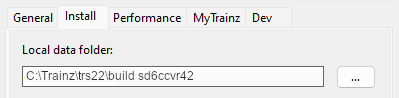
Select the  Install  tab. The location of the Local User Data Folder will be shown.

This is an Example Address Only
The Local User Data Folder is usually in the C: drive User folder that is normally identified as %LOCALAPPDATA%\N3V Games\trs22\build xxxxxxx (where "xxxxxxx" is a random sequence of characters) but it can be moved to any location (and given any name) as shown in the image left
Instructions on moving your Local User Data Folder can be found by clicking the button labelled Instructions for moving your content... below the address bar or on the Trainz Wiki Page at  How to Move Your User Data Folder
Highlight and copy the address shown:-
Error creating thumbnail: /bin/bash: line 1: /usr/bin/convert: No such file or directory Error code: 127  Left Click  inside the address box
Error creating thumbnail: /bin/bash: line 1: /usr/bin/convert: No such file or directory Error code: 127 press  Ctrl  +  A  to select the entire address
Error creating thumbnail: /bin/bash: line 1: /usr/bin/convert: No such file or directory Error code: 127 press  Ctrl  +  C  to copy it to your OS clipboard
Open File Explorer. This can usually be found in your Windows 10/11 Task Bar
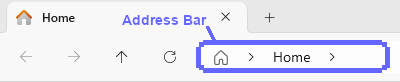
 Left Click  in the Explorer Address Bar - it is better to click in the empty space at the end of the displayed text
Error creating thumbnail: /bin/bash: line 1: /usr/bin/convert: No such file or directory Error code: 127 if the contents are not already highlighted then press  Ctrl  +  A 
Error creating thumbnail: /bin/bash: line 1: /usr/bin/convert: No such file or directory Error code: 127 paste ( Ctrl  +  V ) in the address from Step  3  above
Error creating thumbnail: /bin/bash: line 1: /usr/bin/convert: No such file or directory Error code: 127 press the  Enter  key

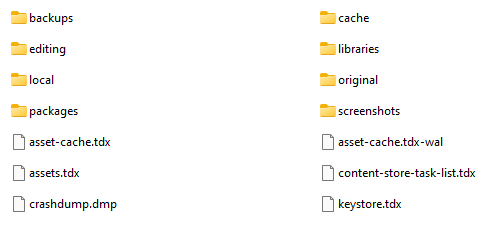
The end result, unless you have moved your data folder, will look something like the image show below.

Where:-

 idname  is your Windows User name (abbreviated), and
 random  is a sequence of random characters. This, the build  random , is your Local User Data Folder
 Double Left Click  on the last item in the address list to open your current Local User Data Folder. One of its folders will be the Backups folder


Locate the Asset Backup Files

The backups of deleted assets are kept in folders identified by the date (during the last 7 days) when they were deleted
The backups are stored as .tzarc files


If an asset was deleted more than 7 days ago then it cannot be restored by this method


Steps: To Restore Assets from their Backup Files:-
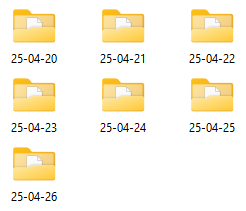
In File Explorer  Double Left Click  on the Backups folder to open it up. Depending on how often you have used Surveyor during the last 7 days, and depending on your File Explorer display settings, you may see something like this...
Error creating thumbnail: /bin/bash: line 1: /usr/bin/convert: No such file or directory Error code: 127 each folder is named using the date it was created (in yy-mm-dd display format)
Error creating thumbnail: /bin/bash: line 1: /usr/bin/convert: No such file or directory Error code: 127 days where you did not use Surveyor will be missing folders
Error creating thumbnail: /bin/bash: line 1: /usr/bin/convert: No such file or directory Error code: 127 only folders upto 7 days ago will be present


If you are unsure of the date then you may have to open and examine each folder
 Double Left Click  on the folder for the day when the asset or assets were deleted. This will display all the backup files created that day.
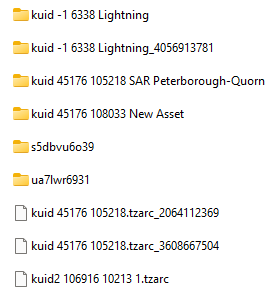
Error creating thumbnail: /bin/bash: line 1: /usr/bin/convert: No such file or directory Error code: 127 Many, or nearly all, will be the automatic backup files created for the route and session that you were editing that day. These will have the same <kuid> ids in their folder and filenames as the route/session (e.g. the folder kuid 45176 105218 SAR Peterborough-Quorn and the file kuid 45176 105218.tzarc_3680667504 shown left). The files will have a sequence of numbers following the .tzarc filetype
Error creating thumbnail: /bin/bash: line 1: /usr/bin/convert: No such file or directory Error code: 127 Any assets that you opened for editing that day will also appear as backup folders. These will usually have the name, or part of the name, of the asset along with its <kuid> in the folder name (e.g. kuid -1 6338 Lightning shown left)
Error creating thumbnail: /bin/bash: line 1: /usr/bin/convert: No such file or directory Error code: 127 Assets that you have deleted will be shown using only their <kuid> ids as their filename (e.g. kuid2 106916 10213.tzarc shown left)


Since it is unlikely that you will know the <kuid> of each asset that you deleted one strategy would be to restore every deleted asset in the folder and then later use Content Manager to again delete those that you do not want
Select ( Left Click ) on the asset backup file to be restored. If more than one file has to be restored then use  Shift  +  Left Click  or  Ctrl  +  Left Click  to select them all
 Right Click  on one of the selected files and select the option  Cut  to move the file(s) to your OS clipboard


Restore the Asset Backups

The backup files of the deleted assets have to be moved to the Editing folder and a DBR perfomed


Steps: To Restore the Deleted Assets:-
In the File Explorer address bar  Left Click  on the name of the Local User Data Folder


build  random  in the example shown above

 Double Left Click  on the editing folder to open it up
 Left Click  inside the editing folder and paste ( Ctrl  +  V ) the file(s) into the folder
Start the Trainz Launcher, open the Developer menu and select the  Rebuild database  option


Check the Restored Assets

Use Content Manager to check that the assets have been restored


Steps: To Check the Status of the Restored Assets:-
Open Content Manager and select the Filter  Open for Editing 
If any of the assets are listed then select and Submit them
Select the Filter  Installed  and sort the list on the column Modification Date into descending date order ( Left Click  once or twice on the column heading)
The restored assets should appear at the top of the list


  Top Next Up    


Trainz Wiki

More Tutorials and Guides to Using Trainz

Related Links


This page was created by Trainz user pware in April 2025 and was last updated as shown below.