|
|
| Key Points:- |
 |
a new install of Trainz requires that you must Login to the program. This is usually a one time only process |
|
the user controlled configuration settings in Trainz allow you to match the performance of the program to:-
 |
your installed hardware, including your GPU and video |
|
the unique requirements of any routes you are running
|
|
|
you can specify the location of your User Data Folder, which holds all your installed assets, and you can switch between different folders
|
|
you can switch between the normal and the Beta Test program streams
|
|
if you are an asset creator you can optimise the program for advanced asset testing
|
|
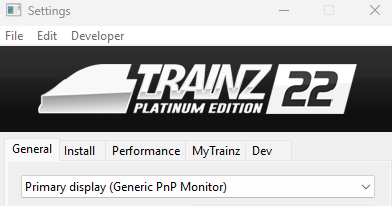
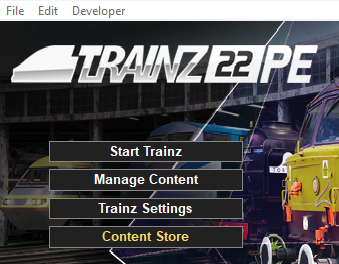
| Start your copy of Trainz which will load to show the Launcher Window (shown below). |
 |
|
|
The Trainz Settings control how Trainz interacts with your Operating System and Graphics Display, where it stores your data, its overall performance, etc |
|
It also stores your login credentials which, amongst other things, gives you free access to the Download Station or DLS where assets such as routes, sessions, rolling stock and many different types of scenery can be downloaded and installed |
|
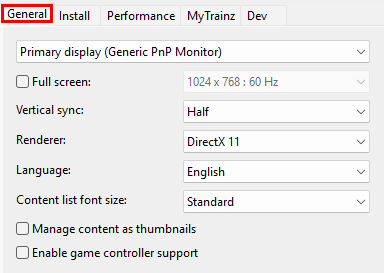
These settings are your display characteristics such as the screen resolution, synchronisation, preferred language and font size. |
 |
Left Click on the General tab |
Display Settings
|
This sets the display monitor that Trainz will run on and its screen resolution. |
| Primary Monitor |
IF you have more than one display monitor/screen attached to your computer then you can select the one that you want Trainz to use.
| Steps: To Select the Monitor:- |
 |
Left Click on the menu box or its arrow icon to show the attached display monitors that your operating system has detected. |
 |
Then Left Click on the display monitor that you want Trainz to use. |
|
|
 |
|
| Screen Size and Display Resolution |
| This sets the screen size (as in full screen or windowed), its resolution (in pixels) and the refresh rate (in Hertz or cycles per second). |
 |
If the Full Screen box is NOT checked then Trainz will run in windowed mode with the Trainz Railroad Simulator bar at the top of the program window and the Windows Tool Bar at the bottom of the screen. |
| This allows you to resize the window when required and to easily switch to other programs when needed. The resolution settings drop box cannot be opened if the Full Screen is not checked. |
 |
If the Full Screen box is checked then Trainz will run in full screen mode WITHOUT the Trainz Railroad Simulator bar at the top of the program and the Windows Tool Bar at the bottom of the screen. |
 |
The Screen Resolution and Refresh Rate values are determined by your video card and not the display monitor you are using. It is important to match the selected settings from your video card with the same settings used by your display monitor. Some experimentation may be required to get the best results. |
|
| Steps: To Set the Screen Size and Resolution:- |
|
Left Click on the Full Screen check box to check it ON. This will allow the full range of available screen resolutions to be shown and selected. |
|
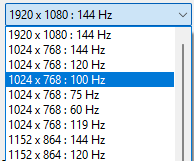
Left Click on the menu box or its arrow icon to display the list of screen resolutions and refresh rates that your graphics card supports. |
 |
Then Left Click on the resolution and rate that you want to use. |
|
|
|
 |
| Vertical Synchronization |
This is a technology that matches (synchronizes) the construction of each video frame between your graphics card and your display monitor.
Vertical Synchronization, when turned on, prevents the next frame from being sent to your display monitor before the previous frame has been fully drawn on its screen.
 |
| Steps: To Select the Vertical Synchronization:- |
|
Left Click on the menu box or its arrow icon to show the options.
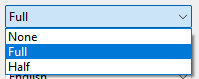 |
| None |
your graphics card will not delay sending each frame to the display monitor. Only recommended if your display monitor has a higher refresh rate than the rate set on your video card |
| Full |
each video frame is sent to the display monitor, line by line, in one pass, when the monitor is ready to receive it |
| Half |
each video frame is sent to the display monitor in two passes when the monitor is ready to receive it. The odd numbered lines will be sent in the first pass then the even numbered lines in the second |
|
|
|
Then Left Click on the setting that you want to use. Some experimentation may be needed to get the best results. |
|
|
|
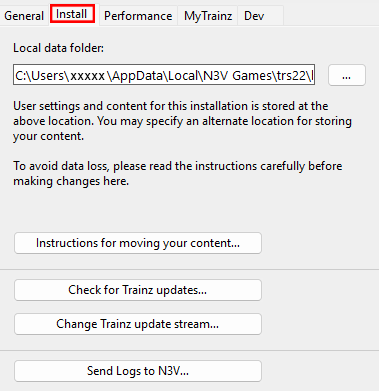
These settings identify the location of your User Data Folder where all your assets are kept and the type of program updates you want to receive. |
|
|
| Left Click on the Install tab |
|
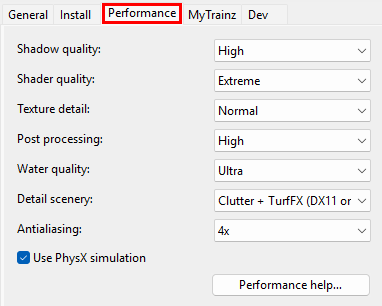
These settings are where you can "fine tune" the performance of the program to better match the hardware of your computer system and the demands of the routes you are running. |
|
You may need to experiment with these settings to get the best match with your system and the routes you run. |
| Left Click on the Performance tab |
|
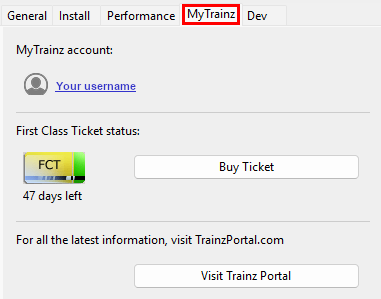
These settings identify your user login details. In some older versions this Tab is labelled Internet. |
|
You can also check your current FCT status and, if required, purchase more FCT access. |
| Left Click on the MyTrainz tab |
Enter Login Details
|
 |
 |
|
|
|
|
|
Your Login details are needed to access the Download Station and other online data. |
|
Your Trainz Login is the same as the Trainz Forum Login that you used to purchase or subscribe to your current copy of Trainz. If you do not have a Trainz Forum Login then you can create a new account. |
| Steps: To Enter your User Details into Trainz: |
|
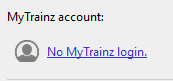
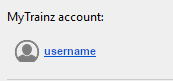
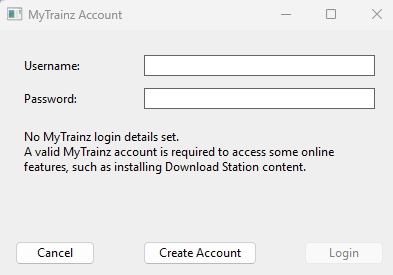
Left Click on the link No MyTrainz login or username
 |
If you simply need to confirm your current login then Left Click on your username link and renter your details. |
|
 |
|
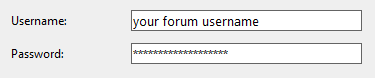
Enter your Trainz Forum Username and Password into the dialogue window text boxes.
 |
|
If you do not have a Trainz Forum login then skip to the next section
 Create an Account. |
|
|
|
Left Click on the  button which will become active as soon as data has been entered |
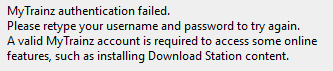
| There will be a delay while the data is checked. This will be followed by one of two messages
|
 |
IF you see the login succeeded message then Left Click on the  button.
IF you see the failed message then try again (you may have mistyped the username or password). If the failed message persists then contact the Support desk. |
 |
After entering your login details, close the Trainz Settings dialogue window and exit the Trainz Launcher. Then restart Trainz. |
|
Create an Account
|
|
|
|
|
|
|
|
You will need a Trainz Account to be able to access the online features of Trainz including the Download Station where there is a vast library of free assets (routes and sessions, locomotives and rolling stock, signals and tracks, scenery of all types, ground textures, etc) available for you to download and install. |
|
A Trainz Account will also give you a Trainz Forum Login username and password to access the Trainz Forum. |
| Steps: To Create a New Account: |
|
Left Click on the link No MyTrainz login or username |
|
|
In the dialogue window (shown right) where you are asked to enter your Username and Password Left Click on the  button. |
|
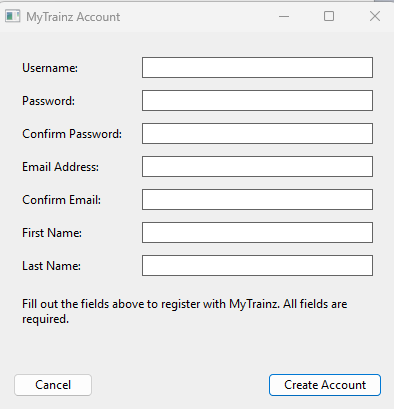
In the New Account Dialogue Window (shown right) enter ALL the information requested. |
 |
|
When complete, Left Click on the button. This will create a new Trainz Account with a Username and Password to enter into your Trainz program and into the Trainz Forum. |
|
After entering your login details, close the Trainz Settings dialogue window and exit the Trainz Launcher. Then restart Trainz.
|
|
|
|
First Class Ticket
|
|
|
|
|
|
|
|
The FCT or First Class Ticket is an optional prepaid feature that gives you higher speed priority access to the Download Station or DLS. |
|
An FCT is automatically included in all Trainz Plus subscriptions for the duration of the subscription. |
 |
The FCT Status indicates how many days are left on your current active FCT.
Left Click on the  button to purchase another FCT (you can activate it at any time after purchase). |
|
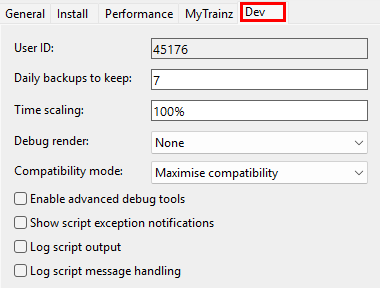
These settings are designed for asset developers ONLY to test the performance and other features of the assets they create. |
|
Unless you are an experienced asset developer you are strongly advised to NOT change these settings. |
|
They also control how often automatic backups will be made of any routes or sessions that you are currently developing in Surveyor. |
| Left Click on the Dev tab |
Trainz Wiki
 |
More Tutorials and Guides to Using Trainz
|
This page was created by Trainz user pware in July 2026 and was last updated as shown below.