How to Use Session Editor

From TrainzOnline
Revision as of 23:59, 25 July 2026 by Pware (talk | contribs)
Jump to navigationJump to search
Error creating thumbnail: /bin/bash: line 1: /usr/bin/convert: No such file or directory Error code: 127 The information in this Wiki Page applies to using the Session Editor to create fully or partially automated Sessions in T:ANE, TRS19, TRS22 and Trainz Plus.


The Session Editor allows you to add, delete and edit the Rules in a Session
The Rules control the operation of the Session

What is the Session Editor

    Top   Next Down Bottom
Notes:

The Rules added and edited by the Session Editor control:-

Error creating thumbnail: /bin/bash: line 1: /usr/bin/convert: No such file or directory Error code: 127 behaviour of drivers (and their trains)
Error creating thumbnail: /bin/bash: line 1: /usr/bin/convert: No such file or directory Error code: 127 weather conditions
Error creating thumbnail: /bin/bash: line 1: /usr/bin/convert: No such file or directory Error code: 127 time of day
Error creating thumbnail: /bin/bash: line 1: /usr/bin/convert: No such file or directory Error code: 127 signals and switches
Error creating thumbnail: /bin/bash: line 1: /usr/bin/convert: No such file or directory Error code: 127 display of information and instructions to the player
Error creating thumbnail: /bin/bash: line 1: /usr/bin/convert: No such file or directory Error code: 127 train timetables
Error creating thumbnail: /bin/bash: line 1: /usr/bin/convert: No such file or directory Error code: 127 responses to events (time, triggers, load levels, other trains, etc)
Error creating thumbnail: /bin/bash: line 1: /usr/bin/convert: No such file or directory Error code: 127 decisions on what happens next

to name just a few.


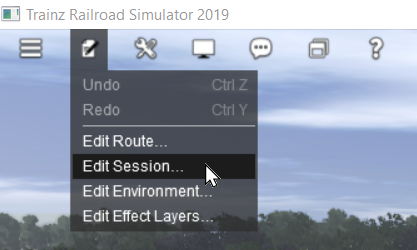
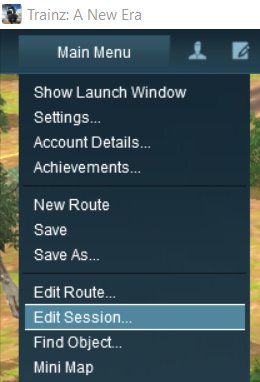
In TANE the Session Editor is found in the Surveyor Main Menu. In TRS19 and later versions it is in the Surveyor Edit Menu. In either case select the  Edit Session  option from the menu.
 

When loaded, the Session Editor will show all the Rules that have been added to the Session. If you have just opened the Editor on a Route without a Session then it will show a very basic set of Rules. The Editor will allow you to add additional Rules, and delete or edit those shown. Links to extensive lists of Rules that are built into Trainz or available on the DLS can be found at the end of this document.


Error creating thumbnail: /bin/bash: line 1: /usr/bin/convert: No such file or directory Error code: 127
Notes:

Error creating thumbnail: /bin/bash: line 1: /usr/bin/convert: No such file or directory Error code: 127 the Name of the Session is the Username tag entry in the config.txt file
Error creating thumbnail: /bin/bash: line 1: /usr/bin/convert: No such file or directory Error code: 127 the Description of the Session is the Description tag entry in the config.txt file
Both can be directly edited in the Session Editor, or in the config.txt file using a text editor. The session asset will be updated when you save the Session and exit Surveyor.


Notes:

The order of the Rules in the Editor list is usually not important. All the rules will be executed simultaneously although some rules will take longer to complete than others
If the order in which some of the Rules are executed is important, then group them together in a Ordered List Rule (examples are shown in the image) in the order you want them to be executed. Information on using Ordered Lists can be found at  Using Ordered Lists


Error creating thumbnail: /bin/bash: line 1: /usr/bin/convert: No such file or directory Error code: 127 Rules can be grouped together into lists for convenience (e.g. all the Rules that set signals at the start of the Session) or because they depend on a particular event (e.g. a time, a train arriving at a set point, a wagon being loaded, etc).


These form Nested Rules and are indicated by arrow heads as shown in the image on the left. Left Click on an arrow head to open up its nested list of child Rules as shown in the image.
Each of the Rules that have been nested under the Ordered List Rule in the image have been indented one level to the right. Left Click on the arrow head again to close the list.

More information on the various types of List Rules and how to create Nested Rules can be found on the Trainz Wiki Page at:-


The "Button Bar"

    Top Next Up Next Down Bottom

At the bottom of the Session Editor is the "button Bar".

Error creating thumbnail: /bin/bash: line 1: /usr/bin/convert: No such file or directory Error code: 127
Error creating thumbnail: /bin/bash: line 1: /usr/bin/convert: No such file or directory Error code: 127 the  Add  button will insert a new Rule below the selected (highlighted) Rule or at the end of the list if no Rule has been selected
To use the other buttons, first select a Rule with a Left Click
Error creating thumbnail: /bin/bash: line 1: /usr/bin/convert: No such file or directory Error code: 127 the  Edit  button will open the selected (highlighted) Rule for editing
Error creating thumbnail: /bin/bash: line 1: /usr/bin/convert: No such file or directory Error code: 127 the  Delete  button will delete the selected Rule
Error creating thumbnail: /bin/bash: line 1: /usr/bin/convert: No such file or directory Error code: 127 the  Indent/Outdent  buttons will move the selected Rule right or left
Error creating thumbnail: /bin/bash: line 1: /usr/bin/convert: No such file or directory Error code: 127 the  Up/Down  buttons will move the selected Rule Up or Down


Notes:

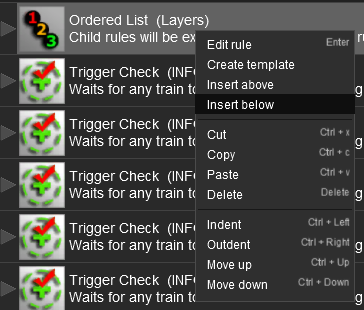
Error creating thumbnail: /bin/bash: line 1: /usr/bin/convert: No such file or directory Error code: 127 The above operations, and more, can also be found by using a Right Click on a Rule to open its menu as shown below
Error creating thumbnail: /bin/bash: line 1: /usr/bin/convert: No such file or directory Error code: 127 In TRS19 Platinum Edition and later versions, including Trainz Plus and TRS22, an addititional button  Restart All Rules  will appear after the  Delete  button. This is for the UDS feature found in those versions and is explained on the Wiki Page  How to Use the UDS Interface


Left Click to Accept your edits and close the Session Editor    Left Click to Cancel your edits and close the Session Editor


Rule Popup Menu

As an alternative to using the Button Bar Right Click on a Rule in the Session Editor to open its options menu. Some of the options are the same as those found on the Button Bar
Options:
Error creating thumbnail: /bin/bash: line 1: /usr/bin/convert: No such file or directory Error code: 127  Edit rule  is the same as the  Edit  button
Error creating thumbnail: /bin/bash: line 1: /usr/bin/convert: No such file or directory Error code: 127  Insert above  is the same as the  Add  button but inserts the new Rule above the selected Rule
Error creating thumbnail: /bin/bash: line 1: /usr/bin/convert: No such file or directory Error code: 127  Insert below  is the same as the  Add  button (inserts the new rule below the selected Rule)
Error creating thumbnail: /bin/bash: line 1: /usr/bin/convert: No such file or directory Error code: 127  Cut  Copy  Paste  will move/copy the rule (and its nested child rules if it has any) between the Session Editor and the Clipboard
Error creating thumbnail: /bin/bash: line 1: /usr/bin/convert: No such file or directory Error code: 127  Delete  is the same as the  Delete  button
Error creating thumbnail: /bin/bash: line 1: /usr/bin/convert: No such file or directory Error code: 127  Indent  is the same as the  Indent  button
Error creating thumbnail: /bin/bash: line 1: /usr/bin/convert: No such file or directory Error code: 127  Outdent  is the same as the  Outdent  button
Error creating thumbnail: /bin/bash: line 1: /usr/bin/convert: No such file or directory Error code: 127  Move up  is the same as the  Up  button
Error creating thumbnail: /bin/bash: line 1: /usr/bin/convert: No such file or directory Error code: 127  Move down  is the same as the  Down  button


Warning:
The  Cut ,  Copy  and  Paste  operations will NOT correctly copy ALL the settings in some rules, for example the Navigation Display Rule. It is a good idea to check the settings of each rule that you paste into the Session Editor.


Adding Rules to Sessions

    Top Next Up Next Down Bottom
Only rules that have been installed in your copy of Trainz can be added to a Session. Many rules are available on the DLS for downloading.
There is a extensive (but incomplete) catalogue of rules, built-in and available for download, at  Session Rules List (Alphabetical)


Steps: To add a Rule to the Session Editor:-
Left Click on the  Add  button. The rule will be inserted below any currently selected (highlighted) rule or at the end of the list if there is no selected rule
Alternatively, Right Click on a rule that is already in the Session Editor and select either:-
 Insert above , OR
 Insert below 
to position the new rule above or below the selected rule.
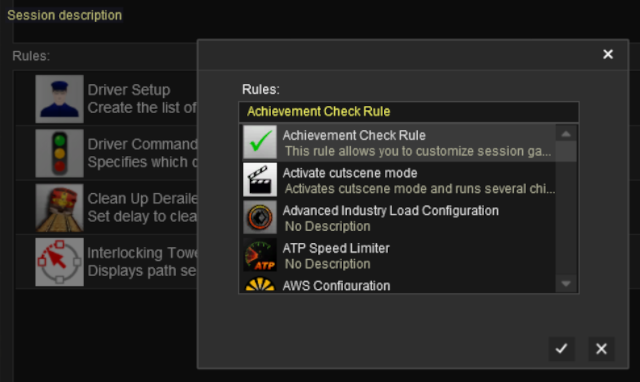
A new window showing all the installed and available rules will appear.
Add a new rule
If a rule that you want to use does not appear in the list, then check in Content Manager that it has been installed and is free of errors.


Left Click on rule you want add and Left Click on the icon.


Copying Rules Between Sessions

    Top Next Up Next Down Bottom
Rules can be copied between Sessions (with some restrictions)
The  Copy  and  Paste  commands can be used to copy configured rules from one session to another. This saves you having to reenter the same data sets, such as driver commands, in each session.


Steps: To copy a rule between two sessions:-
in the Session Editor Right Click on the rule to be copied (more than one rule can be selected)
select  Copy  from the popup menu
exit the Session back to the Load Route/Session screen
load the Route and the second Session (where the Rules are to be copied to) into Surveyor and open the Session Editor
Right Click after the last rule entry and select  Paste  from the popup menu


Warning:
The  Cut ,  Copy  and  Paste  operations will NOT correctly copy ALL the settings in some rules, for example the Navigation Display Rule. It is a good idea to check the settings of each rule that you paste into the Session Editor.


Copying the Driver Setup Rule:

The Driver Setup Rule can be copied from one Session to another using the method described above, but there are some conditions that must be met for this to work.

Drivers, Driver Assignments and Driver Commands ONLY are Copied
Copying the Driver Setup Rule will NOT copy the actual locomotives and consists that the drivers are assigned to. These must be copied or recreated separately
No Duplicate Locos Allowed - this is only an issue if you keep both the original and the copied Driver Setup Rule in the Session
If the same loco is present in both Driver Setup Rules then only the first loco (in the top copy of the rule) will be active. The duplicate loco in the second copy of the rule will be ignored
Missing Locos will be Ignored

If a loco is listed in the copied Driver Setup Rule but does not exist in the new Session because it was not copied across then it will be ignored


Unified Driver Surveyor Interface (UDS)

    Top Next Up Next Down Bottom
TRS19 Platinum Edition and later Trainz versions including Trainz Plus and TRS22 have a Unified Driver Surveyor (UDS) which allows you to switch seamlessly between Driver and Surveyor modes. The UDS allows an edited Session to be continued without having to restart it from the beginning. This includes editing the Session Editor on an active Session where some of the Rules may have already been completed or others have started. To allow for this additional features have been added to the Trainz versions with the UDS interface.
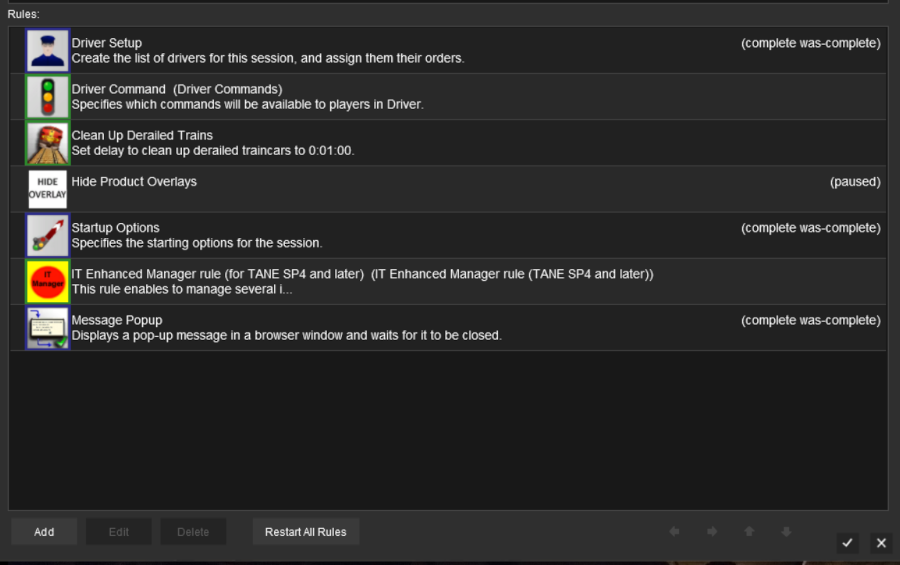
At the bottom of the Session Editor is a new button,  Restart All Rules . This will reset or restart ALL rules in the Session.
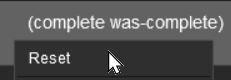
Some rules, as shown in the screen shot above, have the label (complete was-complete) after the rule name. This indicates that the rule has already been completed. These rules can be individually restarted by a Right Click on the rule and selecting the  Reset  option from the pop up menu. This will change the rule status to (paused).
When the Driver Mode is selected again, all the reset or (paused) rules will be restarted.


A detailed description of the UDS can be found on the Trainz Wiki Page at:-
How to Use the UDS Interface

Examples of Using the Session Editor

    Top Next Up   Bottom

Wiki pages that show examples of using the Session Editor to solve particular problems or to carry out particular tasks can be found at the following pages:-


  Top Next Up    


Trainz Wiki

More Tutorials and Guides to Using Trainz

Related Links


This page was created by Trainz user pware in October 2019 and was last updated as shown below.