The information in this Wiki Page applies to TANE, TRS19 and Trainz Plus.
What are Track Triggers?
 |
Track triggers are track markers that are invisible in Driver Mode but visible in Surveyor Mode. They are used to activate Session Rules and some Driver Commands |
Track triggers can be programmed to respond when a train (any train or a specific train) passes over them in Driver Mode. The response comes from executing a set of Session Rules that have been attached to a  Trigger Check Rule (or a similar rule) or a Driver Command that is monitoring the track trigger.
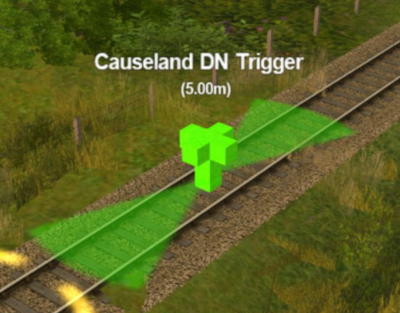 |
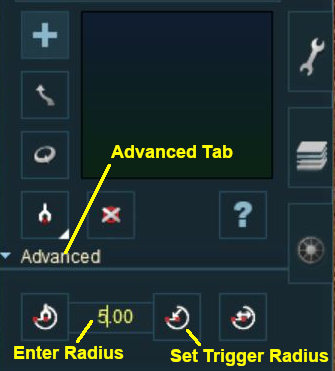
Shown at left is a Track Trigger placed on a track in Surveyor Mode. It is NOT visible in Driver Mode. The "5.00m" shown below the trigger name is the trigger detection radius
|
Route or Session?
|
Track Triggers can be placed in a Route layer or in a Session layer |
 |
Notes:
- Placing Track Triggers in a Route layer (e.g. in the same layer as the track) means that they will be available in all Sessions created using that particular Route.
- Placing Track Triggers in a Session layer means that they will only be available in that Session. This can be useful if two or more Sessions are being created and you want to use different Track Triggers in each Session.
|
 |
Information on Route and Session layers can be found at:-
|
Adding a Track Trigger
 |
|
 |
Steps:
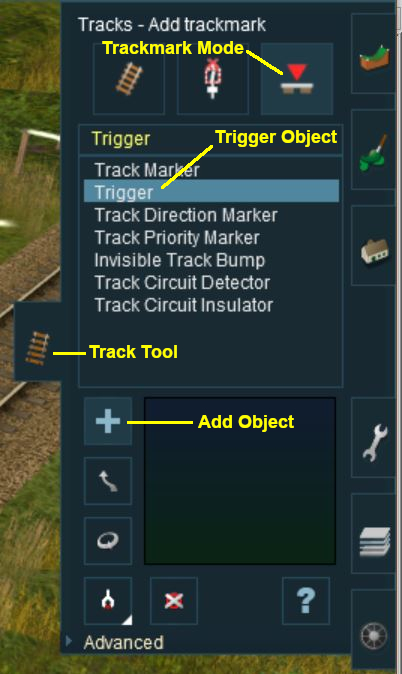
A Track Trigger is placed on the track by:-
- clicking the Track tool,
- clicking the Trackmark Mode button,
- selecting the Trigger object from the list of installed objects,
- clicking the Add Object button,
- clicking the track position where the track trigger is to be placed.
|
|
|
Configuring a Track Trigger
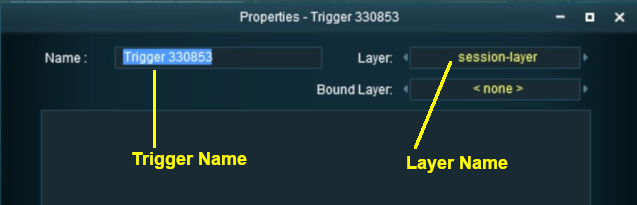
As soon as a new track trigger has been placed, its properties window will open on the screen. It will be given a default name and assigned to the currently active layer.
 |
Creating a Track Trigger Event
Track trigger events are handled by the Trigger Check Rule (or a similar rule) which is added to a Session in the Session Editor.
|
More information on the Trigger Check Rule can be found on the Trainz Wiki Rules Page at:-
|
|
Steps |
 Open the Session Editor:
|
To add the Trigger Check Rule to a session:-
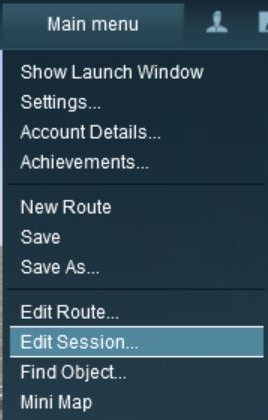
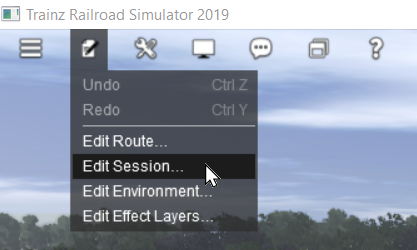
- Open the Surveyor Main Menu in TANE (shown below left) or the Surveyor Edit Menu in TRS19 and Trainz Plus (shown below right)
- Select the option Edit Session from the drop down menu list
|
 |
|
|
|
| |
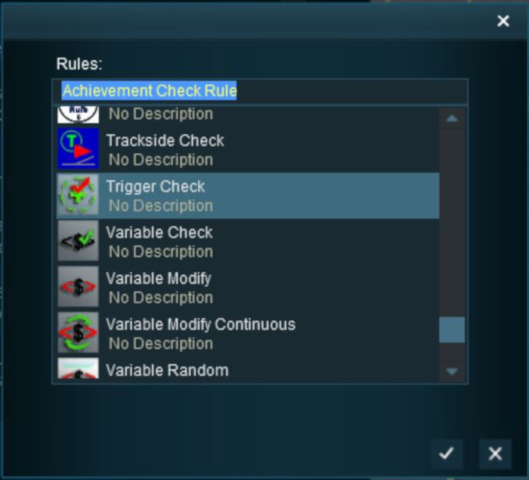
 Add the Trigger Check Rule:
|
| |
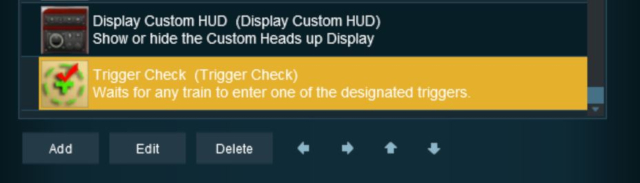
 Open the Trigger Check Rule Properties:
With the Trigger Check rule highlighted (shown below):-
- Click the Edit button. This will open the rule properties window
|
 |
|
|
| |
 Configure the Rule:
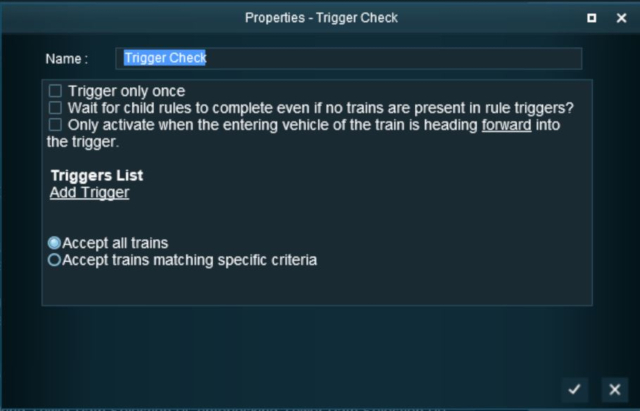
For this example we will leave all settings unchanged and simply identify the track trigger to be used.
In the Trigger Properties window (shown below):-
- Click the Add trigger link
|
 |
|
|
More information on the settings and options in this rule can be found on the Trainz Wiki Rules Page at:-
|
|
|
|
| |
 Select the Trigger:
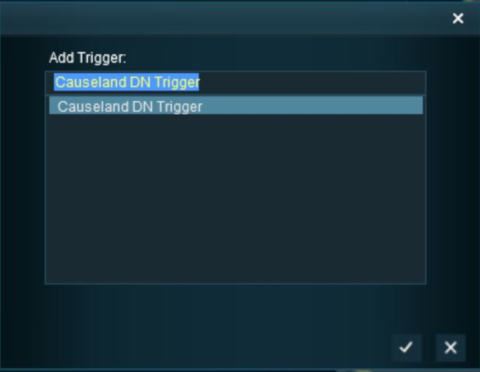
The Trigger Selection Window will list all the Track Triggers in your layout.
- Select the trigger you have just added
- Click on the
 icon at the bottom of the selection window
|
 |
| Once the trigger has been added to the rule, click on the icon in the Trigger Check properties window to accept the change.
|
|
Adding an Instruction to the Trigger Event
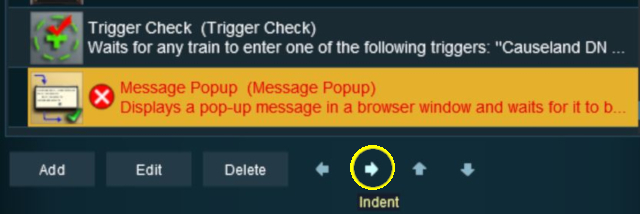
To test your trigger event you will need to add at least one rule.
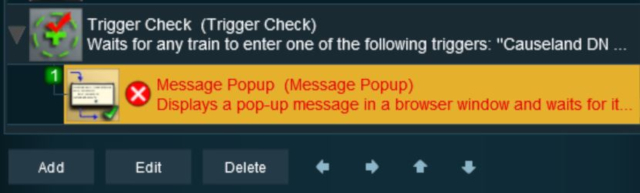
Adding a Child Rule
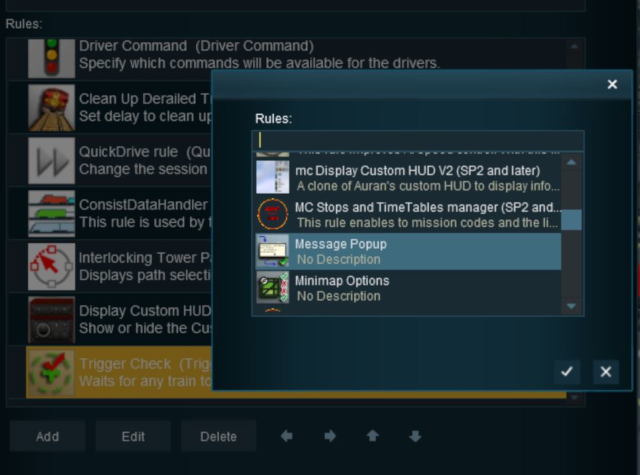
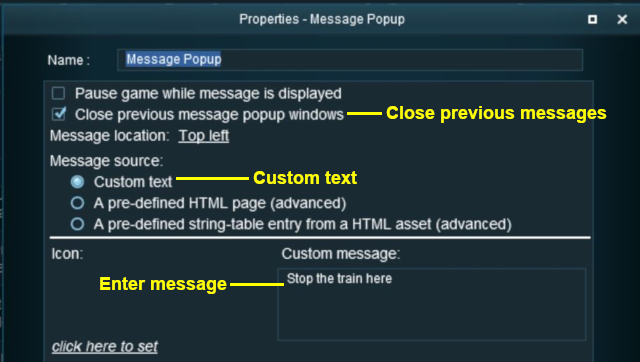
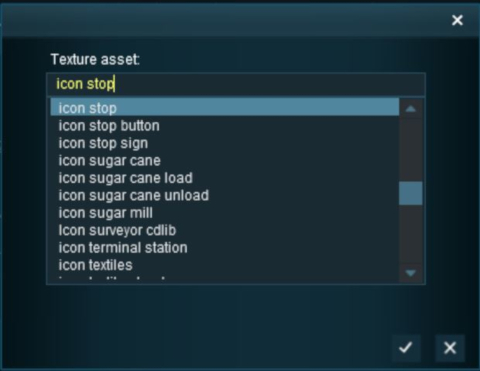
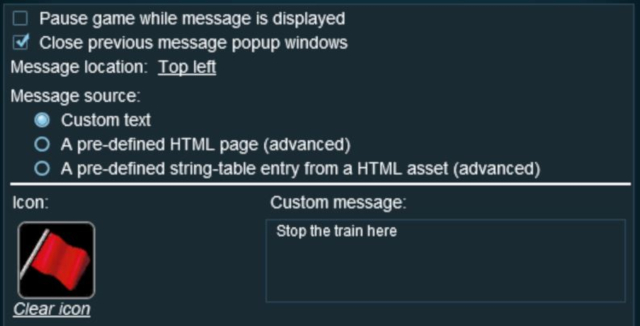
Configuring the Message and Testing
|
Alternatives to the Trigger Check Rule
 |
There are other rules that can be used in place of the Trigger Check Rule and triggers. A few possibilities are listed below:- |
- Directional Trigger Check Rule - identical to the Trigger Check Rule but adds the ability to test the train direction. Requires the use of a special Directional Trigger. For an example of its use see the Trainz Wiki Page Controlling Signals in Sessions.
- Trackside Check Rule - very similar to the Trigger Check Rule but provides some different options.
- Navigation Points (see the How to Guides link below) are more complex but provide more advanced controls and options.
- Multiple Resource Check Rule - monitors and acts on changes in multiple industry or multiple wagon resource (commodity) levels.
- Resource Verify Rule - monitors and acts on changes in a single industry or wagon resource (commodity) level.
- Timecheck Rule - triggers an event at a set time.
 |
There is a driver command that can be used in place of the Trigger Check Rule. |
- Wait For Trigger - forces an AI controlled train to wait until a specified trigger has been activated by another train.
Trainz Wiki
 |
More Tutorials and Guides to Using Trainz
|
This page was created by Trainz user pware in May 2018 and was last updated as shown below.
|