Disabled
You may occasionally see the following label on installed assets:-
|
|
Disabled
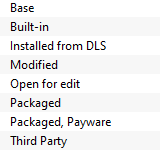
The asset has been manually Disabled (from the Content menu select Disable). |
Disabling assets will "hide" them from other assets, including Routes and Sessions, so they cannot be used. It is a useful technique for deleting troublesome assets from a Route or Session without actually deleting the assets themselves. For an example of this see  Deleting Stubborn Scenery Assets. Normally you would restore the Disabled assets after fixing the Route or Session (from the Content menu select Enable).
Payware assets that are Disabled will have Payware (not active) as their status label.
Open for Edit
|
|
Open for edit
The asset is currently in use by another process such as Surveyor, Driver or Content Manager. |
This label will appear on any asset that you have:-
- currently open in Surveyor (a Route that is being edited) or Driver (a Session that is running)
- opened in Content Manager for editing - for example changing its config.txt file or image files
- imported into Content Manager from a Content File (.cdp file) or a Content Folder when the same asset is already installed
In the first case, exiting Surveyor or Driver will close the open Route and Session assets.
In the second and third cases you will need to manually close the open assets.
|
To manually close open assets:-
- select the open assets (individually or as a group)
- right mouse click on an open asset
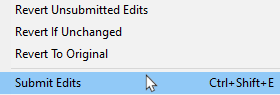
- select the Submit Edits command to close them with the edits saved, or
- select Revert to Original to cancel the edits and return the assets to their previous unedited states
|
 |
|
 |
Notes:
 |
Assets that are Open for edit cannot be exported to a .cdp file or uploaded to the DLS. They must be closed first |
|
If you import assets into Trainz from a Content File (.cdp) or a Content Folder then Content Manager will not search for and install any missing dependencies from the DLS. You will have to do this manually. See the  Missing Dependencies section below |
|
If Trainz unexpectedly closes while using Surveyor or Driver, such as a Crash To Desktop or it is terminated by Windows Task Manager, then the loaded Route and Session will be Open for edit when you restart Trainz. See the Trainz Wiki Page Route and Session Basics for more information on dealing with this situation |
|
Unknown, Incompatible, Not Installed
Set the Content Manager search filter to All Content and click the Status column heading (once or twice) to sort the very long list according to their Status labels. Scroll down the list and you may see:-
Unknown Location
|
The Status label "Unknown location, Obsolete" means that a later version of that asset is already installed in Content Manager |
|
|
Unknown location
The asset is listed as being on the DLS but it is unavailable |
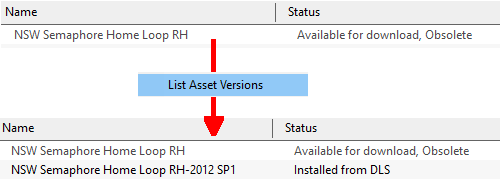
The Unknown location label can appear if a later version of an asset has been uploaded to the DLS but the original version was not or had been removed for some reason, as shown in the example below.
 |
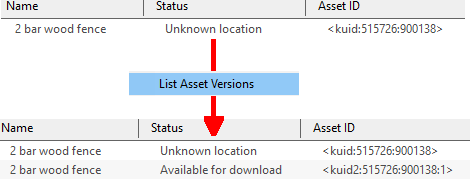
If the asset is simply labelled as Unknown location then try the following:-
- right mouse click on the asset
- select List Asset Versions
You may find a later version is Available for download
 |
Incompatible
|
|
Incompatible
The asset is designed for a more recent version of Trainz than you are currently using. |
For example: TRS19 and Trainz Plus (SP4) will load Routes and Sessions with Trainz asset version builds up to and including 4.9. Routes and Session with build versions 5.0 and above will be labelled Incompatible and will need a later Trainz version (for example TRS19 SP5 for build 5.0) to be loaded.
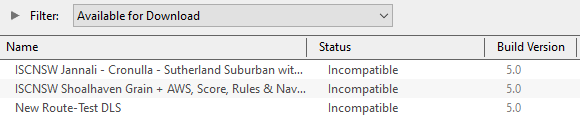
The Build Version column will identify the minimum Trainz build that the asset needs.
|
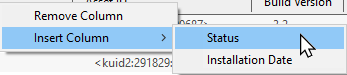
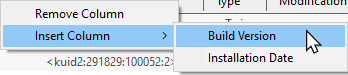
To display the Build Version column in Content Manager:-
- right mouse click on any column heading where the new column will be inserted
- select Insert Column and then
- select Build Version
|
| |
 |
| |
A list of all the Trainz Build Version Numbers with their corresponding Trainz Version Names and service pack numbers can be found at "Trainz-build"_number |
Not Installed
|
| Not installed, Payware (not active)
The asset is in a DLC package and must be installed using the Content Store option from the Trainz Launcher |
Unknown Asset
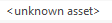
An <unknown asset> can appear when using the List Asset Versions or the List Dependencies commands on a selected asset.
The label "<unknown asset>" will be shown in the Name column and the Status column will be blank.
|
|
unknown asset
The asset cannot be found on your system or on the DLS. |
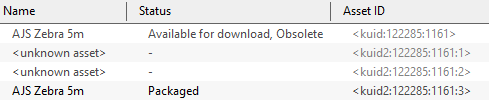
| Using the List Asset Versions command on a selected asset will often reveal one or more unknown assets. |
 |
In this example:-
- the first version of the asset (<kuid:122285:1161>) is also the original version and is available on the DLS but it is now Obsolete as a later version is already installed
- the fourth and latest version (<kuid2:122285:1161:3>) is labelled as Packaged and is installed in Content Manager. It is also available on the DLS
|
The two intermediate versions (:1 and :2) are unknown assets and are not available on the DLS. They may have been created but never uploaded. It is not unusual for asset creators to leave "gaps" in the Asset ID update numbers (the trailing ":digit" in the <kuid>) during the development process.
If the two unknown assets shown above had been uploaded to the DLS then they would have been made Obsolete by the latest version.
|
|
|
Apart from the example above, unknown assets are almost always dependencies of other assets that you have downloaded and installed. The installed assets would be labelled has having Missing dependencies. See the Missing Dependencies section below.
|
|
Note:
Having an <unknown asset> is not necessarily a problem. If an installed asset with an unknown asset as a dependency is not classified as Faulty then it can often be ignored. A Route, for example, can be labelled as having unknown assets but still function perfectly well.
|
|
The unknown asset may:-
- be from an independent (3rd party) web site
- have been made by the same creator as the dependant asset but was not uploaded to the DLS
- have been removed from the DLS for some reason (a rare event but it does happen)
- simply not exist, anywhere
Fixing this may not be easy. Possible solutions are:-
- There is a very long thread in the Trainz Forum where you can find posts looking for missing/unknown assets. See Missing kuids? Post them here
- You can try contacting the creator via email (their address may be in the config.txt file) or a PM (Personal Message) through the Forum
Neither is a guaranteed solution.
If the unknown asset is in a Route or a Session then a third option is to use the Delete Missing Assets command from the Tools menu in Surveyor, but make a backup copy of the Route or Session first.
Packaged and Payware
All new DLC packages downloaded and installed from the Content Store now contain ALL the required dependencies in the download package. This includes any assets that are on the DLS or on independent web sites that in the past would have to be downloaded separately from the DLS or elsewhere.
- If you already have the exact same version of an asset that is included in a package you are installing then you will NOT end up with two identical copies of that asset. Your installed copy of the asset will be re-labelled as Packaged.
- If the version included in the package is more recent than your current version then the newer version will be installed and the previous version will become Obsolete - this is the normal process for asset updates.
|
|
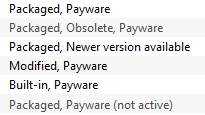
Some of the Status labels that can appear on Packaged and Payware assets are:-
|
|
|
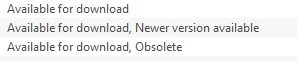
The Status label "Newer version available" means that a later version of that asset can be downloaded and installed |
|
The Status label "Obsolete" means that a later version of that asset is already installed in Content Manager |
|
An asset that was originally Packaged or Payware can be changed to Installed from DLS if an update is installed from the DLS. It is possible for a Payware asset to be replaced by an updated "Freeware" version, |
|
| Packaged |
The asset is included in a DLC package that you have installed. See Notes: below |
| Payware |
The asset is part of a payware package (usually from the DLC). Most DLC Payware can be modified for your personal use (the Status label "Modified" will be added) but cannot be uploaded to the DLS. Exactly which assets in a package are Payware and which are Packaged (freeware) is determined by the creator of the package. See Notes: below |
| Payware (not active) |
The asset is part of a payware package that is no longer active on your system. You may have uninstalled the package, disabled it, or it may have been installed for a free trial period which has now expired |
| Error creating thumbnail: /bin/bash: line 1: /usr/bin/convert: No such file or directory Error code: 127 |
Can you use Packaged assets in a Route or Session that you will upload to the DLS?
An asset will be labelled as Packaged if it is on the DLS and is also part of a DLC package that you have installed. The same asset can be in both locations and its status will be labelled according to how it was installed.
For example:-
 |
You have installed a DLC package that contains an asset NZ House 1-4 as shown. Even if you had this exact same asset from the DLS before you installed the DLC package, it will now be labelled as Packaged in your Content Manager. |
You then use this asset in a Route that you have uploaded to the DLS. Anyone who downloads and installs your DLS Route, and who does not already have the asset or the same DLC package installed, will have NZ House 1-4 downloaded and installed from the DLS by their Content Manager as normally happens with all DLS dependencies during the Route installation process.
When they look at the asset in Content Manager they will see:-

If they later install the same DLC package, or another that contains the same asset, its status will change to Packaged.
So the answer to the question is Yes.
|
Missing Dependencies
This is a label to be avoided.
|
|
Missing dependencies
The asset relies on the presence of other assets (dependencies) that must be installed on your system and at least one of those assets has not been installed. |
| The first thing to check is to see if the missing asset or assets can be identified. |
- Right mouse click on the asset
- select the command List Dependencies
All the assets that are required by this asset will be identified.
|
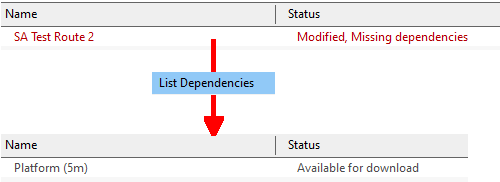 |
In this case, the Missing dependency is shown as Available for download so it is on the DLS and can be installed to fix the problem. If there are several assets that are listed as Available for download, select and download them all.
If the Missing dependency is an <unknown asset> then it can be a much harder problem to solve. See the section Unknown Asset above for possible remedies.
|
|
This situation shown in the example above can occur if you have:-
- deleted the asset without realising that it is needed in other assets, such as a Route or a Session, or
- used the Import command to install the asset from a .cdp file or a content folder - Content Manager will not search for and install missing dependencies when you import an asset.
- If you have imported an asset from a .cdp or content folder and see the Missing dependencies label then:-
- right mouse click on the asset or assets with the missing dependencies and select List Dependencies
- select all assets marked as Available for Download, right mouse click and select Download
|
To avoid the possibility of accidentally deleting an asset that is a dependency of other assets:-
- right mouse click on the asset to be deleted
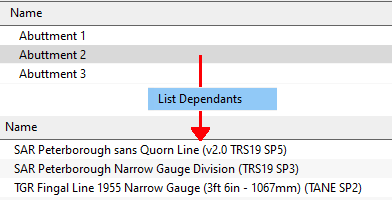
- select the command List Dependants
This will give a list of all other assets that use the selected asset. |
|
|
|
Trainz Wiki
 |
More Tutorials and Guides to Using Trainz
|
This page was created by Trainz user pware in January 2022 and was last updated as shown below.
|