How to Use Track Markers
The information in this Wiki Page applies to TANE, TRS19, Trainz Plus and TRS22.
|
|||||||||||
 |
 |
 |
What are Track Markers?
The Trainz AI relies heavily on Track Markers to direct trains around a layout. They are only visible in Surveyor Mode.
Track markers are the targets for:-
- Drive To Trackmark and Navigate To Trackmark driver commands
- Drive Via Trackmark and Navigate Via Trackmark driver commands
They can also be used as:-
- attachments for Navigation Points
- locations for Coupling operations
Route or Session?
 |
Track Markers can be placed in a Route layer or in a Session layer |
|

 |
Information on Route and Session layers can be found at:- |
|
 |
|
|
Adding a Track Marker
|

In Surveyor Classic (S10)
Setting the Track Marker
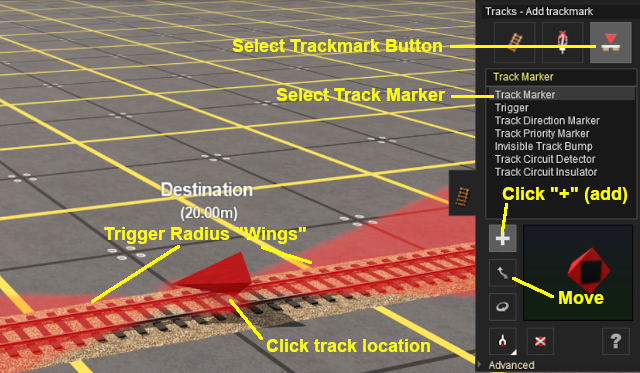 |
When placed, the properties window for the Track Marker will appear. |
||||||

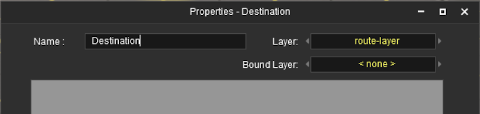
|
Set the Trigger Radius
At the bottom of the Track Tools flyout menu is an Advanced button. Click this button to open the Track Marker advanced tool set.
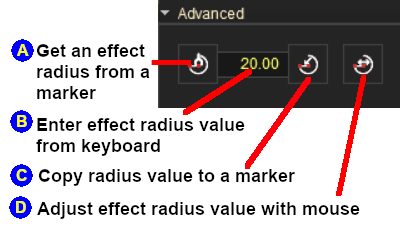 |
|
||||||


|
In Surveyor 2.0 (S20)
Setting the Track Marker
 In the Asset Palette either:-
|
OR |
|
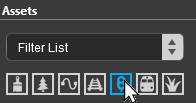
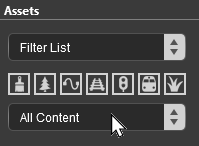
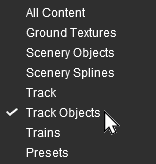
 To narrow down the filter list, type "mark" (UPPER/lower case does not matter) in the Search Text Box
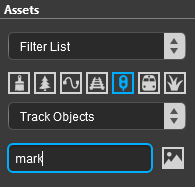 |
 This will list all the Track Objects containing the text "mark" in the filter list.
|
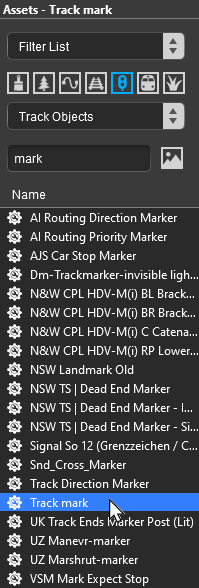

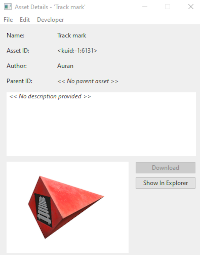
 Then select the Placement Tool from the Tools Palette and click on the track where you want to place the Track Mark.
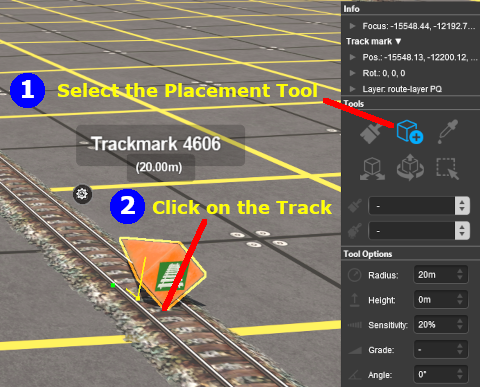
Set the Trigger Radius
|
|
|
Track Marker Operation
The most common use for Track Markers is as destinations for driver commands or as "way points" to direct a train to a destination via one or more intermediate places. They can also be used as the targets for Navigation Points and coupling operations.
Driver Navigation Commands
|
Information on adding driver commands can be found at:- |
|
Drive To Trackmark and Drive Via Trackmark commands will NOT force the AI to find a clear path to the Track Marker if the shortest path is blocked |
|
Navigate To Trackmark and Navigate Via Trackmark commands will force the AI to find a clear path to the Track Marker if the shortest path is blocked. The path chosen may not be prototypical |
| Error creating thumbnail: /bin/bash: line 1: /usr/bin/convert: No such file or directory Error code: 127 | Drive To Trackmark Instructs the AI driver to Drive, via the shortest available path, to the designated Track Marker. The AI will noticeably slow the train as it approaches the Track Marker. Switches ahead of the train that are not locked against the AI will be set to allow the train to proceed and reset after the train has cleared the switch. The AI driver will NOT attempt to find a way around blockages when calculating the shortest path to the Track Marker. All signals and speed signs along the route are obeyed. |
| Error creating thumbnail: /bin/bash: line 1: /usr/bin/convert: No such file or directory Error code: 127 | Drive Via Trackmark Instructs the AI driver to Drive, via the shortest available path, to and through the designated Track Marker. If there are no further navigation commands (e.g. Drive To, etc) then the AI will halt the train after passing the Track Marker. If there are further navigation commands then the AI will proceed through the Track Marker to the next Track Marker or Industry at normal speed. Switches ahead of the train that are not locked against the AI will be set to allow the train to proceed and reset after the train has cleared the switch. The AI driver will NOT attempt to find a way around blockages when calculating the shortest path to the Track Marker. All signals and speed signs along the route are obeyed. |
| Error creating thumbnail: /bin/bash: line 1: /usr/bin/convert: No such file or directory Error code: 127 | Navigate To Trackmark Instructs the AI driver to Drive, via the shortest available path, to the designated Track Marker. The AI will noticeably slow the train as it approaches the Track Marker. Switches ahead of the train that are not locked against the AI will be set to allow the train to proceed and reset after the train has cleared the switch. The AI driver will attempt to find a way around blockages when calculating the shortest path to the Track Marker. All signals and speed signs along the route are obeyed. |
| Error creating thumbnail: /bin/bash: line 1: /usr/bin/convert: No such file or directory Error code: 127 | Navigate Via Trackmark Instructs the AI driver to Drive, via the shortest available path, to and through the designated Track Marker. If there are no further navigation commands (e.g. Navigate To, etc) then the AI will halt the train after passing the Track Marker. If there are further navigation commands then the AI will proceed through the Track Marker to the next Track Marker or Industry at normal speed. Switches ahead of the train that are not locked against the AI will be set to allow the train to proceed and reset after the train has cleared the switch. The AI driver will attempt to find a way around blockages when calculating the shortest path to the Track Marker. All signals and speed signs along the route are obeyed. |
Navigation Points
Navigation Points can be attached to Track Markers to provide users with session instructions.
|
Information on navigation points can be found at:- |
Coupling Operations
An AI controlled train can be issued with a driver command to couple with the consist located at a specified Track Marker.
| Error creating thumbnail: /bin/bash: line 1: /usr/bin/convert: No such file or directory Error code: 127 | The AI driver moves the train (or just the locomotive if it is by itself) to couple with the wagon that is closest to a specified trackmark. More information on this command can be found at  Couple At Trackmark This command must be downloaded from the DLS and installed in Trainz |
|
Information on adding driver commands can be found at:- |
Related Links
|
|
|
Trainz Wiki
 |
More Tutorials and Guides to Using Trainz |
This page was created by Trainz user pware in September 2019 and was last updated as shown below.


