The information in this Wiki Page applies to Surveyor 2.0 (S20) as found in Trainz Plus.
This document is under development
|
|
| In Summary: |
 |
|
|
|
|
|
|
 |
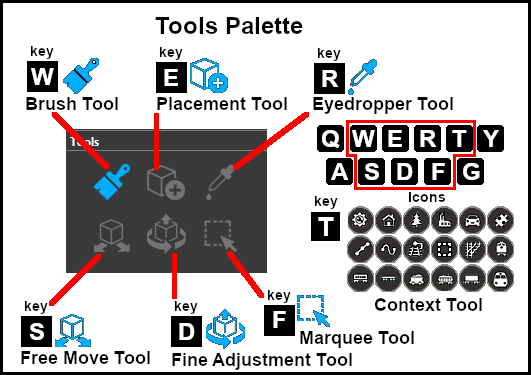
Keyboard Shortcut: W |
The Brush Tool is used for painting the landscape. It can:-
- adjust the height of the terrain
- add ground textures
- add Effect Layers
- add Scrapbook scenes
When selected, the Brush Tool will show two drop down menu lists.
|
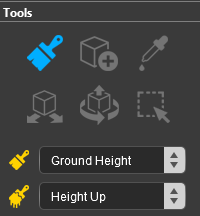 |
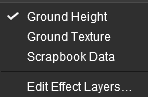
The first drop down menu will set the Brush Target, the type of brush. The Targets are:-
- Ground Height
- Ground Texture
- Scrapbook Data
- Edit Effect Layers
|
 |
Ground Height
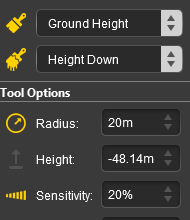
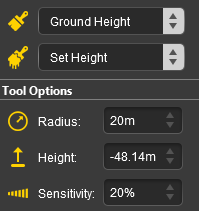
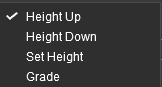
When this Target is selected, the second drop down box will display a selection of Ground Height tools. The choices are:-
- Height Up
- Height Down
- Set Height
- Grade
|
 |
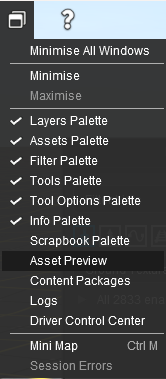
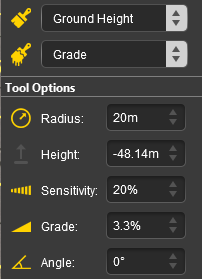
The Ground Height Tool selection will determine which of the standard Brush controls will be available for use in the Tools Options Palette. If this palette is not shown on the screen then refer to the Notes at the top of this document.
 |
Keyboard Shortcut: E |
The Placement Tool is used to add assets to the landscape.
 |
Keyboard Shortcut: R |
The Eyedropper Tool is used to identify objects that are in the landscape. The objects can be textures, effect layers, scenery, rolling stock, track and track equipment, and splines.
 |
Keyboard Shortcut: S |
The Free Move Tool is used to move objects in the landscape.
 |
Keyboard Shortcut: D |
The Fine Adjustment Tool is used to make fine adjustments (XYZ axis, rotation, tilt) to objects in the landscape.
 |
Keyboard Shortcut: F |
The Marquee Tool is used to select areas of the landscape.
Trainz Wiki
 |
More Tutorials and Guides to Using Trainz
|
This page was created by Trainz user pware in January 2023 and was last updated as shown below.