How to Rename a Picklist

From TrainzOnline
Revision as of 01:37, 23 April 2023 by Pware (talk | contribs)
Jump to navigationJump to search

The information in this Wiki Page applies to TANE, TRS19, Trainz Plus and TRS22. This guide will show you how to rename a Picklist.


      Next Down Bottom

The Renaming Process for TRS19 SP4, Trainz Plus SP4 and Later Versions (Including TRS22)

Steps:

From the Trainz Launcher
select  Manage Content 
in Content Manager open the Filter drop down box
Filter List
select Edit Filters and Picklists
This will open the Picklists
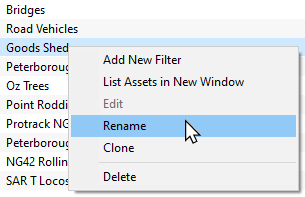
Right Click on the Picklist to be renamed and select Rename
Rename Picklist
enter the new name


  Top Next Up   Bottom

The Renaming Process for T:ANE and TRS19 SP3 and Earlier Versions

Main Points for T:ANE and TRS19 SP3:
Picklists cannot be renamed directly
The workaround method to rename Picklists is to:-
  1. Create a backup copy of the Picklist
  2. Delete the Picklist from Trainz
  3. Restore the Picklist from the backup and use the new name when saving it into Trainz
If you have not already created a backup copy of the Picklist, then follow the steps listed in the Trainz Wiki Page How to Backup a Picklist
Once you have created the backup copy, delete the Picklist from your Trainz Install

Steps:

From the Trainz Launcher

  • select  Manage Content 
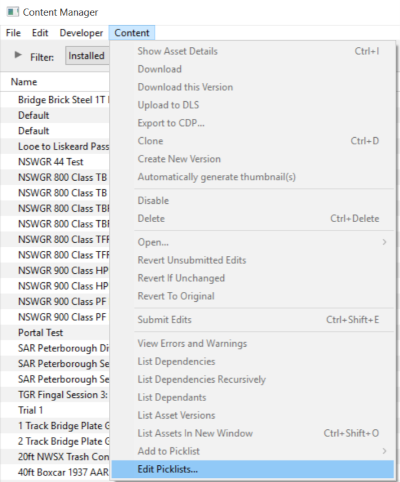
  • in Content Manager open the Content menu
  • select Edit Picklist


This will display all your current Picklists.

  • select the Picklist to be deleted
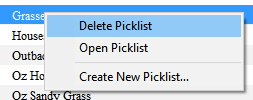
  • Right Click on the selected Picklist and select Delete Picklist


Follow the first 3 steps listed in the Trainz Wiki Page How to Restore a Picklist

For the 4th and final step, enter the new name for the Picklist.

Information and instructions on backing up and restoring Trainz assets can be found on the Trainz Wiki Page at:-


  Top Next Up    


Trainz Wiki

More Tutorials and Guides to Using Trainz


This page was created by Trainz user pware in January 2020 and was last updated as shown below.