| The information in this Wiki Page applies to TRS19, Trainz Plus and TRS22. This page is intended to provide information for understanding the different asset Status labels used by Content Manager. |
Content Manager Status
|
|
|
|
|
 |
 |
Start Content Manager by clicking Manage Content from the Trainz Launcher.
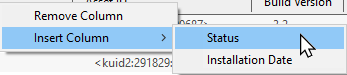
The Status column in the Content Manager display gives information about each listed assets location, availability, and its "currency" (installed, obsolete, modified, Payware, unknown, etc). |
 |
Notes:
It is important to remember that:-
| Error creating thumbnail: /bin/bash: line 1: /usr/bin/convert: No such file or directory Error code: 127 |
many assets on the Download Station (DLS) are available in more than one version, the original and at least one update. When an asset is updated by the release of a new version, the original, and any previously existing updates, will remain on the DLS for those who prefer to use them instead of the latest release. The status labels Newer version available and Obsolete are the result of updates. |
| Error creating thumbnail: /bin/bash: line 1: /usr/bin/convert: No such file or directory Error code: 127 |
an update will not always have the same name as the original or previous updates. It may also have a completely different Asset ID (or <kuid> code number) as shown in the examples below. |
| |
Example 1: the list below shows the same asset, the original and 3 updates, using 4 different names for the same <kuid> - the trailing :digit> is the update number.
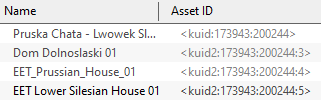
|
|
|
|
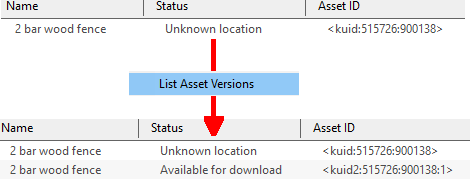
Example 2: the list below shows the same asset, the original and 2 updates, all with the same name but each has a different <kuid>. The fact that they are updates of the same asset can be shown with the List Asset Versions command.
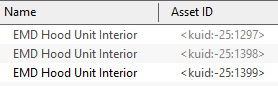
Assets with negative <kuid> can only be updated by issuing them with new <kuid> codes but this can also happen with any asset update.
|
|
|
|
| Error creating thumbnail: /bin/bash: line 1: /usr/bin/convert: No such file or directory Error code: 127 |
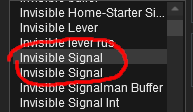
| it is not uncommon for two completely different assets to have identical names. If one is not an updated version of the other then both will appear in the Surveyor asset selection lists and if they are of the same type, e.g. scenery, road spline or track object, then they will appear under each other in the same selection list. |
 |
|
|
| The Status labels are described in the following sections. |
 |
Available for Download simply means that the asset is on the DLS and is not already installed on your system |
The Status labels that you may see would include:-
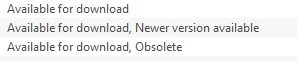
| Available for download |
This IS the latest version available on the DLS and it (this version) is not already installed. If you are looking to install a new asset or update an existing one to the latest version, then this is the one you would normally select |
| Available for download, Newer version available |
This is NOT the latest version available on the DLS and this particular version is not already installed. There is an update to this version available on the DLS |
| Available for download, Obsolete |
This is NOT the latest version available on the DLS and this particular version is not already installed. You have an updated version already installed but it may not be the latest version |
 |
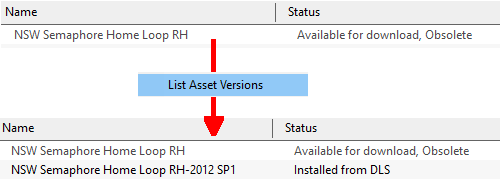
You can check to see what is the latest version of an asset that is listed as Newer version available or Obsolete. This will produce a list of all the previous versions (installed or not), currently installed (if any) and later versions of the selected asset. |
| |
|
| |
In the example shown above the latest version of the selected asset is already installed (Installed from DLS) and it does not have exactly the same name as the original. If it is the latest available version and is not already installed then it will be shown as Available for download without any additional labels. |
Create an "Available for Download" Filter
|
 |
 |
|
|
|
|
|
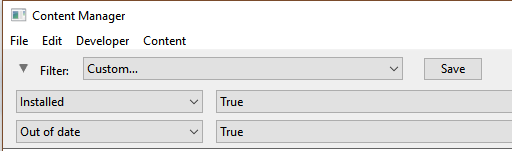
This modified search filter will show all the freeware assets including their different versions that are available on the Download Station (DLS).
| Steps: To create and save a filter:- |
 |
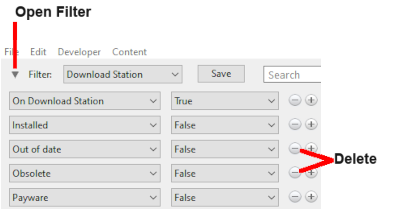
Select the Content Manager search filter Download Station |
 |
Open the filter (click the small triangle pointer on the left of the word Filter:) |
 |
Remove (click the (-) buttons on the extreme right) of the filter lines:-
 |
Out of date, and |
|
Obsolete |
|
| You can save this as a new filter |
 |
Click the Save button (which will appear as soon as you delete one of the filter lines) |
 |
Give the new filter a name (e.g. Available for Download) |
| Once saved you can reuse the filter whenever needed. |
|
 |
Any new filters that you create will appear in the drop down list of available filters. |
Create an "Updates Available" Filter
|
|
|
|
|
|
|
Installing the Latest or an Older Version of an Asset
|
|
|
|
|
|
|
|
To Install the Latest Version: You can select the version that is labelled Available for download with no other qualifier (Obsolete or Newer version available) or you can select ANY Available for download version (including those marked as Newer version available and Obsolete) and Content Manager will download and install only the latest version. |

In the figure above all the assets shown are different versions of the same original asset with the last entry the latest available version. |
| Steps: To install the latest version of an asset:- |
|
Select (Left Click on) any version of the asset, it does not matter if it is labelled Obsolete |
|
Right Click on the asset and select the option Download |
Content Manager will ignore all the listed versions to download and install only the latest available version, even if that version is not shown in your filtered list. The asset download will include all the available dependencies of the latest version. |
|
|
To Install a Specific Older Version: You can download and install an earlier version of an asset (one that also has the label Newer version available or Obsolete) if you don't want the latest version. |

In the figure above all the assets shown are different versions of the same original asset with the last entry the latest available version. |
| Steps: To |
|
Select (Left Click on) the specific version of the asset you want, it can be one labelled Obsolete which means that you already have a later version of the asset installed |
|
Right Click on the asset and select the option Download this Version |
| Content Manager will ignore any and all newer versions of the asset and will download and install only the selected version. The asset download will include all the available dependencies of the selected version. |
|
|
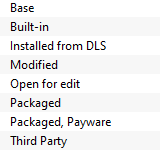
| This built-in search filter will show all the assets that are installed in Content Manager. Set the Content Manager search filter to Installed. The Status labels that you may see would be:- |
| For simplicity only the major labels are shown |
Base
Built-in |
The asset was installed when Trainz was installed |
| Installed from DLS |
The asset was installed from the DLS |
| Modified |
The asset is one you have created yourself, modified or cloned from another asset or have installed from somewhere other than the DLS (e.g. a 3rd party web site) |
| Packaged |
The asset is included in a DLC package that you have installed but it may also be found on the DLS. See the  Packaged and Payware section below for more information |
| Payware |
The asset is exclusive to a DLC package that you have installed. See the Packaged and Payware section below for more information |
| Third Party |
The installed asset may have been previously available on the DLS but is now unavailable |
|
|
You can ONLY delete assets that are labelled as Packaged or Payware using Uninstall in the Content Store, not from Content Manager.
|
|
|
Base, Built-in
|
|
|
|
|
|
|
You will often see the following labels on installed assets:-
|
|
Base and Built-in
The asset was installed when Trainz was installed on your system. When you installed your current version of Trainz, or do a reinstall, the Base and Built-in assets will be the only ones installed. All the other assets have to be manually added later from the DLS, DLC or other sources. |
 |
WARNING:
Base and Built-in assets are optimised for specific versions of Trainz. If you have updated your copy of Trainz to a newer version you cannot copy (via .cdp files for example) any Base and Built-in assets from the old version to the new without creating errors and major problems.
|
|
Installed from DLS
|
|
|
|
|
|
|
You will often see the following label on installed assets:-
|
|
Installed from DLS
You have downloaded and installed the asset from the DLS. You may have performed this manually by selecting and downloading the asset or it was downloaded and installed automatically as a dependency of another asset that you have manually selected and downloaded from the DLS, for example a route. |
Modified
|
|
|
|
|
|
|
You may often see the following label on installed assets:-
|
|
Modified
You have created, altered or cloned the asset, or not installed it directly from the DLS. |
This label will appear on all assets that you have:-
Open for Edit
|
|
|
|
|
|
|
|
|
Open for edit
The asset is currently in use by another process such as Surveyor, Driver or Content Manager. |
|
Notes: the Open for Edit label will appear on any asset that you have:-
|
|
|
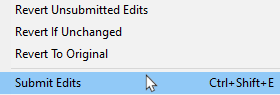
| Steps: To manually close open assets:- |
|
select (Left Click on) the open assets (individually or as a group) |
|
Right Click on an open asset
|
|
 |
|
|
Notes:
|
|
Packaged, Payware
|
|
|
|
|
|
|
If you have installed routes or other assets from the DLC then you see the following label or labels on installed assets:-
|
|
Packaged and Packaged, Payware
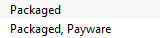
The asset has been installed as part of a DLC package. |
Both labels mean that the asset was included in a DLC package that you have downloaded and installed.
Third Party
|
|
|
|
|
|
|
You may occasionally see the following label on installed assets:-
|
|
Third Party
The assets availability is "questionable". It may be best to avoid using until its status is resolved. |
| This will appear on assets that:- |
| Error creating thumbnail: /bin/bash: line 1: /usr/bin/convert: No such file or directory Error code: 127 |
you have uploaded to the DLS but they have not yet been approved for distribution. Usually it takes 24 hours (sometimes more) before approval is given. After approval the Third Party label will be changed to Installed from DLS |
| Error creating thumbnail: /bin/bash: line 1: /usr/bin/convert: No such file or directory Error code: 127 |
have been removed from the DLS listing, for a variety of reasons:-
|
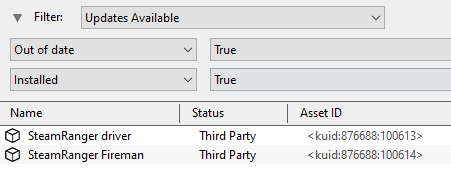
if the reason is repair work then they can still be downloaded and installed, as Third Party assets, and the repaired assets will (eventually) become available as updates that will be identified using the "Updates Available" filter as shown in the example below. |
|
in some circumstances a removed asset might still be downloaded as a dependency of another asset but not as an individual asset in its own right. It will receive the label Third Party once downloaded. |
|
if the reason was copyright violation then the assets will no longer be available on the DLS to anyone who had not already downloaded and installed them before they were removed. If you had downloaded them before their removal then they will appear as Third Party in your Content Manager. |
|
|
WARNING:
If a DLS asset was removed for copyright reasons and you have included it in an uploaded route as a Third Party asset, then anyone who installs your route will see it labelled as having Missing dependencies and the asset itself will be labelled as an <unknown asset>.
|
|
Disabled
|
|
|
|
|
|
|
You may occasionally see the following label on installed assets:-
|
|
Disabled
The asset has been manually Disabled (from the Content menu select Disable or Hide depending on your version of Trainz). The label will be added to an existing label on the asset (e.g. Packaged, Disabled) and the words will be "grey" not black. |
| Disabling assets will "hide" them from other assets, including Routes and Sessions, so they cannot be used. It is a useful technique for deleting troublesome assets from a Route or Session without actually deleting the assets themselves.
Payware assets that are Disabled will have Payware (not active) as their status label. |
| Set the Content Manager search filter to All Content and click the Status column heading (once or twice) to sort the very long list according to their Status labels. Scroll down the list and you may see the following Status labels:- |
Unknown Location
|
|
Unknown location
The asset is listed as being on the DLS but it is unavailable |
|
If the Status label Obsolete appears with Unknown location then a later version of that missing asset is already installed in Content Manager |
| The Unknown location label can sometimes appear if a later version of an asset has been uploaded to the DLS but the original version was not uploaded or had been removed for some reason, as shown in the example below. |
Incompatible
|
|
|
|
|
|
|
|
|
Incompatible
The asset is designed for a more recent version of Trainz than you are currently using. |
| For example: The SP4 versions of TRS19 and Trainz Plus will load Routes and Sessions with asset build numbers up to and including 4.9. Routes and Session with build numbers 5.0 and above will be labelled Incompatible and will need a later Trainz version (for example TRS19 SP5 for build 5.0 or TRS22/Trainz Plus for build 5.1) to be loaded.
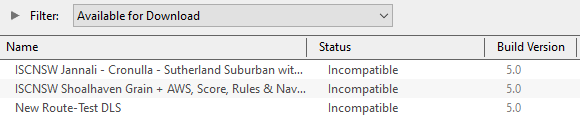
The Build Version column will identify the minimum Trainz build that the asset needs. A list of all the Trainz Build Version Numbers with their corresponding Trainz Version Names and service pack (SP) numbers can be found on the Trainz Wiki Page at  "Trainz-build"_number |
|
The build Trainz version of an asset can be shown in Content Manager
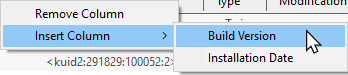
| Steps: To display the Build Version column in Content Manager:- |
|
Right Click on any column heading where the new column will be inserted |
|
select the option Insert Column and then |
|
select the option Build Version |
|
|
|
Not Installed/Not Active
|
|
|
|
|
|
|
|
|
Not installed, Payware (not active)
The asset is in a DLC package and must be installed using the Content Store option from the Trainz Launcher |
This status label can appear if you uninstall an original DLC package (e.g. a Route) that you have cloned to create a new modified version for your own use. The (not active) label will appear on your cloned copy. Most Payware assets can be cloned but conditions apply. See the section Modifying and Sharing Payware below.
The label can also appear on an asset that:-
|
Unknown Asset
|
|
|
|
|
|
|
|
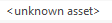
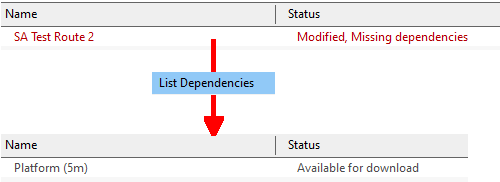
An <unknown asset> can appear when using the List Asset Versions or the List Dependencies commands on a selected asset. |
The label "<unknown asset>" will be shown in the Name column and the Status column will be blank.
|
|
unknown asset
The asset cannot be found on your system or on the DLS. |
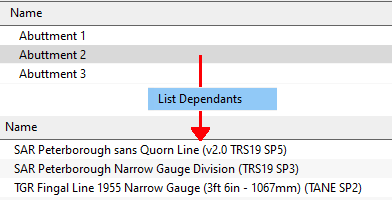
| Using the List Asset Versions command on a selected asset will often reveal one or more unknown assets. |
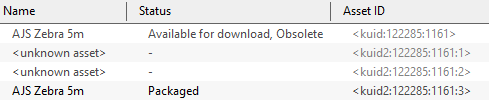 |
In this example:-
|
The two intermediate versions (:1 and :2) are unknown assets and are not available on the DLS. They may have been created but never uploaded. It is not unusual for asset creators to leave "gaps" in the Asset ID update numbers (the trailing ":digit" in the <kuid>) during the development process.
If the two unknown assets shown above had been uploaded to the DLS then they would have been made Obsolete by the latest version.
|
|
| Apart from the example above, unknown assets are almost always dependencies of other assets that you have downloaded and installed. The installed assets would be labelled has having Missing dependencies. See the Missing Dependencies section below. |
|
Note:
Having an <unknown asset> is not necessarily a problem. If an installed asset with an unknown asset as a dependency is not classified as Faulty then it can often be ignored. A Route, for example, can be labelled as having unknown assets but still function perfectly well.
|
|
|
If the unknown asset is in a Route or a Session then a third option is to use the Delete Missing Assets command from the Tools menu in Surveyor, but make a backup copy of the Route or Session first. |
|
Packaged assets are installed from DLC packages and may also be available on the DLS or elsewhere |
|
Payware assets are exclusive to DLC packages or other payware sites (see Notes: below) |
|
DLC packages can only be installed, updated and uninstalled using the Content Store from the Trainz Launcher |
|
Notes: Packaged and Payware Assets
|
| Error creating thumbnail: /bin/bash: line 1: /usr/bin/convert: No such file or directory Error code: 127 |
All new DLC packages downloaded and installed from the Content Store now contain ALL the required dependencies in the download package. This includes any assets that are on the DLS or on independent web sites that in the past would have to be downloaded separately from the DLS or elsewhere.
|
If you already have the exact same version of an asset that is included in a package you are installing then you will NOT end up with two identical copies of that asset. Your installed copy of the asset will be re-labelled as Packaged. |
|
Assets that are Packaged are compressed more than DLS assets. Image files will be in the .texture graphic format used by Built-in assets. This speeds up both the download process and the loading of the asset into a route or session. |
|
If the version included in the package is more recent than your current version then the newer version will be installed and the previous version will become Obsolete - this is the normal process for asset updates.
Problems can arise if the asset included in a DLC package has a higher version number (the :digit> at the end of a kuid2 number) than the version on the DLS. This usually occurs when the DLS version has not been updated to match the version included in the DLC. See the Tips: How to Check the DLS Status of Packaged Assets below for instructions on how to check if a Packaged asset is also on the DLS. |
|
| Error creating thumbnail: /bin/bash: line 1: /usr/bin/convert: No such file or directory Error code: 127 |
Packaged and Payware Assets for Trainz Versions Before TRS19 SP5
|
In DLC created before TRS19 SP5 the automated process that created the package (TCCP) would classify any assets included in the package it was building as Payware if it could not locate them on the DLS. These assets may have been freeware on third party sites or the specific version included in the package was not on the DLS. |
|
| Error creating thumbnail: /bin/bash: line 1: /usr/bin/convert: No such file or directory Error code: 127 |
Packaged and Payware Assets for Trainz Version TRS19 SP5 and Later (including Trainz Plus and TRS22)
|
DLC created for TRS19 SP5 and later is packaged by a different automated process (TCCP2.0) that only labels included assets as Payware if the package creator has identified them as payware. It is up to the content creator to decide what is payware and what is not payware. |
|
If a creator has included an asset in the DLC that is not payware and is not on the DLS then it will be labelled as Packaged, along with all those assets that are on the DLS. If you include that asset in a route that you upload to the DLS (or elsewhere) then users who download the route will have the asset labelled as Unknown. They will have to locate it themselves, as is the case with Unknown assets in DLS downloads. |
|
If you include Packaged assets in an upload to the DLS it is important to check that they are actually on the DLS in the correct version used in your upload. See the Tips: How to Check the DLS Status of Packaged Assets below for instructions on how to check if a Packaged asset is also on the DLS. |
|
|
|
Some of the Status labels that can appear on Packaged and Payware assets are:-
| Packaged |
The asset is included in a DLC package that you have installed. See Notes: below |
| Payware |
The asset is part of a payware package, usually from the DLC. Most DLC Payware can be modified but restrictions will apply. See the section Modifying and Sharing Payware below. Exactly which assets in a package are Payware and which are Packaged is decided by the creator of the package |
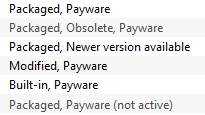
| Payware (not active) |
The asset is part of a payware package that is no longer active on your system. You may have uninstalled the package, disabled it, or it may have been installed for a free trial period which has now expired |
| Packaged, Payware |
The asset is Payware and was installed as part of a DLC package. Some Payware assets are encrypted and cannot be cloned or modified |
| Modified, Payware |
The asset is Payware that you have modified or cloned. See the section Modifying and Sharing Payware below |
|
|
Notes:
|
|
|
|
|
|
If a Payware asset has the label Newer version available and no update can be found on the DLS, then open the Content Store (from the Trainz Launcher) and select the Updates option to check for any updates to the installed DLC packages |
|
|
How to Check the DLS Status of Packaged Assets
 Set the Content Manager search filter to show the Packaged assets that you want to confirm are available on the DLS - for example you may want to use them in a route you will be uploading to the DLS.
 Select (Left Click on) the Packaged asset or assets to be confirmed as being on the DLS. Right Click on any of the selected assets and select List Assets in New Window from the drop down menu
 In the new search window, add the filter line On Download Station and set it to True
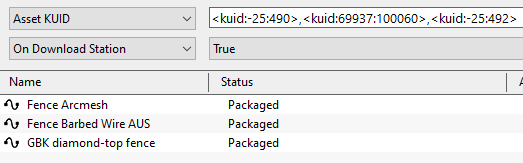 |
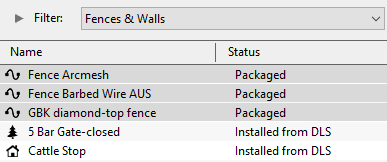
In the example shown on the left, all of the selected Packaged assets can also be found on the DLS.
|
 As a variation to the above, set the On Download Station filter to False. This will reveal any of the selected Packaged assets that are NOT on the DLS.
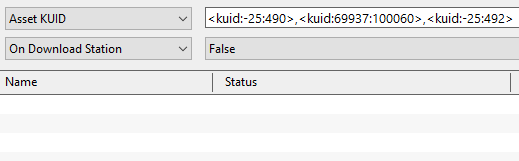 |
In the example shown on the left, none of the selected Packaged assets are missing from the DLS.
|
|
|
Modifying and Sharing Payware
|
|
|
|
|
|
|
|
Some DLC assets cannot be modified |
|
Most DLC routes (and sessions) can be modified but the original must always be present and active on your system |
|
Modified DLC routes can be uploaded and used by those who also have the original present and active on their system |
|
DLC routes, including modified ones, cannot be merged |
These restrictions are to protect the rights and intellectual property of the payware creators.
|
WARNING:
If you uninstall or disable the original payware asset then your cloned or modified copy will no longer work. The original DLC payware asset must be present and active in Content Manager for your copy to work.
|
|
| Error creating thumbnail: /bin/bash: line 1: /usr/bin/convert: No such file or directory Error code: 127 |
What happens to my modifications if the creator of the original payware route issues a new update?
If the update is issued by the normal method, as an increase in the build number (the trailing :digit> at the end of a kuid2 number) then your modifications should not be affected.
If, however, the content creator has released the update with a completely new <kuid> number then your modifications will most likely not work.
|
|
Using Packaged Assets in Routes Uploaded to the DLS
|
|
|
|
|
|
|
|
Packaged assets can be used in routes and sessions that you upload to the DLS provided the asset is also on the DLS or is already installed as Packaged by users who have downloaded your route or session |
| An asset will be labelled as Packaged if it part of a DLC package that you have installed. It may also be on the DLS or a 3rd party web site. The same asset can be in both a DLC package and on the DLS and its status will be labelled according to how it was installed. |
|
The most important first step is to confirm that the Packaged asset you have added to your route is also available on the DLS. See the Tips: How to Check the DLS Status of Packaged Assets above.
A Packaged asset that is NOT on the DLS will appear as an <unknown asset> or as Not installed, Payware (not active) if your route is downloaded and installed by other users. |
|
|
For example:-
 |
You have installed a DLC package that contains an asset NZ House 1-4 as shown. Even if you had this exact same asset from the DLS before you installed the DLC package, it will now be labelled as Packaged in your Content Manager. |
If, after confirming that this asset is on the DLS (see Tips: How to Check the DLS Status of Packaged Assets above), you then use this asset in a route that you have uploaded to the DLS. Anyone who downloads and installs your DLS route, and who does not already have the asset or the same DLC package installed, will have NZ House 1-4 downloaded and installed from the DLS by their Content Manager as normally happens with all DLS dependencies during the asset installation process.
When they look at the asset in Content Manager they will see:-

If they later install the same DLC package, or another that contains the same asset, its status will change to Packaged. |
|
|
Using Different Versions of the Same Asset
| Complications can occur if a Packaged asset has been updated to a newer version but the DLS version has not been updated to the same version. That is usually a decision made by the content creator. |
|
WARNING:
If an updated Packaged asset is a dependency of a route you have uploaded to the DLS then anyone who downloads and installs the route and does not already have the updated asset, either Packaged or Installed from the DLS, will see the route labelled as having "missing dependencies" and the asset itself labelled as an <unknown asset>.
This makes it very important that you check that every Packaged asset in your upload is also available in the same version on the DLS. |
|
|
Update: The good news is that this problem seems to has been solved in the latest Trainz release
|
|
In the examples shown below, an updated asset, <kuid2:33404:501440:4>, is installed from a DLC package in one copy of Trainz (shown on the left). An earlier version of the same asset also exists, <kuid2:33404:501440:3>, as Installed from DLS in a different copy of Trainz (shown on the right). The updated version has not been uploaded to the DLS so there is no Newer version available status label.
|
Computer 1
 |
|
Computer 2
 |
|
|
The updated asset is then used in a route and uploaded to the DLS. If that route is then installed in a copy of Trainz that does not have the packaged update, then:-
|
|
| Missing Dependencies can occur when an asset:- |
|
has been installed from a .cdp file (e.g. from a 3rd party site) without also installing other assets it requires |
|
has had assets that are dependencies deleted or disabled |
|
has been downloaded from the DLS but contains dependency assets that are not on the DLS or built-in |
This is a label to be avoided.
|
|
Missing dependencies
The asset relies on the presence of other assets (dependencies) that must be installed on your system and at least one of those assets has not been installed or has been disabled. |
This situation shown in the example above can occur if you have:-
|
To avoid accidentally deleting an asset that other assets are depending on:-
|
|
Trainz Wiki
 |
More Tutorials and Guides to Using Trainz
|
This page was created by Trainz user pware in January 2022 and was last updated as shown below.