The information in this Wiki Page applies to TANE, TRS19, Trainz Plus and TRS22.
|
|
 |
Session Rules are the "programming tools" for constructing interactive sessions |
|
Parent Rules are the decision makers amongst the Session Rules |
|
What Are Parent and Child Rules?
|
Rules that act as Parent Rules can have one or more sub-rules or Child Rules under them |
|
Rules are edited and managed by the Session Editor in Surveyor |
 |
More information on the Session Editor can be found on the Trainz Wiki Page at:-
|
|
Most Parent Rules are used as "decision makers" in Trainz Sessions. They decide if or when other rules, the Child Rules, will be executed. Some Parent Rules control how those Child Rules are executed. |
 |
Notes:
|
|
|
|
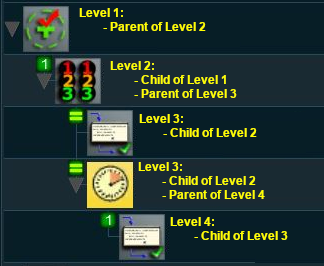 |
Session rules can be arranged in a hierarchical fashion, in a series of levels as shown in the example on the left. A Parent Rule can be used to group together a set of rules at a lower level in the hierarchy. The rules that are grouped together under a Parent Rule are the Child Rules.
Child Rules can also be Parent Rules that group together other rules at an even lower level. This creates multiple levels in the hierarchy.
The Parent Rule at the head of each level in the hierarchy acts as a switch that directs the Trainz session to either ignore (skip over) or obey (execute) the Child Rules under its control.
|
|
Rules that act as Child Rules are indented under a Parent Rule |
Parent/Child Rule Example
In the screenshot above, the
| Line 1 : Trigger Check Rule is a Parent Rule. It has rules indented below it which are its Child Rules:- |
- Line 2 : Simultaneous List Rule is indented under the Trigger Check Rule so it is a Child of that rule. It is also a Parent Rule and it has its own Child Rules indented below it:-
|
- Line 3 : Message Popup Rule is indented under the Simultaneous List Rule so it is a Child of that rule
|
- Line 4 : Wait Rule is indented under the Simultaneous List Rule so it is a Child of that rule. It is also a Parent Rule as it has rules indented below it
|
- Line 5 : Close Message Popup Rule is indented under the Wait Rule so it is a Child of that rule
|
|
| Sequence of Events |
 |
When the consist identified in the Trigger Check Rule, a Parent Rule, reaches the set trigger, the Trigger Event is activated and its Child Rules are executed |
 |
The Simultaneous List Rule, a Parent Rule, is then executed. It executes all its Child Rules immediately and simultaneously |
| Simultaneously... |
 |
The Message Popup Rule is executed |
|
The Wait Rule is executed. This is set to force a 20 second wait, then ... |
|
|
 |
The Close Message Popup Rule is executed. This closes the Message window created by the Message Popup Rule |
 |
Since the Close Message Popup Rule is the last child rule under the Wait Rule, when it has completed its task (closing the message popup) it will terminate the Wait Parent Rule |
 |
Since it is also the last child rule under the Simultaneous List Rule it will terminate that Parent Rule |
 |
Finally, since it is the last child rule under the Trigger Check Rule, it also terminates that Parent Rule |
Ordered Lists vs Simultaneous Lists
| The majority of sibling Child Rules, rules that are at the same indent level under a Parent Rule, will be executed in order (an Ordered List) or simultaneously (a Simultaneous List). |
Ordered Lists
|
Details for this rule can be found at  Ordered List Rule |
|
Ordered Lists are shown with numbered icons on each Child Rule which indicates the order in which they will be executed |
 |
Because some rules will wait for an event (such as a mouse click, a set time or a time period, a trigger, etc) before they are completed, it is possible for the Ordered List to hang indefinitely waiting for the event to occur. This will stop that particular Child Rule from being completed and any following Child Rules from being started. So, if possible, place Child Rules that are event dependent at the end of an ordered list. |
|
Setting the Options
The rule settings allow you to control how many times an Ordered List will run.
| Steps: To set the repeat options for an Ordered List:- |
|
select (Left Click on) the Ordered List in the Session Editor |
|
select (Left Click on) the Edit button at the bottom of the Session Editor to open the Ordered List properties window |
|
Select an Option Button:-
|
This process will repeat 1 time(s) |
|
This process will repeat forever |
|
|
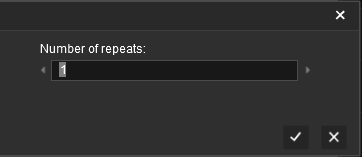
to change the number of repeats to any required number Left Click on the 1 and enter a new value. Click the  to accept the change |
|
to accept the new rule settings Left Click on the or the Save Changes button (depending on your version of Trainz) in the rule properties window |
|
|
|
Simultaneous Lists
|
Details for this rule can be found at Simultaneous List Rule |
|
Simultaneous Lists are shown with equality (=) icons on each Child Rule which indicates that they will all be executed at the same time |
Setting the Options
The rule settings allow you to control how a Simultaneous List will be terminated.
| Steps: To set the "completion" options for a Simultaneous List:- |
|
select (Left Click on) the Simultaneous List in the Session Editor |
|
select (Left Click on) the Edit button at the bottom of the Session Editor to open the Simultaneous List properties window |
| Depending on your version of Trainz 2 or 3 options are presented by cycling ("clicking") through the underlined text. |
|
Select an option:-
|
all child rules have reached a completed state |
|
all child rules have reached a 'was completed' state |
|
one of the child rules has completed |
|
|
to accept the new rule settings Left Click on the or the Save Changes button (depending on your version of Trainz) in the rule properties window |
|
|
|
|
Notes:
|
| Error creating thumbnail: /bin/bash: line 1: /usr/bin/convert: No such file or directory Error code: 127 |
the first option, "all child rules have reached a completed state", means that the Simultaneous List will wait until ALL child rules have been completed before terminating. Some child rules may wait for an event, such as a trigger or a set time, before they terminate |
| Error creating thumbnail: /bin/bash: line 1: /usr/bin/convert: No such file or directory Error code: 127 |
the second option, "all child rules have reached a 'was completed' state", is needed for the UDS feature in TRS19 Platinium and later versions that allows you to switch between Driver and Surveyor. If you make the switch back to Driver when some rules have been completed but others have not, then the completed child rules will not be restarted and the Simultaneous Rule will wait until all the child rules reach the was completed state before it terminates |
| Error creating thumbnail: /bin/bash: line 1: /usr/bin/convert: No such file or directory Error code: 127 |
the third option, "one of the child rules has completed" will terminate the Simultaneous Rule, and any child rules that have not yet completed, as soon as one child rule completes |
|
Other Types of Lists
Progressive Lists
|
Details for this rule can be found at Progressive List Rule |
|
Progressive Lists are shown with numbered icons on each Child Rule which indicates the progressive order in which they will be executed on each cycle of the list |
Setting the Options
The rule settings allow you to control what happens after the last child rule in a Progressive List has been completed.
| Steps: To set the "completion" options for a Progressive List:- |
|
select (Left Click on) the Progressive List in the Session Editor |
|
select (Left Click on) the Edit button at the bottom of the Session Editor to open the Progressive List properties window |
| You can select from 3 options by cycling ("clicking") through the underlined text. |
|
Select an option:-
|
... successive runs will do nothing - after the last child rule has been completed the Progressive Rule will terminate |
|
... last child .... will be used for all successive runs - after the last child rule has been completed the Progressive Rule will repeat that child rule on all further runs |
|
... the first child is chosen again - after the last child rule has been completed the Progressive Rule will start with the first child rule again and it will repeat the sequence |
|
|
to accept the new rule settings Left Click on the or the Save Changes button (depending on your version of Trainz) in the rule properties window |
|
|
|
Random Lists
|
Details for this rule can be found at Random List Rule |
|
Random Lists are shown with "dot" icons on each Child Rule which indicates that ONE of them will be selected at random |
Reset Lists
|
Details for this rule can be found at Reset List Rule |
|
Reset Lists are shown with equality (=) icons on each Child Rule which indicates that they will all be executed at the same time |
Trainz Wiki
 |
More Tutorials and Guides to Using Trainz
|
|
|
Related Links
|
|