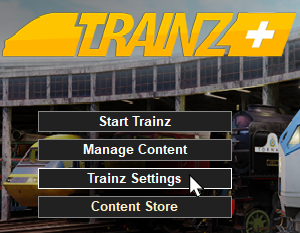
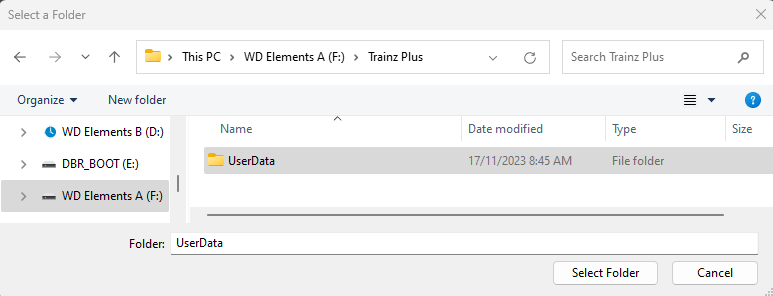
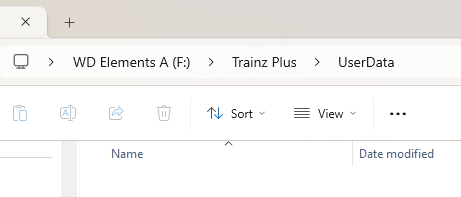
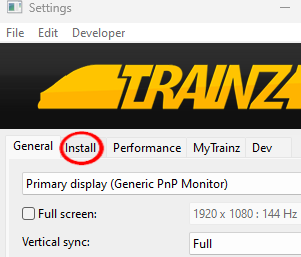
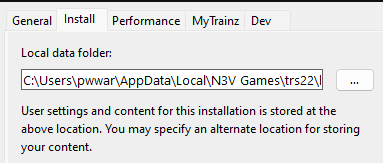
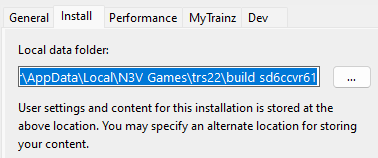
| The information in this Wiki Page applies to T:ANE, TRS19, TRS22 and Trainz Plus. It describes how to set up one (or more) alternative User Data Folders that can contain different sets of installed assets from a bare minimum Clean Install (with Built-in and Base assets only) to various specialist installs such as a DLS Install (with Built-in, Base and Downloaded from DLS assets only). |
|
|
 |
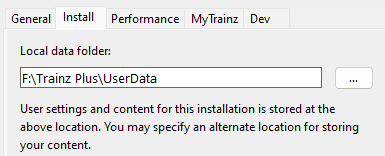
the User Data Folder, also known as the Local Data Folder, stores all your installed assets and packages, screenshots, script libraries, etc |
|
you can have multiple User Data Folders, each configured for different purposes (e.g. a current "full" install, a "minimal" install, a "DLS only" install, etc), and can switch between them when required |
|
What is a "Clean Install"
|
|
|
|
|
 |
 |
|
A Clean Install is a User Data Folder that contains only those assets that were originally installed with your version of Trainz |
|
There will be no assets that are Installed from DLS, Payware, Packaged or Modified but these can be added |
| A Clean Install will create a User Data Folder that is identical to the one that existed immediately after you first installed your current version of Trainz. |
|
|
|
|
the new folder can be created in a location (drive and folder tree) of your choosing |
|
it is strongly recommended that you record the location of your original User Data Folder and any alternative User Data Folders that you create |
|
You can switch Trainz between your seperate User Data Folders at any time |
|
Only those assets installed in your currently selected User Data Folder will be available for use in Trainz |
| Different User Data Folders can be created containing different sets of assets. Some examples:-
Once you have set up an alternative User Data Folder or Folders you can easily switch between them and the original at any time. |
Trainz Wiki
 |
More Tutorials and Guides to Using Trainz
|
|
 |
Related Links
|
|
This page was created by Trainz user pware in November 2023 and was last updated as shown below.