| The information in this Wiki Page applies to TRS19, Trainz Plus and TRS22 and describes the methods that can be used to restore assets deleted by Content Manager. |
|
|
 |
Notes:
|
|
|
 |
Deleted assets that were originally Installed from DLS can be easily restored by installing them again from the DLS |
 |
However, if for some reason you are unable to access the DLS and the deletion occurred during the last 7 days, then the assets can still be recovered from the automatic backups that Content Manager creates when assets are deleted. These backups are only held for 7 days. See  Restore Deleted Assets from the Backup for the details. |
|
|
Deleted assets that were installed from .cdp files can be easily restored by reinstalling them from the same .cdp files |
|
Payware and Packaged assets that were installed from a DLC package can be restored by reinstalling the same DLC Package |
|
If the identical Packaged asset is also on the DLS then it can be restored from there |
|
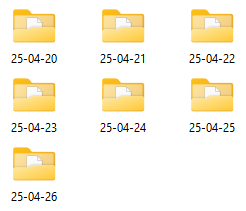
Assets deleted using Content Manager within the last 7 Days are stored in the Backup Folder for the date they were deleted |
|
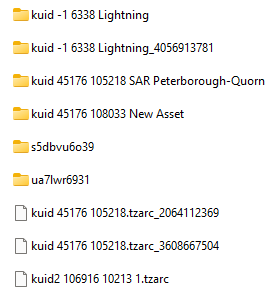
Deleted assets are stored using their <kuid> code(s). Knowing their <kuid> code(s) is very helpful but is not vital |
Locate the Backups Folder
|
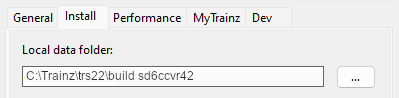
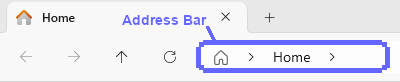
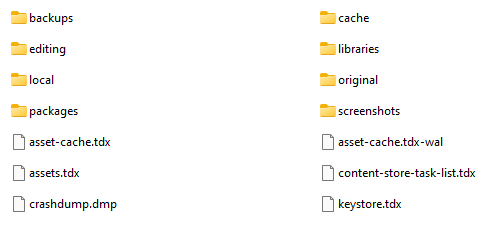
The Backups folder where deleted assets are held is a subfolder of your Local User Data Folder |
Locate the Asset Backup Files
|
The backups of deleted assets are kept in folders identified by the date (during the last 7 days) when they were deleted |
|
The backups are stored as .tzarc files and will need a DBR to restore them |
|
If an asset was deleted more than 7 days ago then it cannot be restored by this method |
|
| Steps: To Restore Assets from their Backup Files:- |
 |
In File Explorer Double Left Click on the Backups folder to open it up. Depending on how often you have used Surveyor during the last 7 days, and depending on your File Explorer display settings, you may see something like this...
|
 |
Double Left Click on the folder for the day when the asset or assets were deleted. This will display all the backup files created that day.
|
 |
Select ( Left Click ) on the asset backup file to be restored. If more than one file has to be restored then use Shift + Left Click or Ctrl + Left Click to select them all |
 |
Right Click on one of the selected files and select the option Cut to move the file(s) to your OS clipboard |
|
Restore the Asset Backups
|
The backup files of the deleted assets have to be moved to the Editing folder and a DBR perfomed |
This should restore the deleted assets.
To make sure open Content Manager and run the Today filter. If any of the restored assets are listed as Open for edit then submit them |
Trainz Wiki
 |
More Tutorials and Guides to Using Trainz
|
|
 |
Related Links
|
|
This page was created by Trainz user pware in April 2025 and was last updated as shown below.