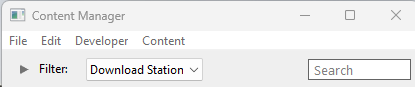
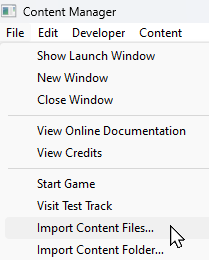
| The information in this Wiki Page applies to TRS19, Trainz Plus and TRS22 and describes the methods that can be used to restore assets deleted by Content Manager. |
|
|
 |
Notes:
|
|
|
 |
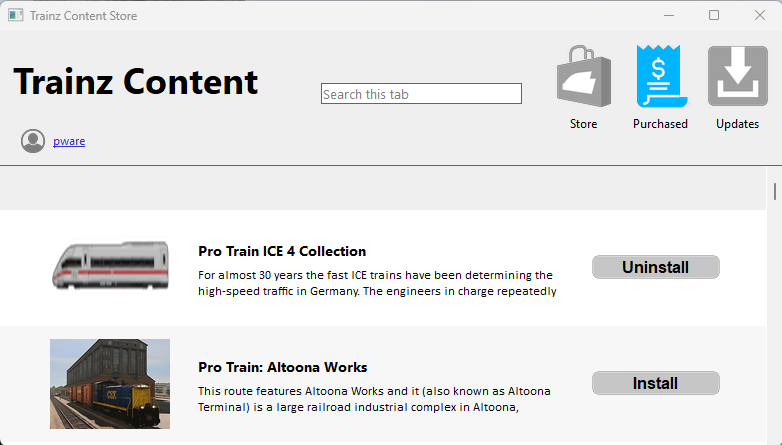
Deleted assets that were originally Installed from DLS can be easily restored by installing them again from the DLS |
 |
However, if for some reason you are unable to access the DLS and the deletion occurred during the last 7 days, then the assets can still be recovered from the automatic backups that Content Manager creates when assets are deleted. These backups are only held for 7 days. See  Restore Deleted Assets from the Backup for the details. |
|
|
Deleted assets that were installed from .cdp files can be easily restored by reinstalling them from the same .cdp files |
|
Payware and Packaged assets that were installed from a DLC package can be restored by reinstalling the same DLC Package |
|
If the identical Packaged asset is also on the DLS then it can be restored from there |
|
Assets deleted using Content Manager within the last 7 Days are stored in the Backup Folder for the date they were deleted |
|
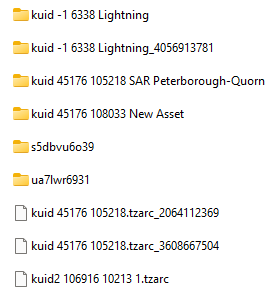
Deleted assets are stored using their <kuid> code(s). Knowing their <kuid> code(s) is very helpful but is not vital |
Locate the Backups Folder
|
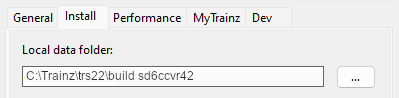
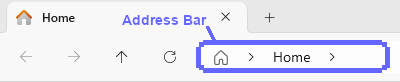
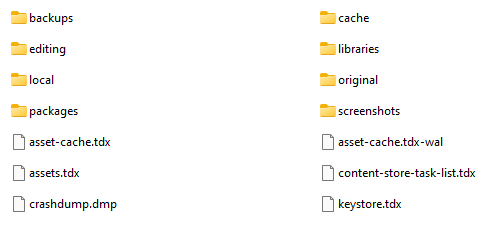
The Backups folder where deleted assets are held is a subfolder of your Local User Data Folder |
Locate the Asset Backup Files
|
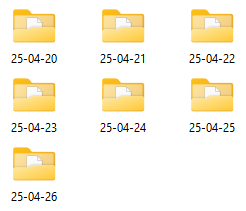
The backups of deleted assets are kept in folders identified by the date (during the last 7 days) when they were deleted |
|
The backups are stored as .tzarc files |
|
If an asset was deleted more than 7 days ago then it cannot be restored by this method |
|
| Steps: To Restore Assets from their Backup Files:- |
 |
In File Explorer Double Left Click on the Backups folder to open it up. Depending on how often you have used Surveyor during the last 7 days, and depending on your File Explorer display settings, you may see something like this...
|
 |
Double Left Click on the folder for the day when the asset or assets were deleted. This will display all the backup files created that day.
|
 |
Select ( Left Click ) on the asset backup file to be restored. If more than one file has to be restored then use Shift + Left Click or Ctrl + Left Click to select them all |
 |
Right Click on one of the selected files and select the option Copy to copy the file(s) to your OS clipboard. The backup can remain in the folder until the 7 days have passed when it will be deleted |
|
Restore the Asset Backups
|
The backup files of the deleted assets have to be moved to the Editing folder and a DBR perfomed |
Check the Restored Assets
|
Use Content Manager to check that the assets have been restored |
| Steps: To Check the Status of the Restored Assets:- |
|
Open Content Manager and select the Filter Open for Editing |
|
If any of the assets are listed then select and Submit them |
|
Select the Filter Installed and sort the list on the column Modification Date into descending date order ( Left Click once or twice on the column heading) |
|
The restored assets should appear at the top of the list |
|
Trainz Wiki
 |
More Tutorials and Guides to Using Trainz
|
|
 |
Related Links
|
|
This page was created by Trainz user pware in April 2025 and was last updated as shown below.