|
|
| Key Points:- |
 |
A Picklist is a user created list of selected assets (e.g. houses, track objects, fences, textures, rolling stock, etc) |
|
You can create multiple specialised picklists for quicker selection |
|
| Steps: |
 |
Open the Picklist Window:
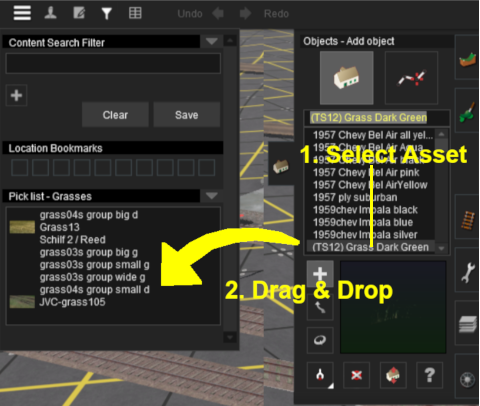
| From Surveyor Classic press Ctrl + Shift + F to open the Full Search Filter tool (Note: pressing Ctrl + F will only open the find named asset filter tool).
 |
If you already have one or more Picklists then the currently selected Picklist will be shown in the Picklist Window. An empty Picklist Window indicates that no Picklist has been created |
|
|
|
 |
Select a Picklist or Create a New Picklist:
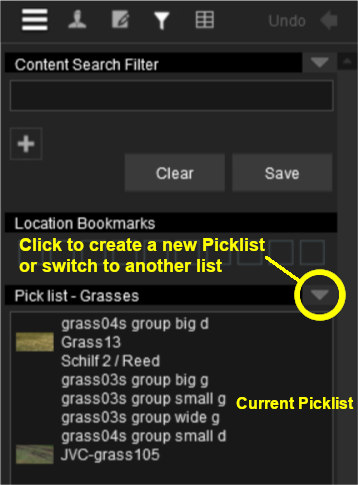 |
To switch to a different Picklist or to create a new one:-
 |
Left Click on the down arrowhead icon shown in the image on the left to open the Picklist Menu |
 |
 |
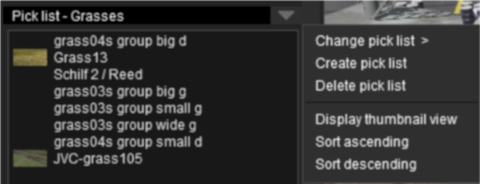
Left Click either:-
 |
Change pick list > to select a different list
Select an existing Picklist from the list shown, OR |
 |
Create pick list to create a new one
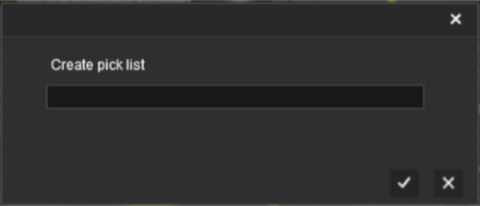
Enter a name for the new list then Left Click the  button.
|
 |
|
|
 |
Add Assets to the Picklist:
Options: Choose one of two methods:- |
|
|
| Steps: |
|
Select the Assets:
|
From the Trainz Launcher select Manage Content to open Content Manager |
|
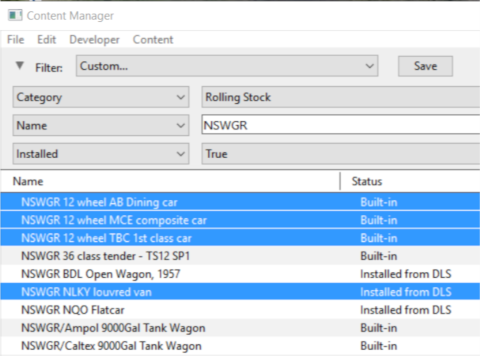
(optional step) in Content Manager select a filter or create a custom filter to show the assets you want to add to a Picklist |
 |
hold down either the Ctrl key OR the Shift key while you Left Click on each asset that is to be added to the Picklist
 |
|
Only assets that are currently installed on your system can be added to a Picklist. They can be built-in, base, payware, packaged or installed from the DLS |
|
|
|
|
|
Add the Assets to the Picklist:
|
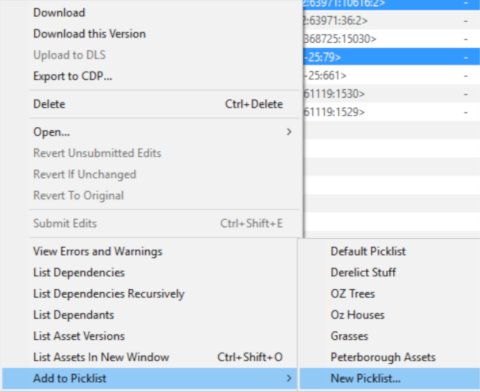
Right Click on any one of the highlighted assets |
|
Left Click the option Add to Picklist from the popup menu |
|
select either:-
|
Left Click on an existing Picklist name (if any are present) to add the assets to that Picklist, OR |
|
Left Click the option New Picklist to create a new list |
|
|
|
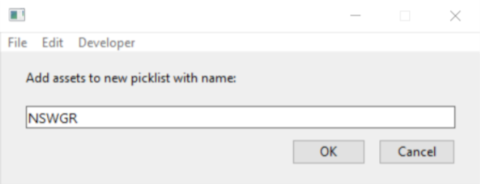
Enter Picklist Name (for New Picklist Option Only):
|
Trainz Wiki
 |
More Tutorials and Guides to Using Trainz
|
|
 |
Related Links
|
|
This page was created by Trainz user pware in January 2019 and was last updated as shown below.