How to Backup a Picklist
From TrainzOnline
|
|
 |
|

Access Your Current Picklists |
 |
 |
 |
| Steps: | ||||||||||||||||||||||||||||||||
 |
Open Content Manager and Your Picklists
|
|||||||||||||||||||||||||||||||

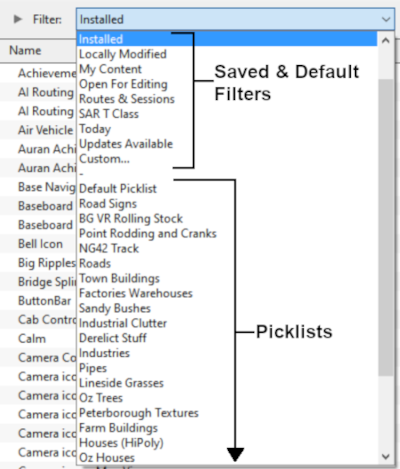


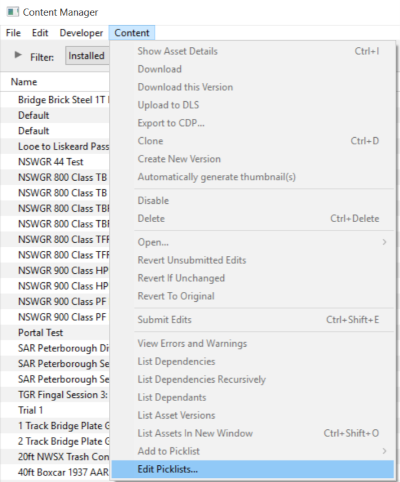


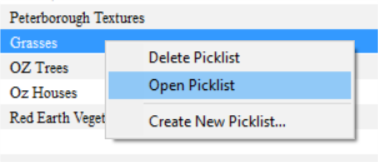
 |
Select the Picklist Contents:
|
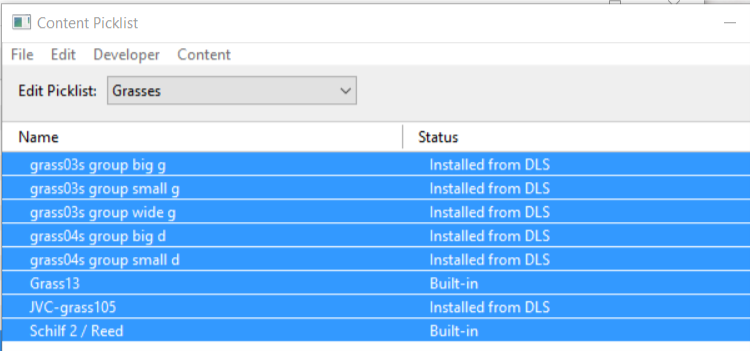
 |
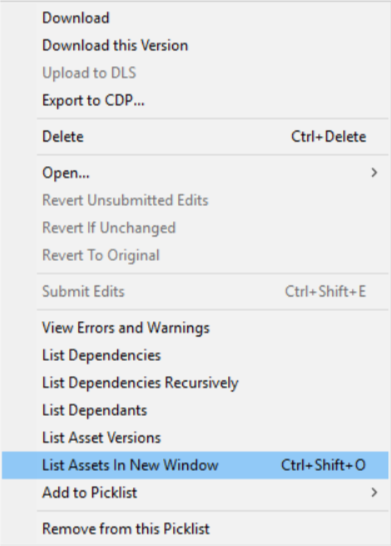
Copy the List to a New Window:
|
 |
Copy Assets in Picklist:
|
|||||||

Transfer the List to Notepad (or Any Text Editor) |
|
 |
|
|
| Steps: | |||||
|
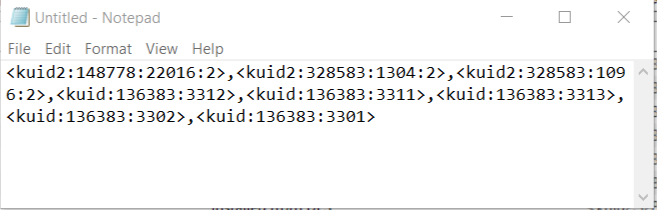
Open Notepad or Any Other Suitable Text Editor:
|
||||
|
Save the Picklist as a Text (.txt) File:
|
How to Restore a Picklist |
|
|
|
 |
Restoring a Picklist basically involves reversing the above two steps |
| Steps: | |||||||||
|
Open Your Text Editor:
|
||||||||
|
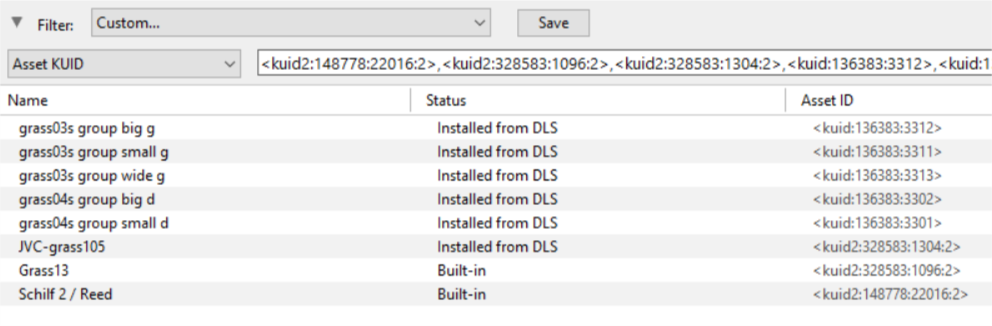
Open CM in the Destination Trainz and Create a New Filter:
|

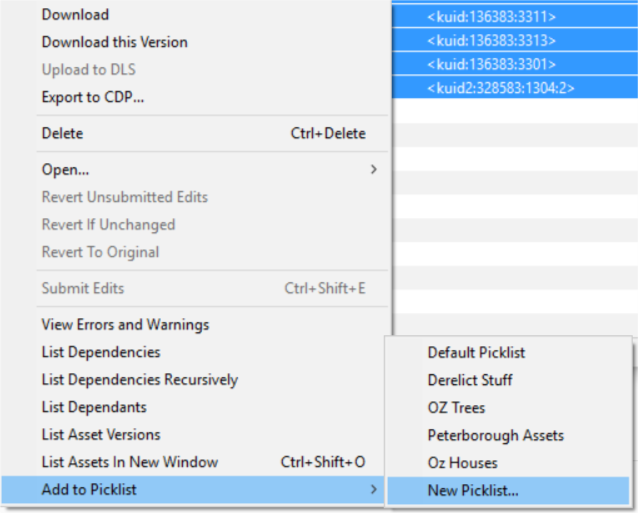
Create a New Picklist:
|
|||||||||
|
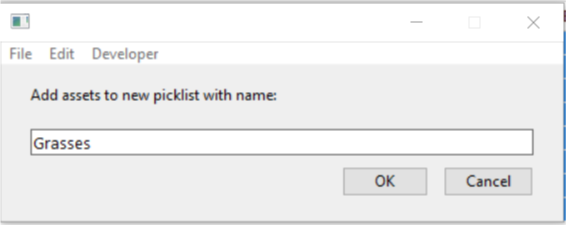
Name the Picklist:
|
|
|
Trainz Wiki
|
|

This page was created by Trainz user pware in January 2019 and was last updated as shown below.


