|
|
| Key Points:- |
 |
Missing Dependencies (and Unknown Assets and assets with Unknown Locations) are components of an installed asset, such as a route or a locomotive, that were not located during the install process |
|
There are several possible causes for this condition for an asset, from not being available anywhere on the Internet to being deleted or disabled in Content Manager |
|
Some Missing Dependencies can be deleted or replaced without affecting the operation of a route or a session |
|
| Missing Dependencies can occur when an asset:- |
 |
has been installed from a .cdp file (e.g. from a 3rd party web site) or from a content folder (e.g. on your HD) without also installing other assets it requires. |
| |
If an asset with Missing Dependencies has been installed using the Import Content Files... or Import Content Folder... options in the File menu of Content Manager, then the missing dependencies may be on the DLS. When these two import methods are used Content Manager does not check the DLS for any missing dependencies. |
| |
Possible Remedy: |
| |
|
 |
has been Disabled or Deleted in Content Manager. |
| |
If a dependency has been Disabled then it is still installed but it is blocked from being used. Removing the block will make it available for use. |
| |
Possible Remedy: |
| |
| Steps: To Identify and Restore any Disabled Dependencies in Content Manager:- |
 |
In Content Manager select (highlight) the assets that have been marked as having Missing Dependencies |
 |
Right Click on any one of the highlighted assets and select the option List Dependencies |
 |
Left Click on the Status column heading to sort the rows into category order (i.e. all Built-in assets together, all Installed for DLS assets together, all Packaged assets together, etc).
 |
 |
Scroll down through the entries in the Status column. Any dependencies that have been Disabled will appear at the end of each category. Select (highlight) the Disabled dependencies. |
 |
Open the Content menu and select the Enable option. |
|
|
 |
If the Status column is not present in the Content Manager display, then:-
| Steps: To Add the Status Column:- |
|
Right Click on the column heading where you want it to be inserted |
|
select Insert Column and then Status |
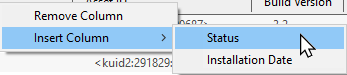 |
|
|
|
| |
If a dependency has been Deleted then it is no longer installed. It can be reinstalled if it is on the DLS. |
| |
Possible Remedy: |
| |
Steps: To Identify and Restore any Deleted Dependencies in Content Manager:-
 |
If a deleted dependency is not on the DLS then this method will not locate and download it |
|
|
|
|
|
 |
has been installed but contains dependencies that are not on the DLS or built-in. |
| |
Downloaded assets can sometimes contain dependencies that are not on the DLS or Built-in (ones that came installed with Trainz). This can lead to frustrations especially if the creator of the downloaded asset has not provided any information on where these missing dependencies can be found. Even when the location, such as a 3rd party web site, has been identified as the source that site may no longer exist. |
| |
If the missing dependencies are not on the DLS then fixing this may not be easy.
Possible Remedies: |
| |
|
|
|
|
Delete the Asset Containing the Missing Dependency: If the missing dependency is crucial to the asset, e.g. bogies on a locomotive, interactive industries in a route or there are simply too many missing dependencies, then deleting the asset (e.g. the locomotive or the route) may be the best and only practical option. |
|
Delete and Ignore the Missing Dependency: If the missing dependency is part of a route but is not crucial to the route, e.g. one type of tree in a forest, then it could be deleted from the route and ignored. The next option is also a possibility. |
|
Delete and Replace the Missing Dependency: If the missing dependency is part of a route or session then it might be possible to delete it and replace it with a similar asset. If the missing dependency is crucial to the operation of the route or its sessions then this could involve a lot of extra work. |
| Where the missing dependency is part of a route or a session, then it is important to discover where that dependency is located and how it is used before making a decision on which of these three options to use. |
|
|
Missing spline and track dependencies in a layout will be marked by dotted lines in Surveyor |
|
Missing ground texture dependencies will be shown as a bright false colour in Surveyor |
|
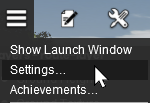
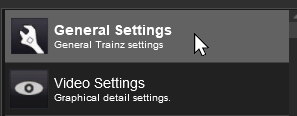
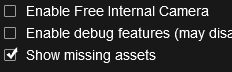
Missing scenery objects, including rolling stock and track objects (e.g. signals, switches), will NOT be visible in Surveyor unless a setting has been ticked ON |
Before deciding to delete any missing dependencies from a route or session, it is recommended that you identify, as far as possible, what those dependencies are and how they are used. This will provide clues to finding currently installed and suitable replacements.
|
Notes:
Replacing missing dependencies is not always simple. The Bulk Asset Update/Replace Tool in Surveyor Classic and the Bulk Replace Filtered Assets in Trainz Plus Surveyor 2.0 will not allow missing dependencies to be selected and replaced. Instead you must find each missing dependency and manually replace it. |
|
|
Missing Splines (including Track)
|
 |
 |
|
|
|
|
|
Missing Spline Dependencies will be shown in Surveyor as broken white parallel lines |
| In the following examples... |
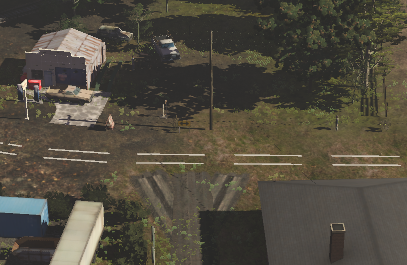 |
The missing spline asset is most likely a road. If deleted the broken white lines will be removed leaving a "space" in the landscape. Deleting it will not affect the operation of the route or its sessions, just their appearance.
It could be replaced by any suitable road spline. |
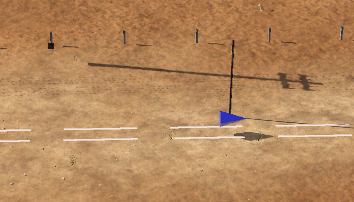 |
The missing spline asset is rail track - the presence of the track objects is a major clue. If deleted the broken white lines will be removed leaving a "space" in the landscape. Track objects on the track will also be deleted. Deleting it WILL affect the operation of the route and its sessions, as well as their appearance.
It could be replaced by any suitable rail track spline BUT you will also have to add replacements for all the track objects that were also deleted and probably need to edit Session Rules and Driver Commands as well. |
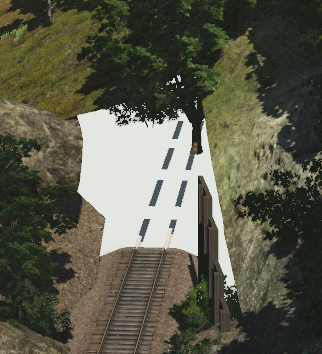 |
The missing spline asset is a tunnel with track. If deleted it will leave gaps (and possibly digholes) in the route and it WILL affect the operation of the route and its sessions, as well as their appearance.
It could be replaced by another suitable tunnel spline. |
Missing Ground Textures
|
|
|
|
|
|
|
|
Missing Ground Texture Dependencies will be shown as a false colour covering their location in the layout |
|
Zooming out will reveal any underlying ground texture |
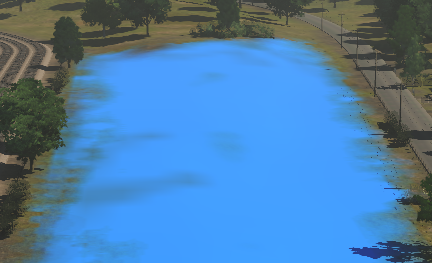 |
The false blue colour indicates that the missing asset is a ground texture. If deleted it will not affect the operation of the route and its sessions, just their appearance.
It could be replaced by any suitable ground texture or, if there is another ground texture already in place (Trainz does not delete an underlying texture when you paint over it with another texture), you could ignore the missing texture and leave the pre-existing texture in place.
|
If you zoom out the blue colour will vanish to reveal any ground texture that was originally painted at that location before the missing texture was added.
Zooming back in again will not return the blue colour to the scene. |
|
|
Missing Scenery Objects (incl Rolling Stock and Track Objects)
|
|
|
|
|
|
|
|
Missing Scenery Dependencies will be shown as orange 3D frames in the layout ONLY IF a control setting has been ticked. Otherwise there may be no indication that something is missing. |
| Locating these objects in a layout can give you useful clues as to what the missing dependencies are (e.g. trees/bushes, cars, buildings, signals, wagons, etc).
|
| Steps: To Locate Missing Scenery Objects in a Layout |
|
|
|
| With the Show missing assets check box set on, each scenery object that is missing will be shown as an Orange Wire Frame Box in Surveyor but will still be invisible in Driver. |
| In the following examples... |
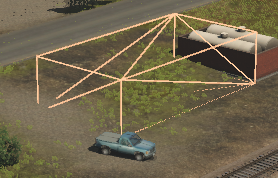 |
From its size and shape, the missing asset is most probably a building. If deleted it will leave a "space" in the route but it will not affect the operation of the route or its sessions that use this route, just their appearance.
It could be replaced by any suitable similar sized building asset. |
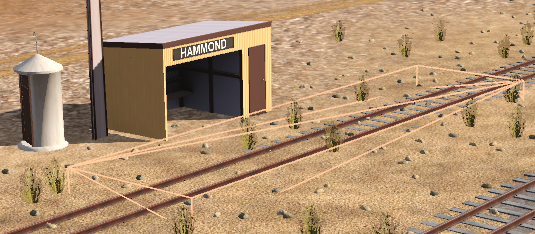 |
The missing asset is almost certainly an Industry Active Platform, possibly an invisible platform. The presence of a visible station building indicates that the missing asset is just the platform. If deleted it WILL affect the operation of sessions that use this route.
It could be replaced by a similar sized Industry Active platform asset but its properties and possibly the Session Rules and Driver Commands would have to be edited. |
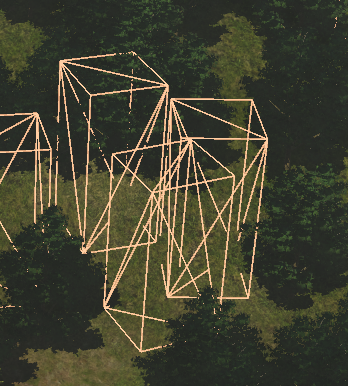 |
From its size, shape and location, the missing dependency (or dependencies - there may be several different ones) is most likely a tree. If deleted it will leave gaps in the forest but it will not affect the operation of the route or its sessions, just their appearance.
It could be replaced by any suitable similar sized tree asset. |
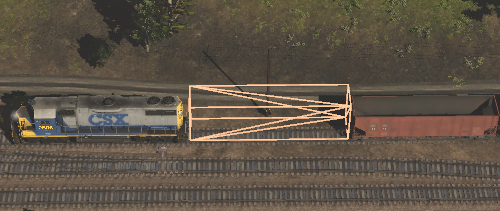 |
The missing asset is clearly rolling stock. If deleted it WILL affect the operation of any sessions that contain the missing dependency.
It could be replaced by an alternative rolling stock asset but Session Rules and Driver Commands (coupling and decoupling) may have to be edited. |
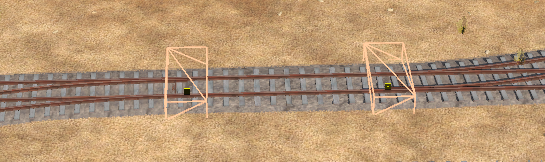 |
Because of its position on the track the missing asset is clearly a track object and, in this example, almost certainly a track switch. Deleted track objects COULD affect the operation of sessions using this route depending on the type of track object (track switches WILL have an effect while caution and whistle signs may not).
It could be replaced by an alternative track object asset but existing Session Rules and Driver Commands may have to be edited. |
|
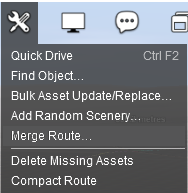
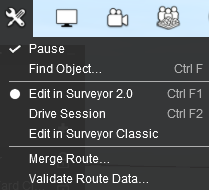
Missing dependencies throughout a route can be deleted by a command found in the Tools menu of Surveyor |
|
In TRS19
The command is Delete Missing Assets
This is also the command in TRS22 and Trainz Plus versions SP6 and earlier.
 |
|
|
|
In TRS22 and Trainz Plus update SP7 and later
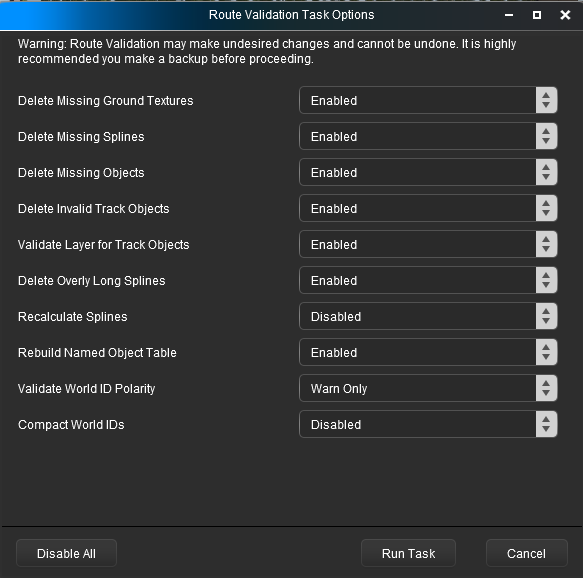
The command is in the Validate Route Data... option
 |
|
|
Delete Missing Assets
If this option is shown in the Surveyor Tools menu then Left Click on the option. ALL missing dependencies will be deleted from the route with no exceptions.
Validate Route Data...
If this option is shown in the Surveyor Tools menu then Left Click on the option to open up its dialogue window. |
Deleting Missing Dependencies Manually
|
|
|
|
|
|
|
|
If you only have a few identified Missing Dependencies in one area then it may be easier to delete them manually |
|
Deleting Missing Track Object Dependencies usually requires each one to be deleted manually |
| All Missing Dependencies can be deleted manually, one at a time. It will depend on how many you have and how widely distributed they are. |
Steps: To Remove Individual Missing Dependencies Manually:-
Using Surveyor 2.0 |
|
With the Error creating thumbnail: /bin/bash: line 1: /usr/bin/convert: No such file or directory Error code: 127 Free Move Tool Left Click on the orange box frame of a missing dependency. |
|
If a missing track object cannot be selected and deleted by this method then try the following steps:-
 |
Select the track segment containing the track object |
 |
Delete and then Replace the track segment |
|
|
|
Press the Delete key OR Left Click on the object's Context Icon and select the Delete option |
| Using Surveyor Classic |
|
Open the appropriate flyout (for Tracks press the F4 key, for Objects press the F3 key) |
|
Left Click on the  Delete Icon and then Left Click on the orange box frame of the missing object |
|
Trainz Wiki
 |
More Tutorials and Guides to Using Trainz
|
|
 |
Related Links
|
|
This page was created by Trainz user pware in October 2026 and was last updated as shown below.